
Booking Guide
This guide walks you through the complete booking process from start to finish. Follow these steps to successfully book an appointment with any business using the BOOKIN platform.
1. Business Landing Page
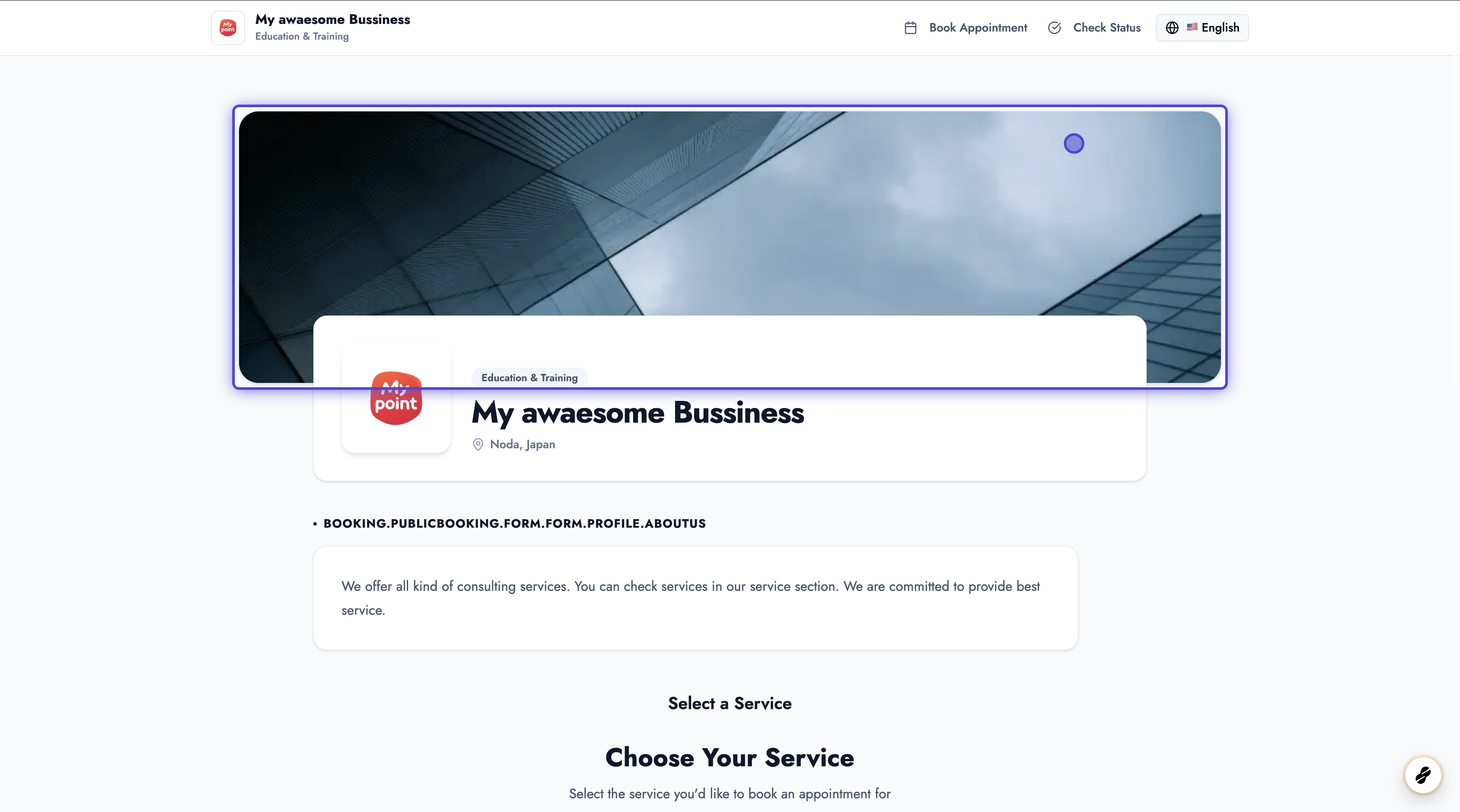
Section titled “1. Business Landing Page”Each business has a dedicated landing page where you can view their information and browse available services. You’ll see a list of all services offered by the business.
2. Browse Service Details
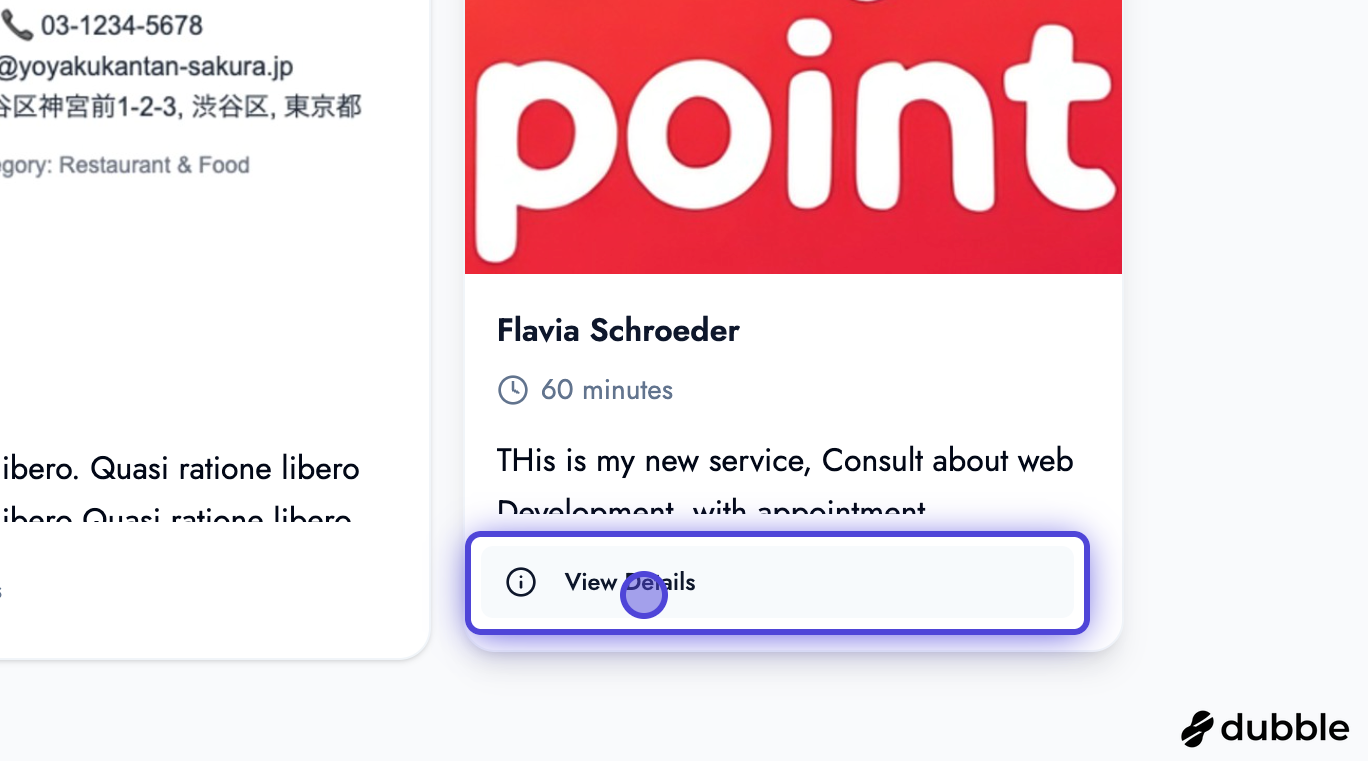
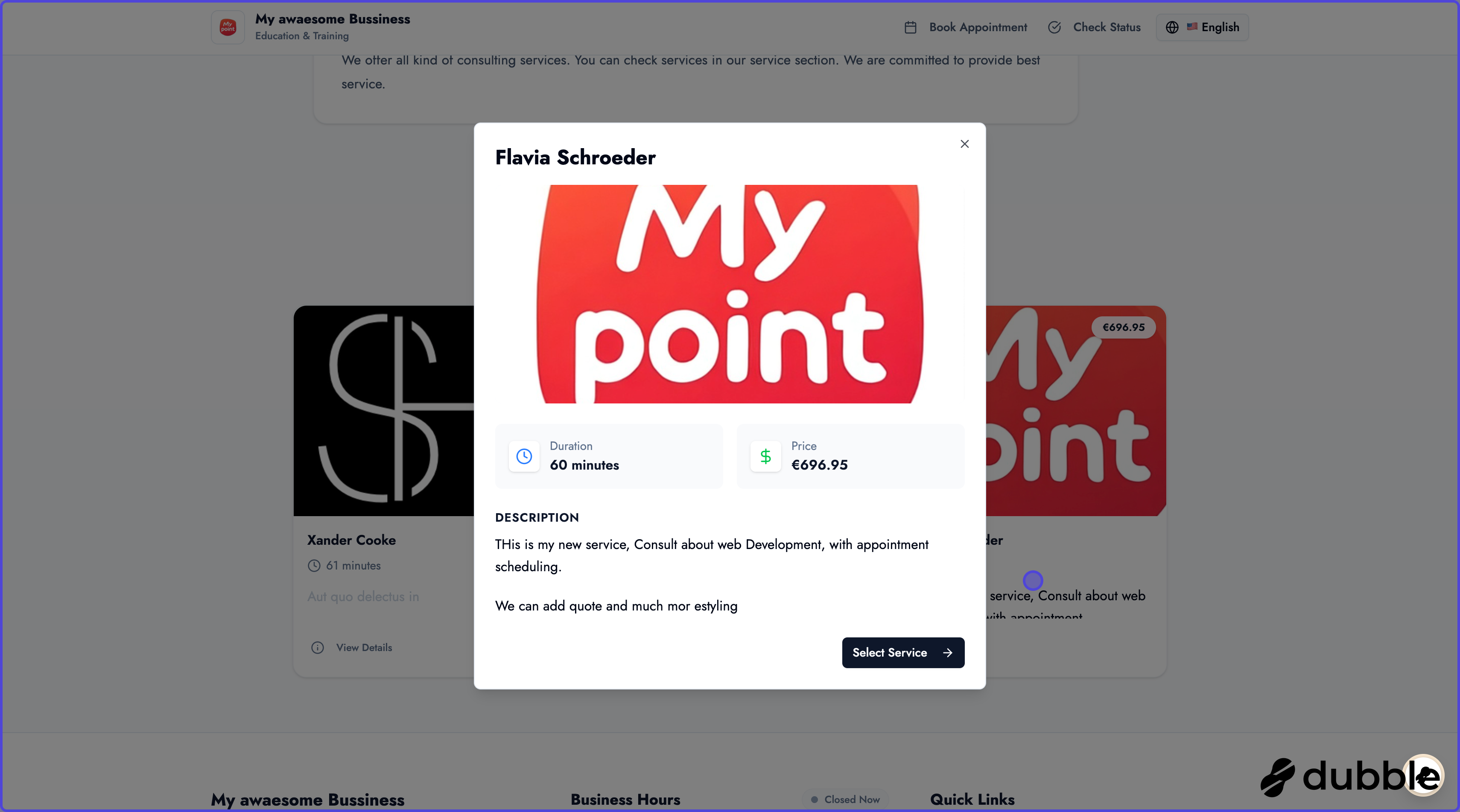
Section titled “2. Browse Service Details”Click on any service to view detailed information including descriptions, pricing, duration, and what’s included. This helps you choose the right service for your needs.
3. Service Information Screen
Section titled “3. Service Information Screen”The service detail screen provides comprehensive information about each service, including pricing, duration, special requirements, and any additional details you need to know before booking.
4. Select a Service
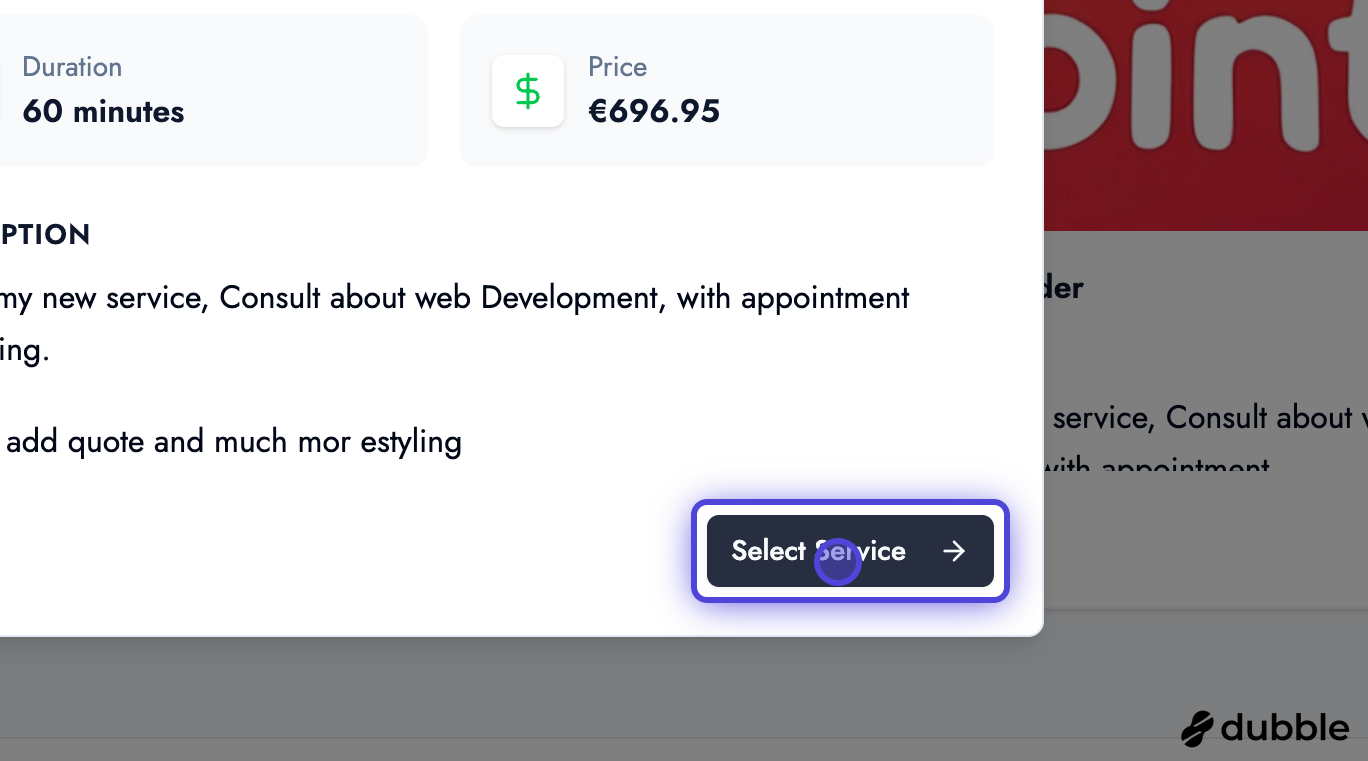
Section titled “4. Select a Service”You can select a service either from the detail page or directly from the service listing card. Simply click on the service you want to book to proceed.
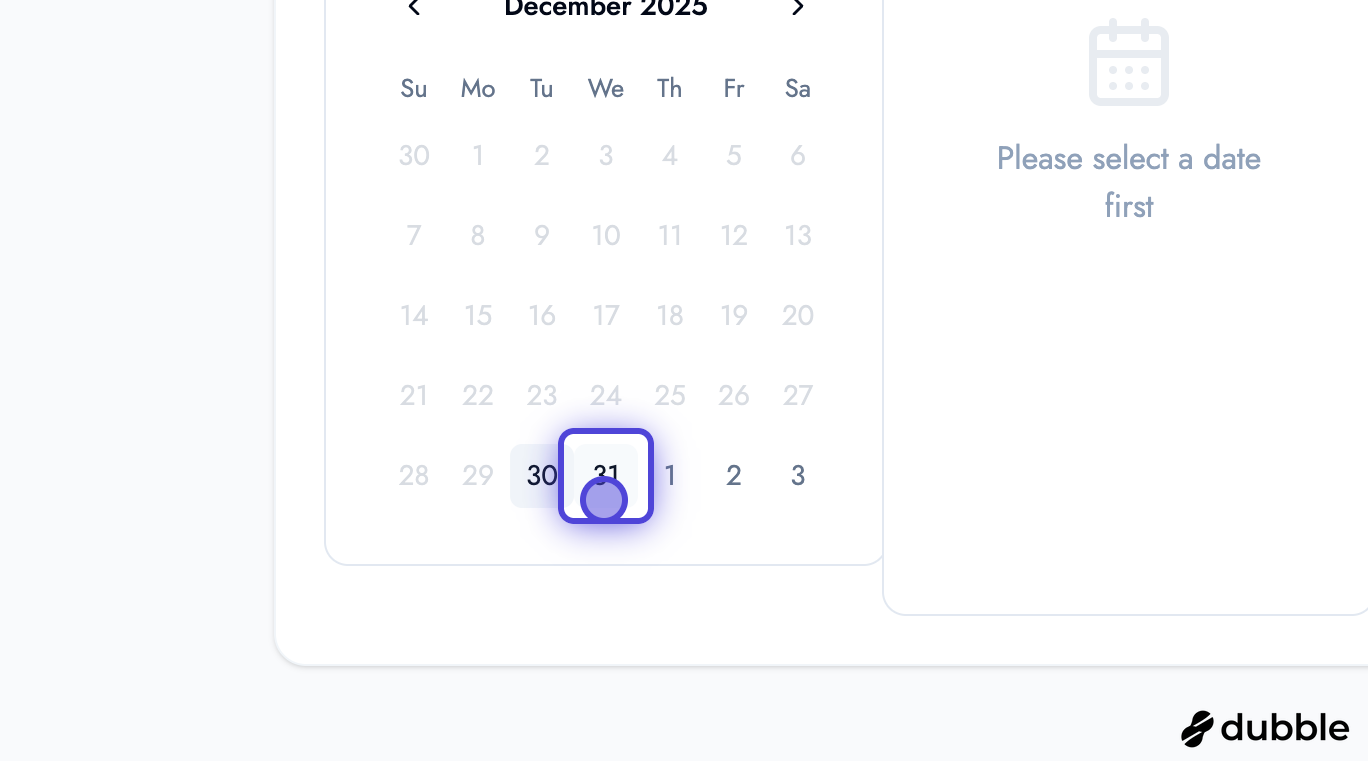
5. Select Date
Section titled “5. Select Date”After selecting a service, choose your preferred date from the calendar. Available dates are highlighted, making it easy to see when you can book.
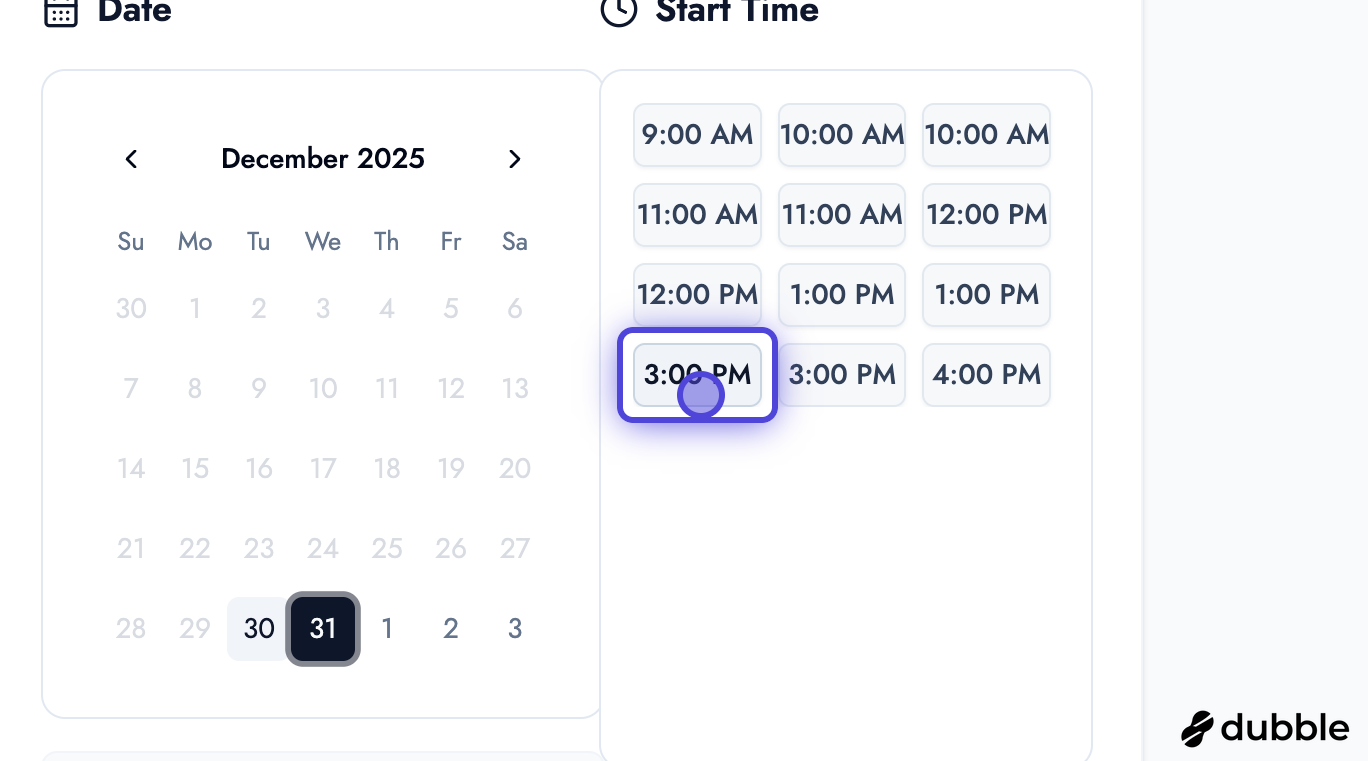
6. Select Time
Section titled “6. Select Time”Once you’ve selected a date, the system displays all available time slots for that day. Choose the time that works best for you.
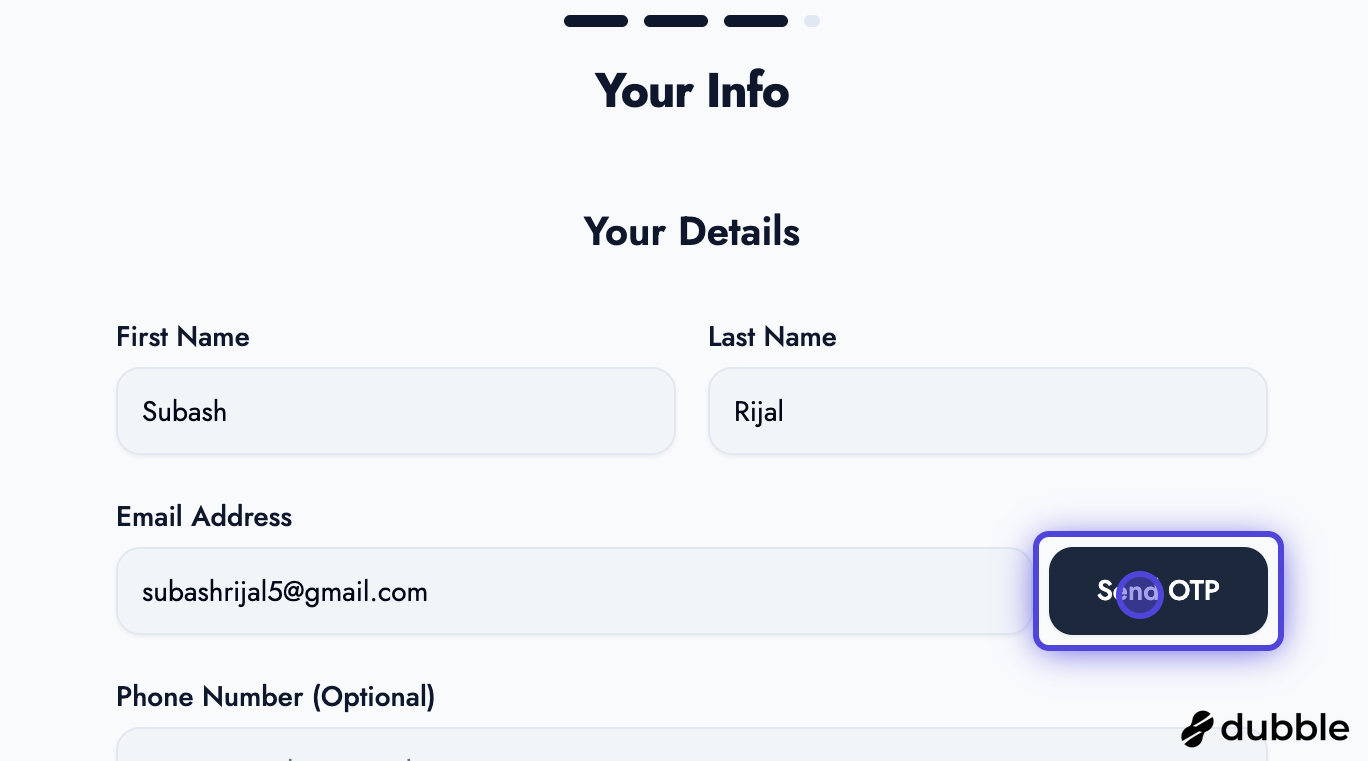
7. Enter Your Details
Section titled “7. Enter Your Details”Enter your personal information including your name and email address. Click “Send OTP” to verify your email. The system will send a one-time password (OTP) to your email to prevent fraudulent bookings.
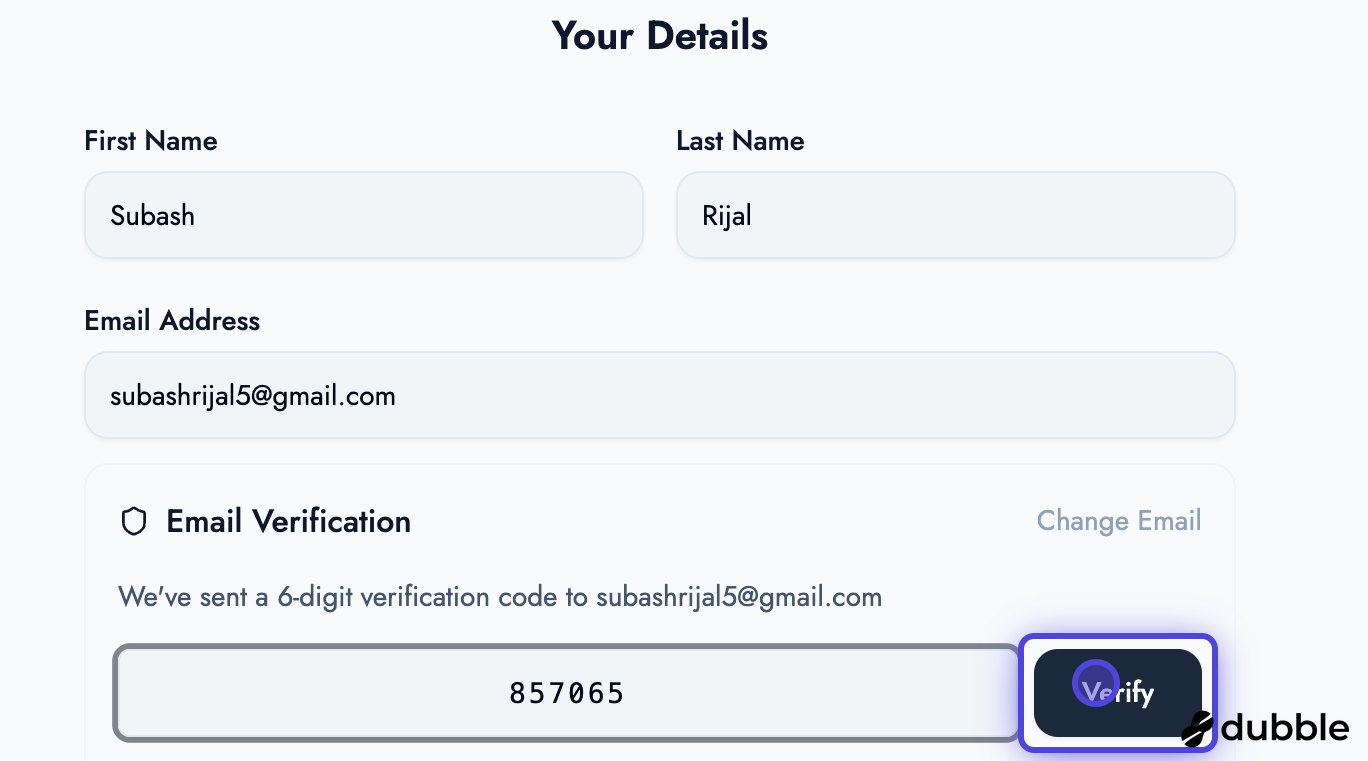
8. Verify Your Email
Section titled “8. Verify Your Email”Check your email inbox for the OTP code. Enter the code in the verification field and click “Verify” to confirm your email address.
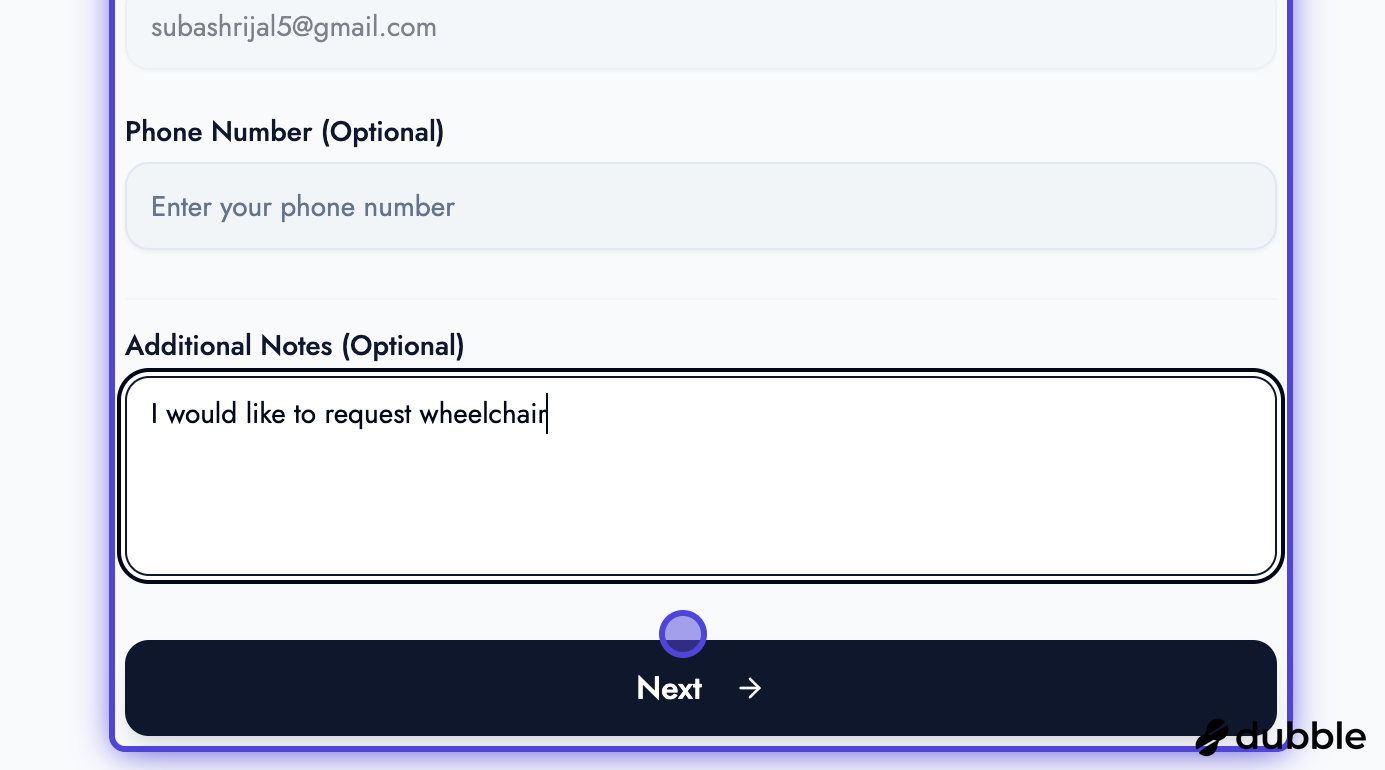
9. Add Contact Information and Notes
Section titled “9. Add Contact Information and Notes”Optionally provide your phone number and any additional notes or special requirements for your appointment. Click “Next” to continue to the confirmation screen.
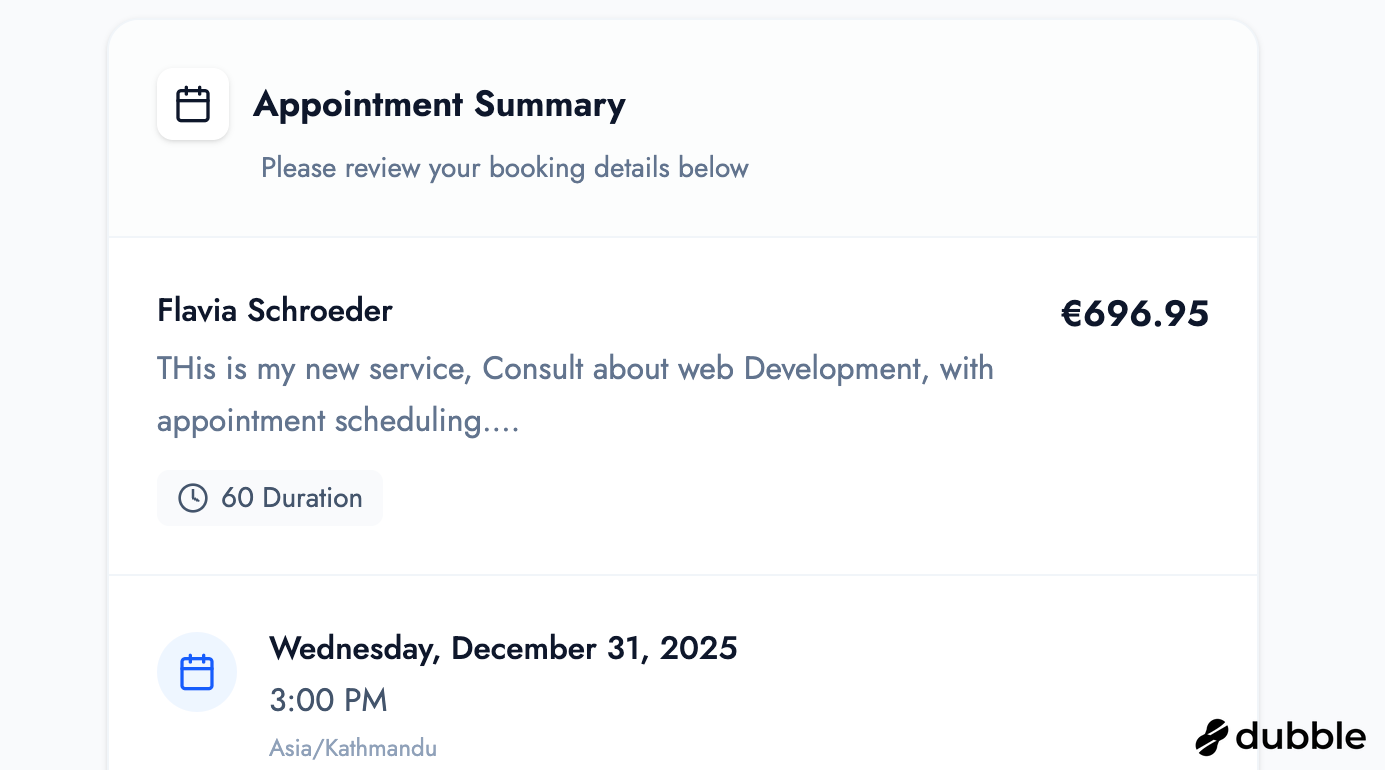
10. Review Your Booking
Section titled “10. Review Your Booking”Review all the details of your booking including the service, date, time, and your contact information. Make sure everything is correct before proceeding.
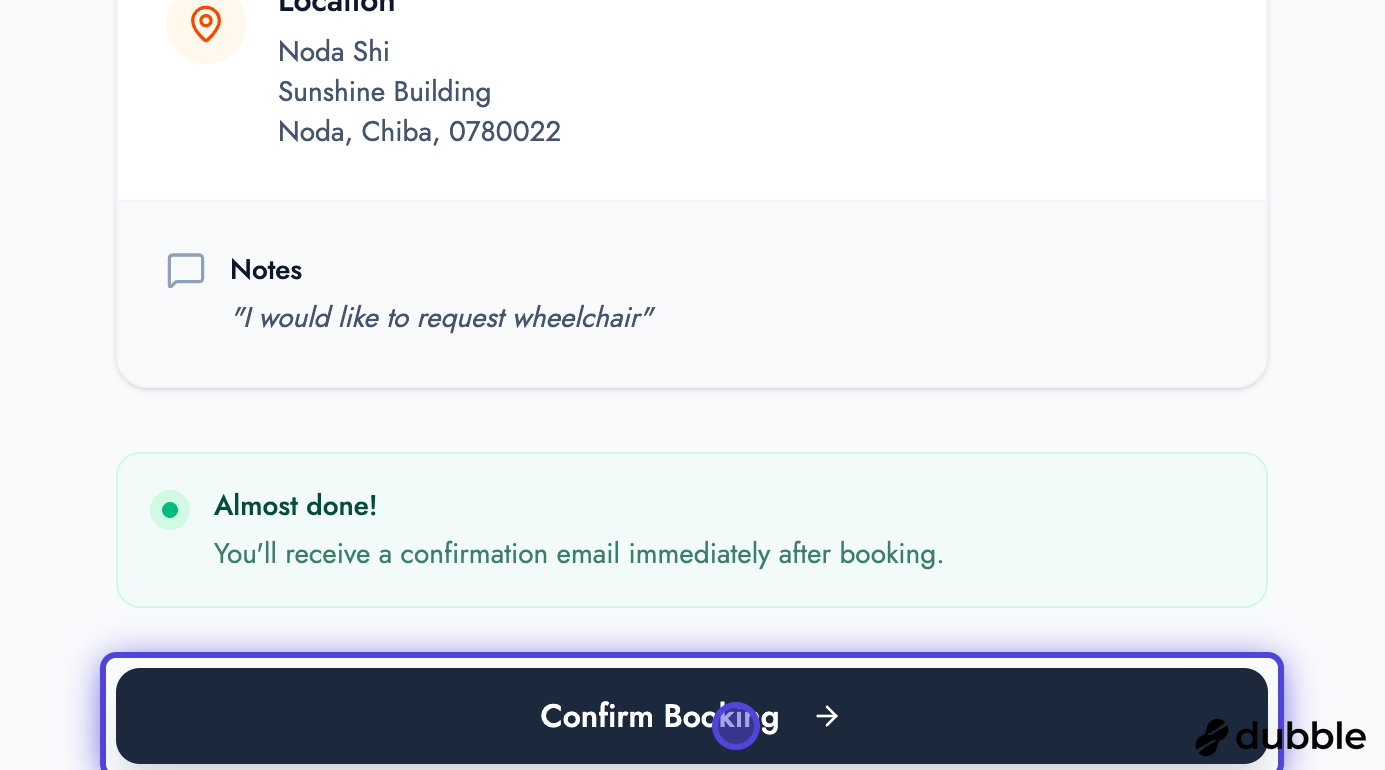
11. Confirm Your Booking
Section titled “11. Confirm Your Booking”After reviewing your details, click “Confirm Booking” to finalize your appointment. Your booking will be processed immediately.
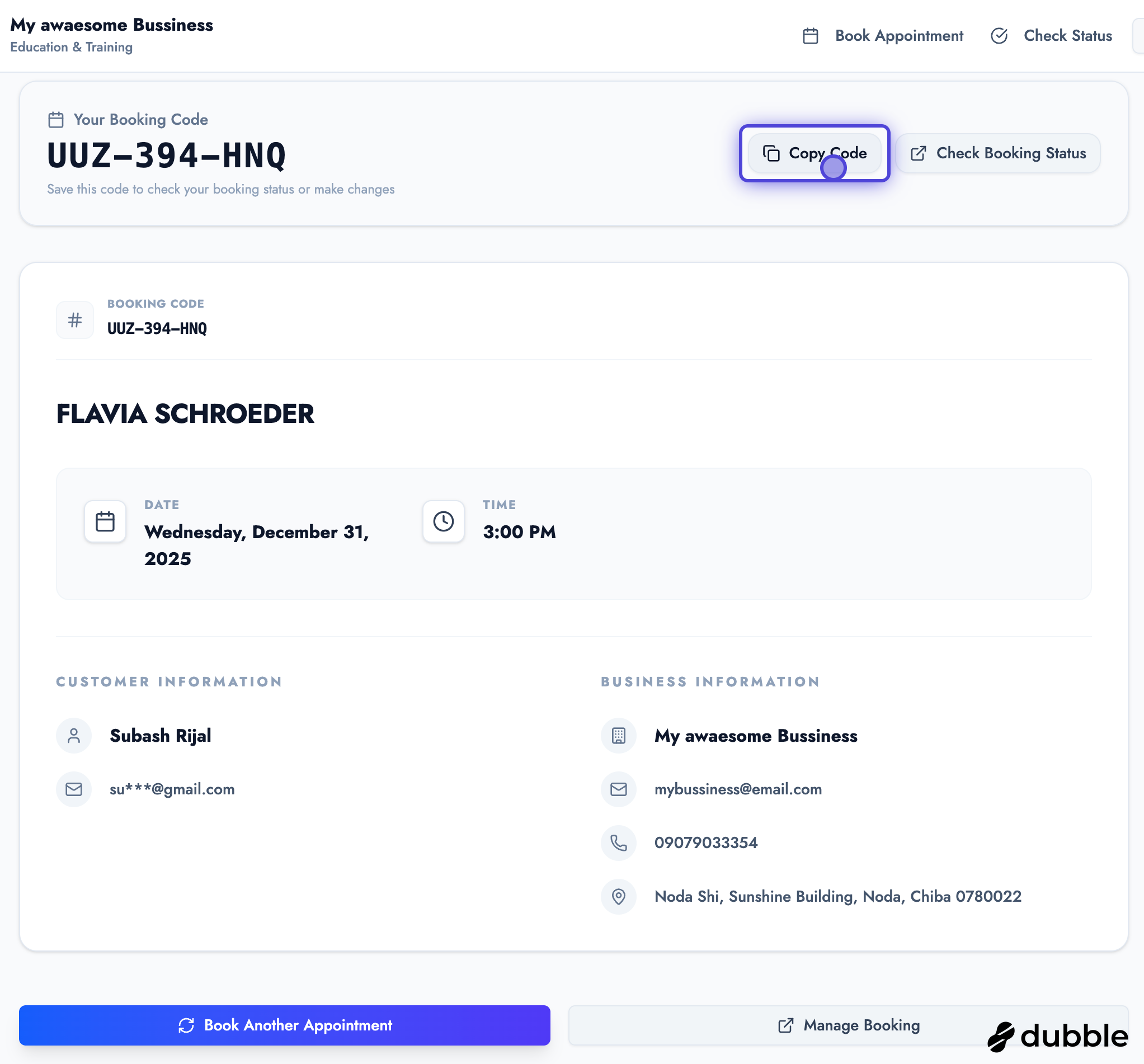
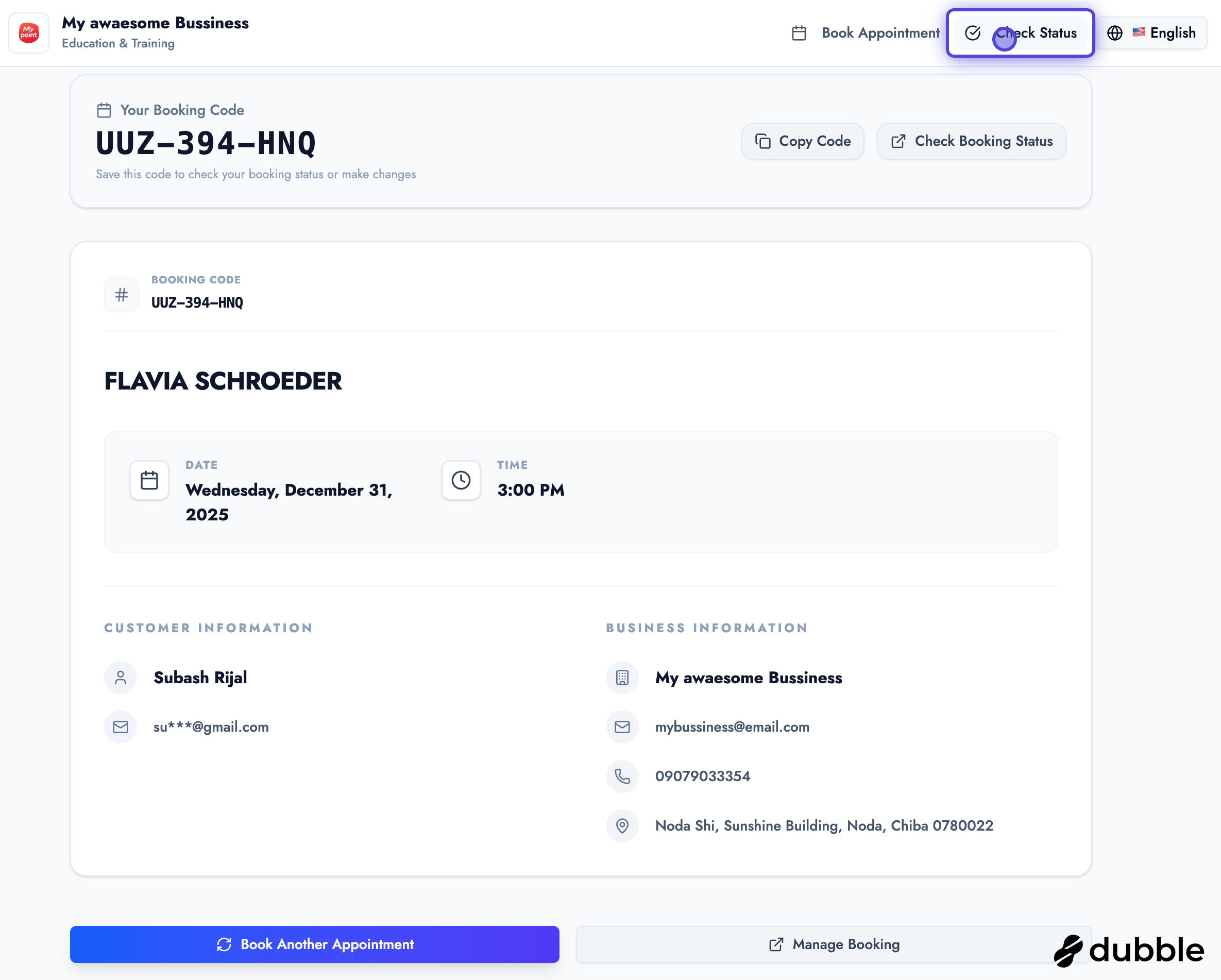
12. Booking Confirmed
Section titled “12. Booking Confirmed”You’ll see a confirmation screen with your booking details and a unique booking code. Copy this code to check your booking status later. You’ll also receive a confirmation email with all the details.
13. Access Booking Status Page
Section titled “13. Access Booking Status Page”To check the status of your appointment at any time, visit the booking status page. You can access this page using the booking code you received.
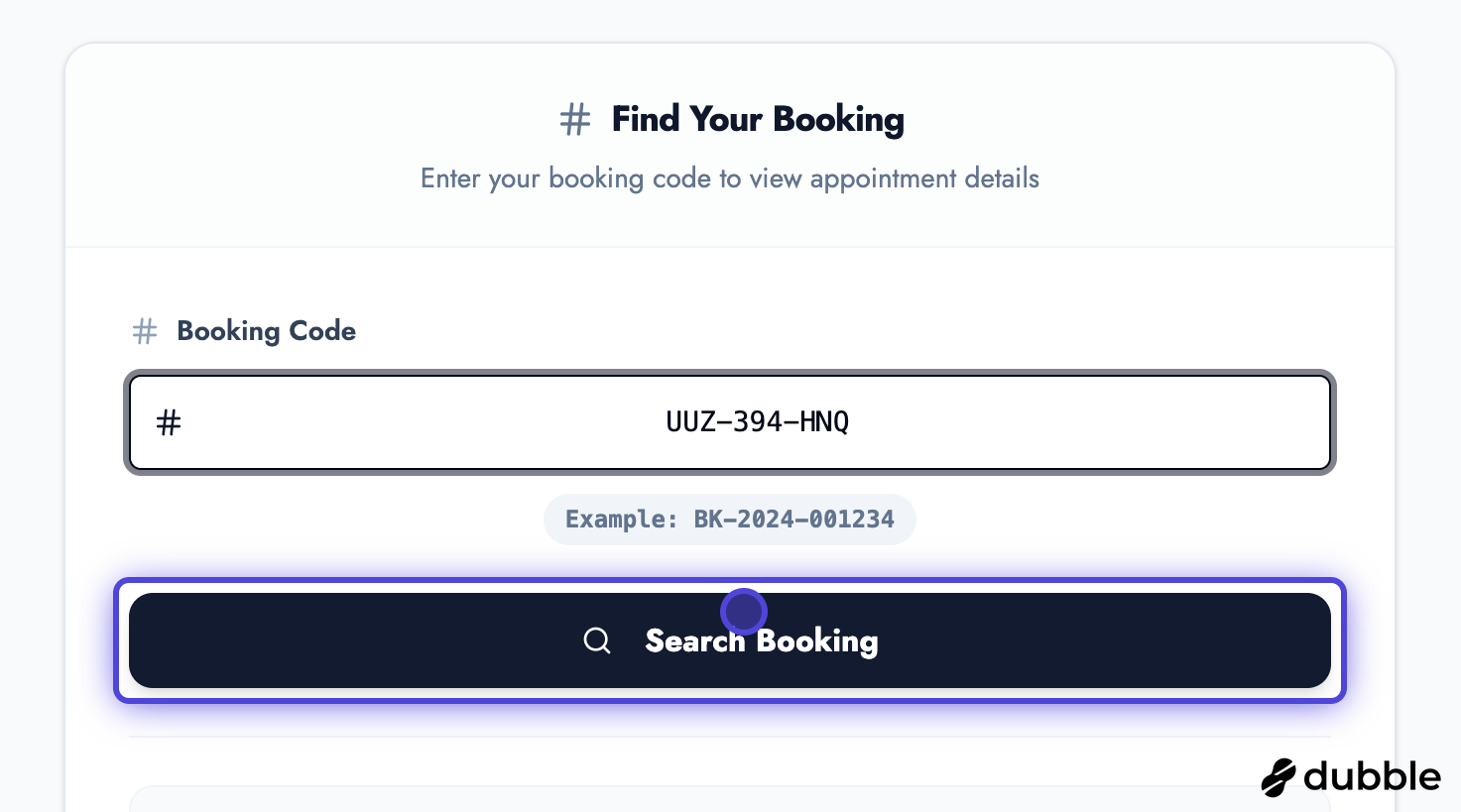
14. Enter Your Booking Code
Section titled “14. Enter Your Booking Code”Enter your booking code in the search field and click “Search Booking” to view your reservation details.
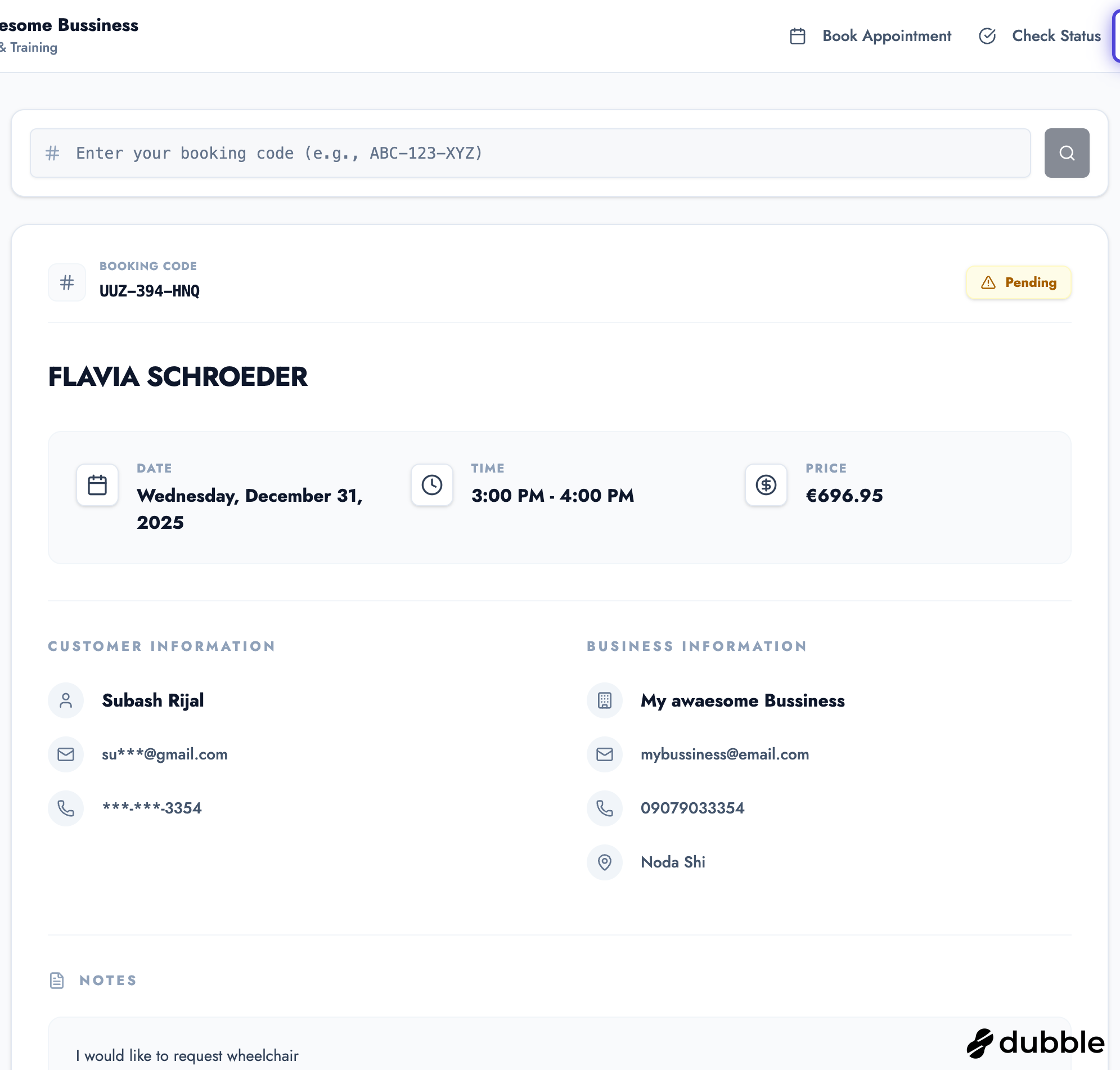
15. View Booking Details
Section titled “15. View Booking Details”After entering your booking code, you’ll see all the details of your booking including the current status, date, time, service information, and contact details.
Tips for a Smooth Booking Experience
Section titled “Tips for a Smooth Booking Experience”- Book in Advance: Popular time slots fill up quickly, so book early to secure your preferred time.
- Check Your Email: Make sure to check your email (including spam folder) for the OTP code and confirmation messages.
- Save Your Booking Code: Keep your booking confirmation code in a safe place for easy status checking later.
- Review Before Submitting: Double-check all information on the confirmation screen before finalizing your booking.
- Add Special Requests: Use the additional notes field to communicate any special requirements or preferences to the business.
Need Help?
Section titled “Need Help?”If you encounter any issues during the booking process:
- Check your email inbox and spam folder for confirmation messages
- Use the booking status page to verify your appointment details
- Contact the business directly if you need to make changes or have questions
- Refer to our troubleshooting guide for solutions to common issues
Ready to Book?
Section titled “Ready to Book?”Visit the BOOKIN platform to start making bookings with businesses. You can browse services, check availability, and book appointments directly from the platform.