
Managing Customers
Managing Customers
Section titled “Managing Customers”Your customer records build themselves as people book. This guide covers finding customers, reading their history, adding notes, and booking follow-ups.
The customer list
Section titled “The customer list”Customers shows everyone who has booked with you, ten per page.
Search matches first name, last name, email and phone. You can also filter by Status (Active or Inactive) and by Gender.
Columns: Customer, Contact (phone, plus city and state where known), Status, Bookings, Last Visit — which reads Never for someone who has booked but not yet attended — and Actions.
The customer detail page
Section titled “The customer detail page”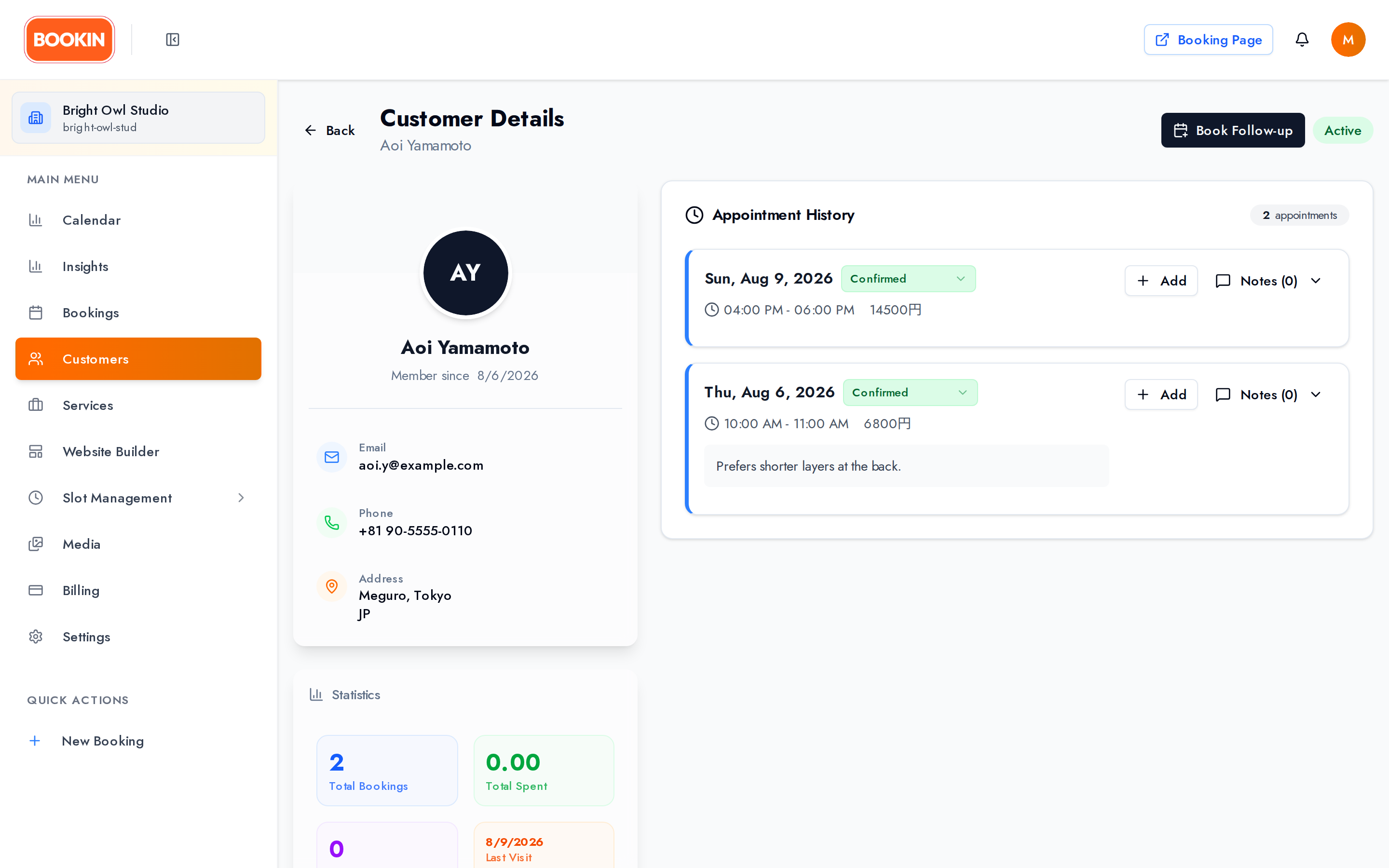
Four cards:
Customer Information — profile photo, Active/Inactive status, Member since, email, phone, address, and date of birth.
Statistics — Total Bookings, Total Spent, Completed Appointments, and Last Visit.
Emergency Contact — a separate contact where one has been recorded.
Appointment History — every past and upcoming booking. Expand any one to see its full detail and its notes, add a note, or book a follow-up.
Clicking a customer from the Bookings table opens this page scrolled to the relevant booking.
Notes record what you need to remember about an appointment — preferences, requirements, what happened last time.
Adding a note
Section titled “Adding a note”- Open the customer’s detail page.
- Expand the appointment you want to annotate.
- Choose Add Note.
- Fill in the note:
- Category — one of six fixed options: General, Medical, Preference, Allergy, Follow-up, Complaint.
- Content — a rich text field.
- Private note (only visible to staff) — a single switch.
- Save.
Note best practices
Section titled “Note best practices”- Be specific — dates, times, what was agreed.
- Pick the right category — it’s how you’ll find the note later, and it appears in the customer’s email alongside the note text.
- Write every note as if the customer will read it, because they may.
- Keep clinical detail out of notes entirely — record it wherever you keep confidential information.
Booking a follow-up
Section titled “Booking a follow-up”From the customer’s detail page, Book Follow-up opens the booking form with their details already filled in — pick a service, date and time, and confirm.
Follow-up booking also needs Starter or above.
What the numbers mean
Section titled “What the numbers mean”- Total Bookings — every booking, whatever its status.
- Completed Appointments — those you marked completed. The gap between this and Total Bookings is your cancellations and no-shows for this customer.
- Total Spent — value of their bookings.
- Last Visit — their most recent completed appointment, or Never.
For business-wide trends rather than one customer, use Insights.
- Track preferences in notes so any staff member can pick up where the last left off.
- Book follow-ups while the customer is in front of you — the form is already filled in.
- Watch for Never in the Last Visit column: people who booked and never came.
- Reach out to inactive customers using the Status filter.
Next Steps
Section titled “Next Steps”- Learn about creating appointments - Create new bookings for customers
- Explore appointment management - Manage existing appointments
- Configure your services - Set up services customers can book
Related Guides
Section titled “Related Guides”- Creating Appointments - Step-by-step guide to creating new appointments
- Managing Appointments - Edit, confirm, and manage existing appointments
- Dashboard Overview - Navigate the dashboard and view analytics