Business Hours & Time Slots
Set when you’re open and how bookings are offered: business hours, slot length, capacity, buffers, breaks, and overrides for specific dates.
Business hours
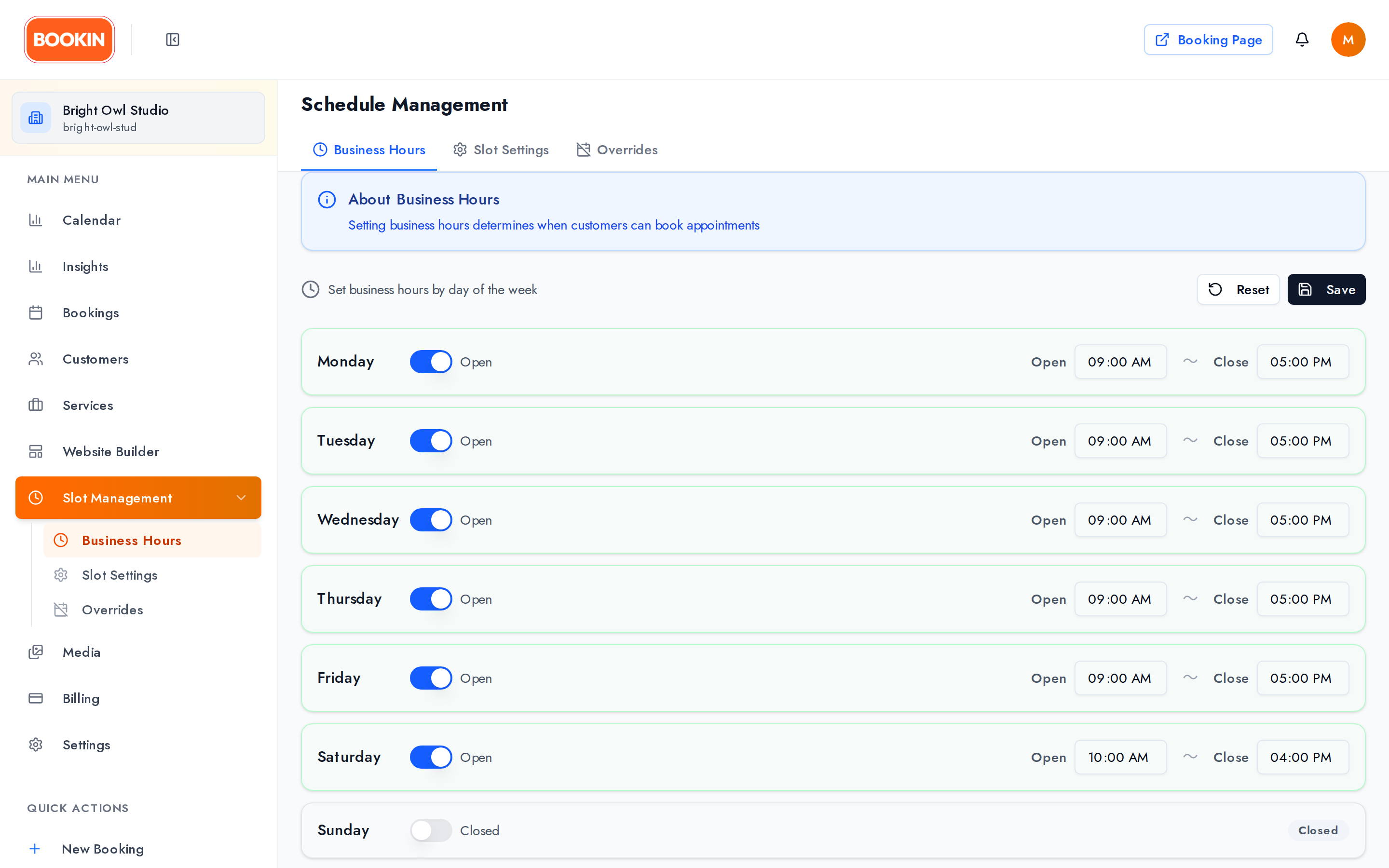
Section titled “Business hours”Set opening and closing times for each weekday, or mark a day Closed.
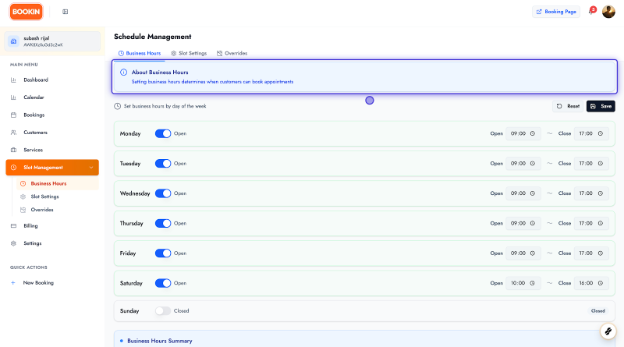
A Business Hours Summary card totals up your business days per week and your average hours per day — a quick sanity check that you haven’t left a day closed by accident.
Click Save when you’re done. Reset discards unsaved changes.
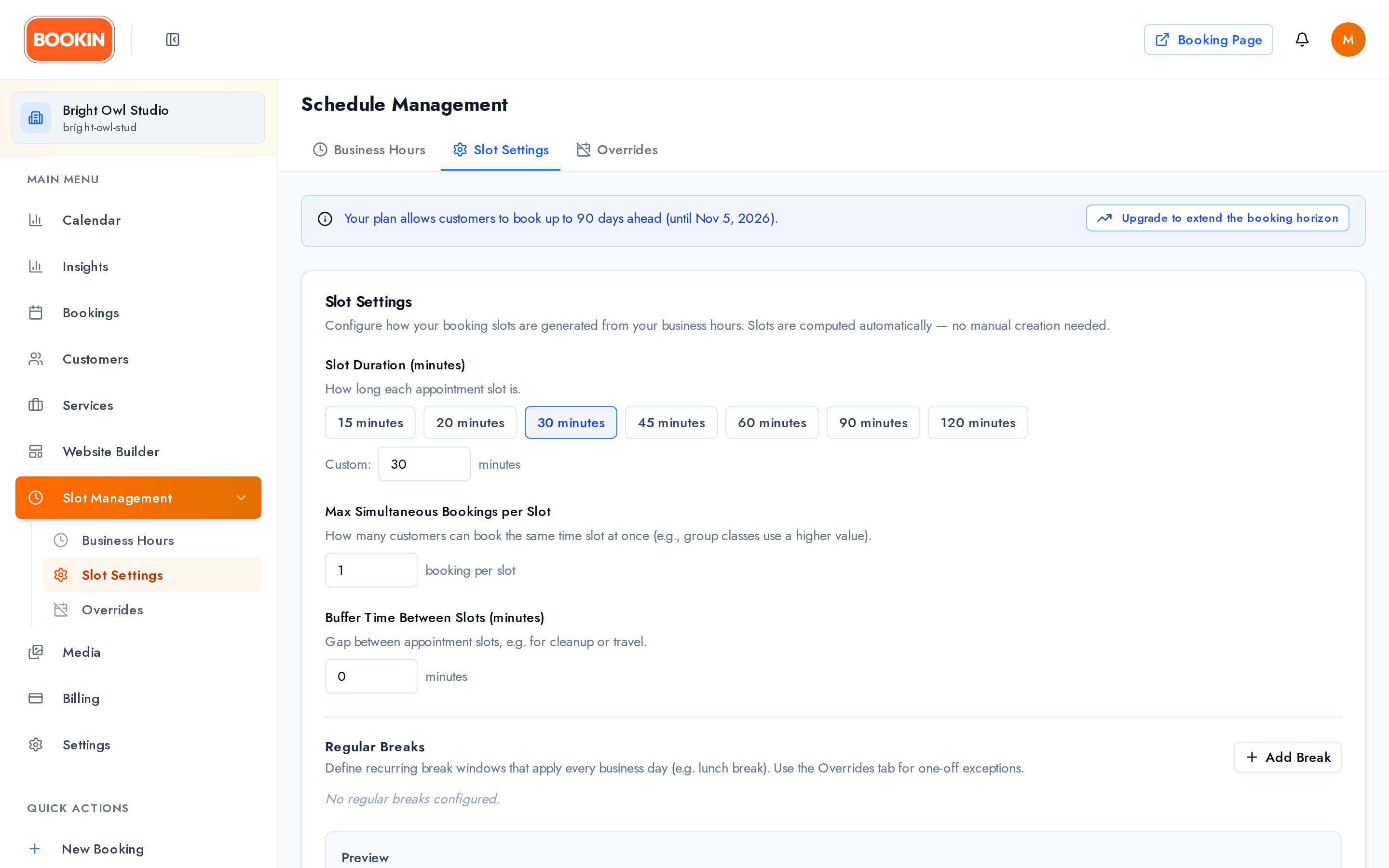
Slot settings
Section titled “Slot settings”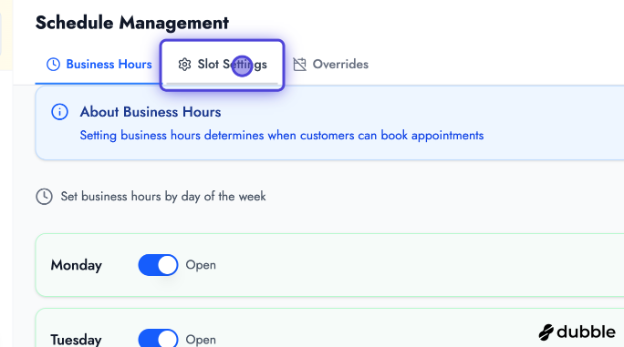
Slot duration
Section titled “Slot duration”How long each booking block is — pick a preset or enter a custom value between 5 and 480 minutes.
Max simultaneous bookings per slot
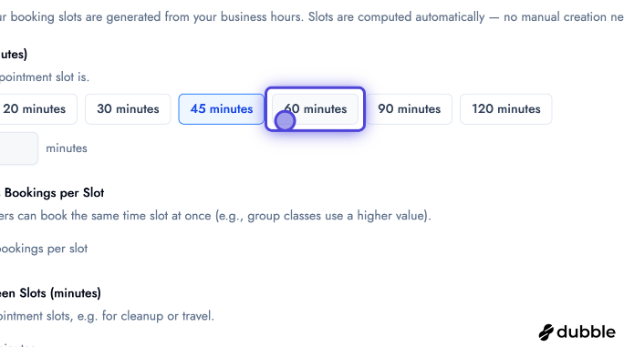
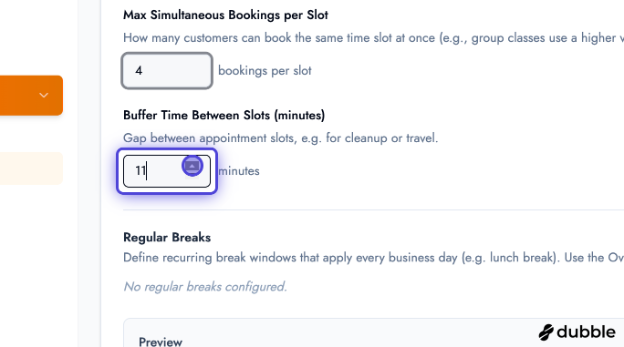
Section titled “Max simultaneous bookings per slot”How many customers can book the same time slot at once, from 1 to 100.
Leave it at 1 for one-to-one appointments. Raise it for group classes — a yoga class with twelve places is one slot with a capacity of twelve, not twelve slots.
Buffer time between slots
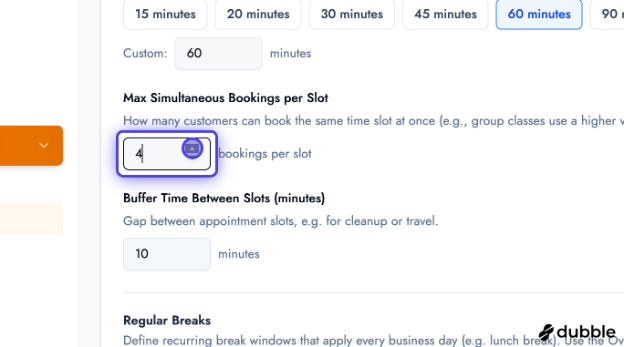
Section titled “Buffer time between slots”A gap after each booking for cleanup, travel or notes — 0 to 120 minutes. The buffer is added to the slot interval, so a 30-minute service with a 10-minute buffer produces slots every 40 minutes.
Preview before you save
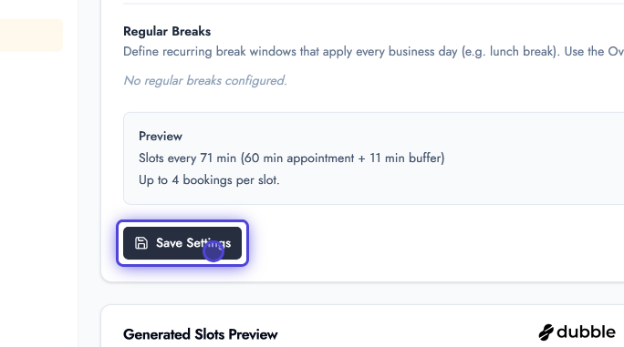
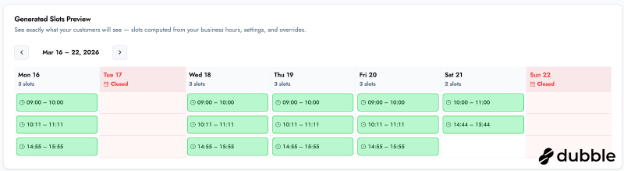
Section titled “Preview before you save”A Preview card spells out what you’ve configured — “Slots every 40 min (30 min appointment + 10 min buffer)”, “Up to 1 booking per slot” — and a Generated Slots Preview grid shows exactly what customers will see, with totals for slots, active days, closed days and your peak day.
Check the preview before saving. It’s the fastest way to catch a duration that doesn’t divide neatly into your opening hours.
Booking horizon
Section titled “Booking horizon”A Booking Horizon panel shows how far ahead customers can book — “Your plan allows customers to book up to 15 days ahead (until {date})”.
That window is set by your plan: 15 days on Free, 30 on Starter, 90 on Pro, unlimited on Enterprise. See Billing & Pricing.
Breaks
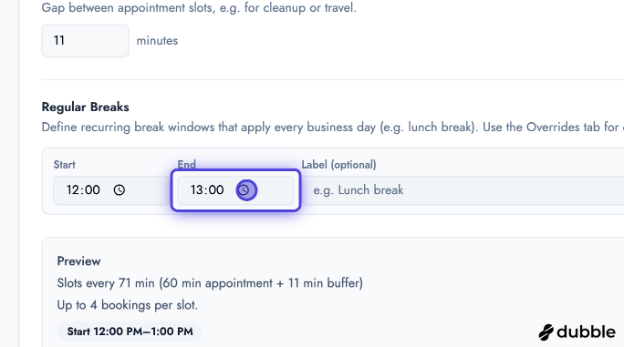
Section titled “Breaks”Recurring daily windows when you don’t take bookings — lunch, cleaning, a standing meeting.
Each break has a start time, an end time, and an optional label like Lunch break, which makes a list of several breaks readable at a glance.
Overrides
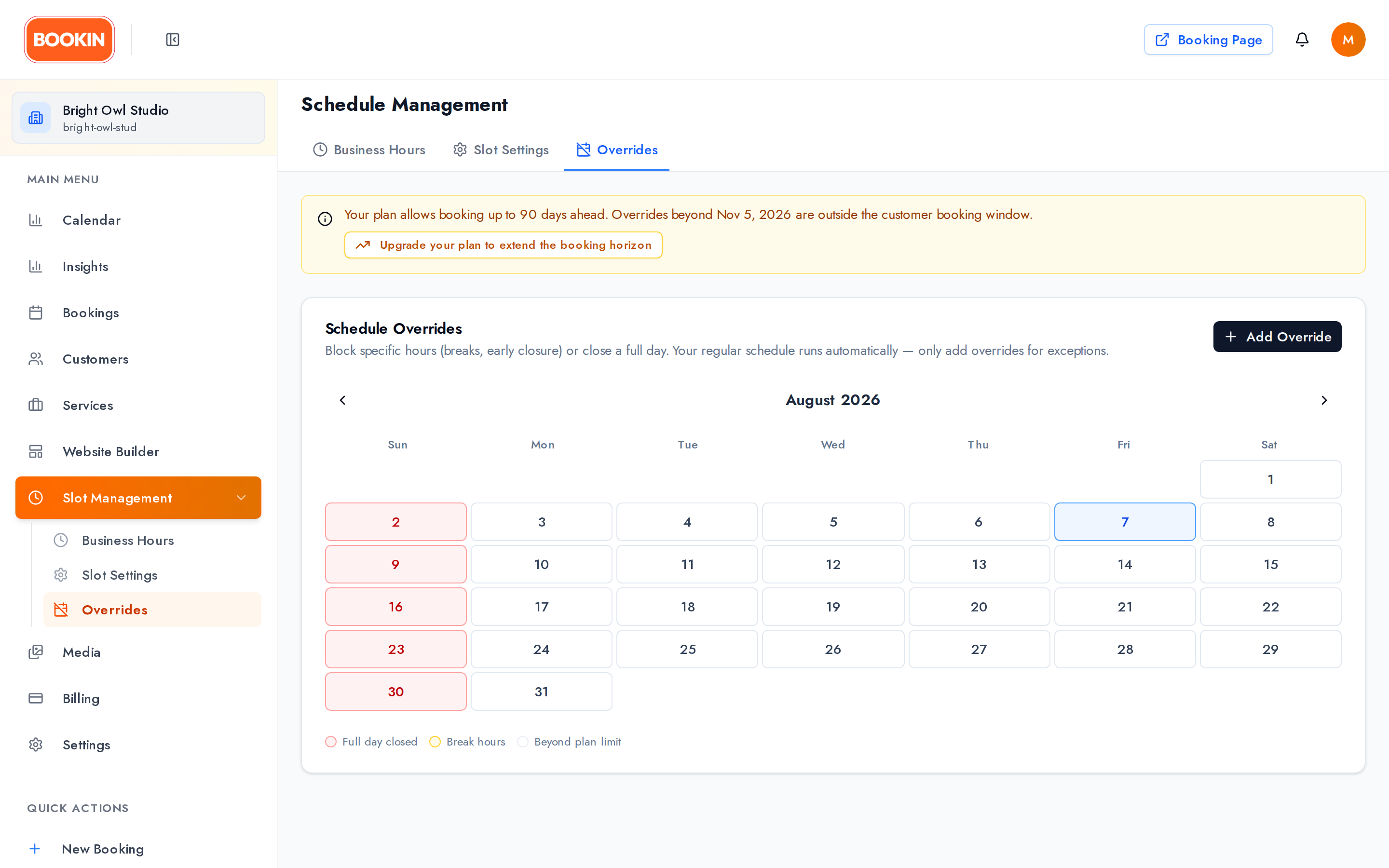
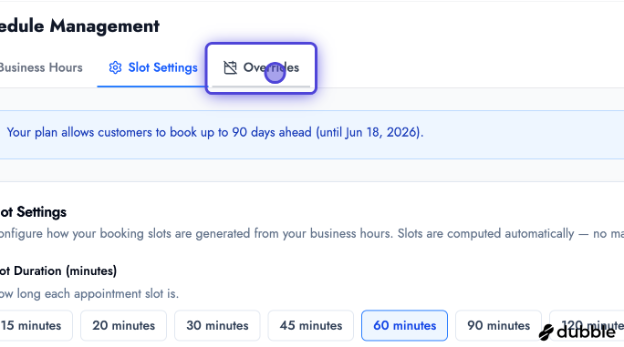
Section titled “Overrides”The Schedule Overrides tab handles one-off changes — holidays, a closure, an afternoon out.
Adding an override
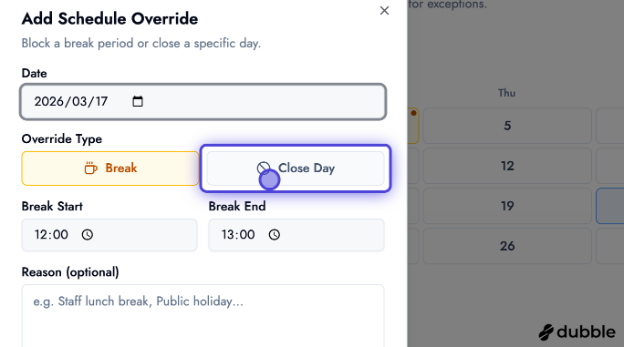
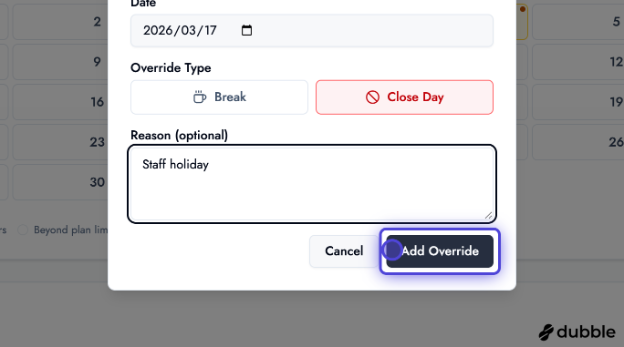
Section titled “Adding an override”Pick the date, then the Override Type:
- Break — close part of the day. Set a break start and end time.
- Close Day — close the whole day.
Reason
Section titled “Reason”An optional reason for your own records — Public holiday, Staff training. It’s an internal label; customers don’t see it.
The override calendar
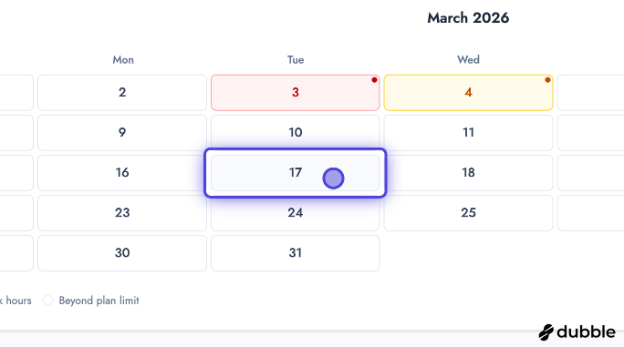
Section titled “The override calendar”A month calendar shows your overrides with a legend:
- Full day closed
- Break hours
- Beyond plan limit — dates past your booking horizon, where an override has no effect because customers can’t book that far ahead anyway
Best practices
Section titled “Best practices”- Business hours first, then slot settings, then overrides — the tabs enforce this order.
- Read the preview before saving slot settings; it shows exactly what customers get.
- Use capacity for group sessions rather than creating duplicate slots.
- Buffers when you need a reliable gap between appointments — they’re subtracted from your bookable day, so keep them realistic.
- Label your breaks so a longer list stays readable.
- Add holidays early, before customers book into them.
Next steps
Section titled “Next steps”- Creating appointments — book into your slots
- Managing appointments
- Settings & configuration
Related guides
Section titled “Related guides”- Managing services — what customers book
- Creating a new service