Settings & Configuration
Settings has eight tabs. This guide walks through each one.
| Tab | What lives there |
|---|---|
| Team | Team members, invitations, your subscription summary |
| General | Your account, dashboard preferences, booking subdomain |
| Business | Profile, contact, branding, location, regional settings |
| Notifications | Which categories of notification you receive |
| Notification Providers | The channels: email, Slack, Discord, LINE |
| Domains | Connect your own domain |
| Customize booking form | Extra steps and fields in the customer flow (Pro) |
| Security | Password, passkeys, two-factor authentication |
Most tabs need owner or admin. Security is available to everyone, including members.
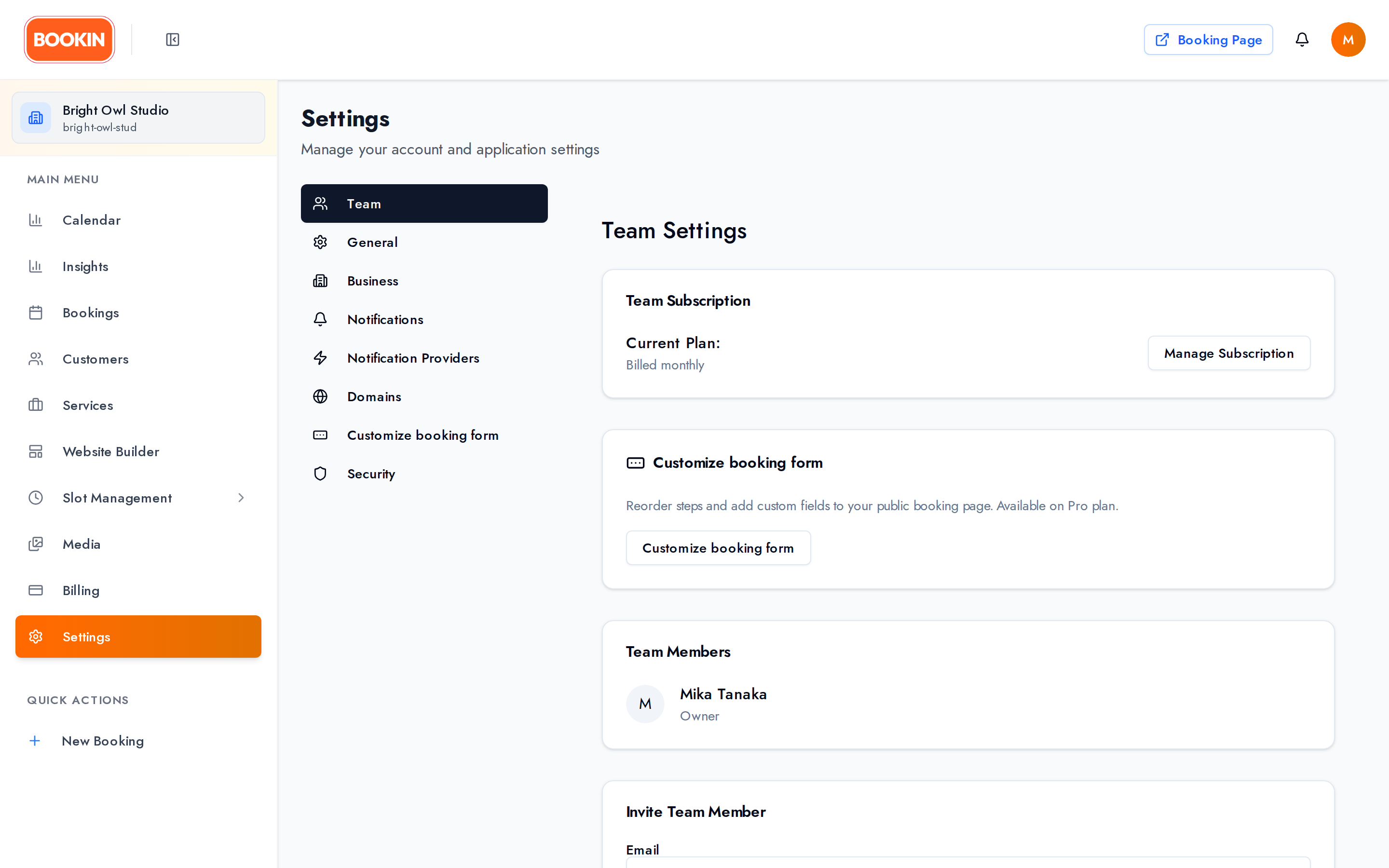
Your team members, their roles, and an invite form. There’s also a Team Subscription card summarising your current plan with a link through to Billing.
Inviting someone
Section titled “Inviting someone”Enter their email address and choose a role: Member or Owner. They’ll get an invitation email with a link to accept — they can sign up from that link if they don’t have an account yet.
If you’ve hit your plan’s team size limit, the invite form is replaced with a User Limit Reached message. Free allows one team member; Starter allows 5, Pro 50.
BOOKIN has three roles:
- Owner — full access, including billing and removing team members.
- Admin — nearly everything, but not billing or pricing.
- Member — read-only on bookings, dashboard, slot management and business hours, plus their own security settings.
Only owners can remove team members.
General
Section titled “General”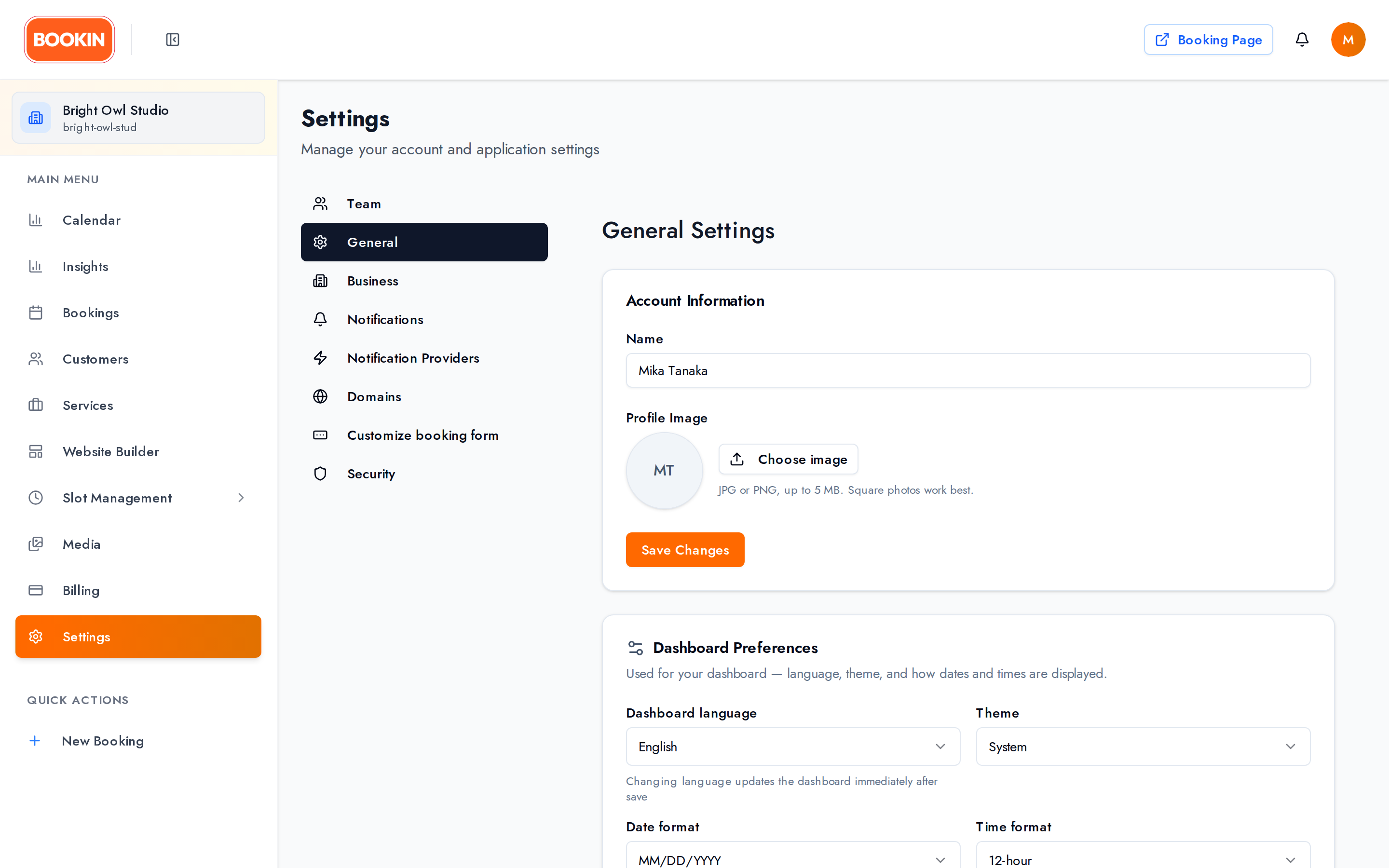
Account
Section titled “Account”Your name and profile image (JPG or PNG, up to 5 MB — square photos work best).
Your email address and currency aren’t here: email is managed through your login, and currency lives under Business → Regional.
Dashboard Preferences
Section titled “Dashboard Preferences”These affect what you see, not your customers:
- Dashboard language — English or 日本語
- Theme — Light, Dark or System
- Date format — MM/DD/YYYY, DD/MM/YYYY or YYYY-MM-DD
- Time format — 12-hour or 24-hour
Booking subdomain
Section titled “Booking subdomain”Your booking page’s address:
https://your-business.bookin.bizAvailability is checked as you type — you’ll see Available, already taken, or reserved. Subdomains are 3–63 characters, lowercase letters, numbers and hyphens.
This is the address to put on cards, receipts and social profiles.
Business
Section titled “Business”Everything customers see about you.
Profile
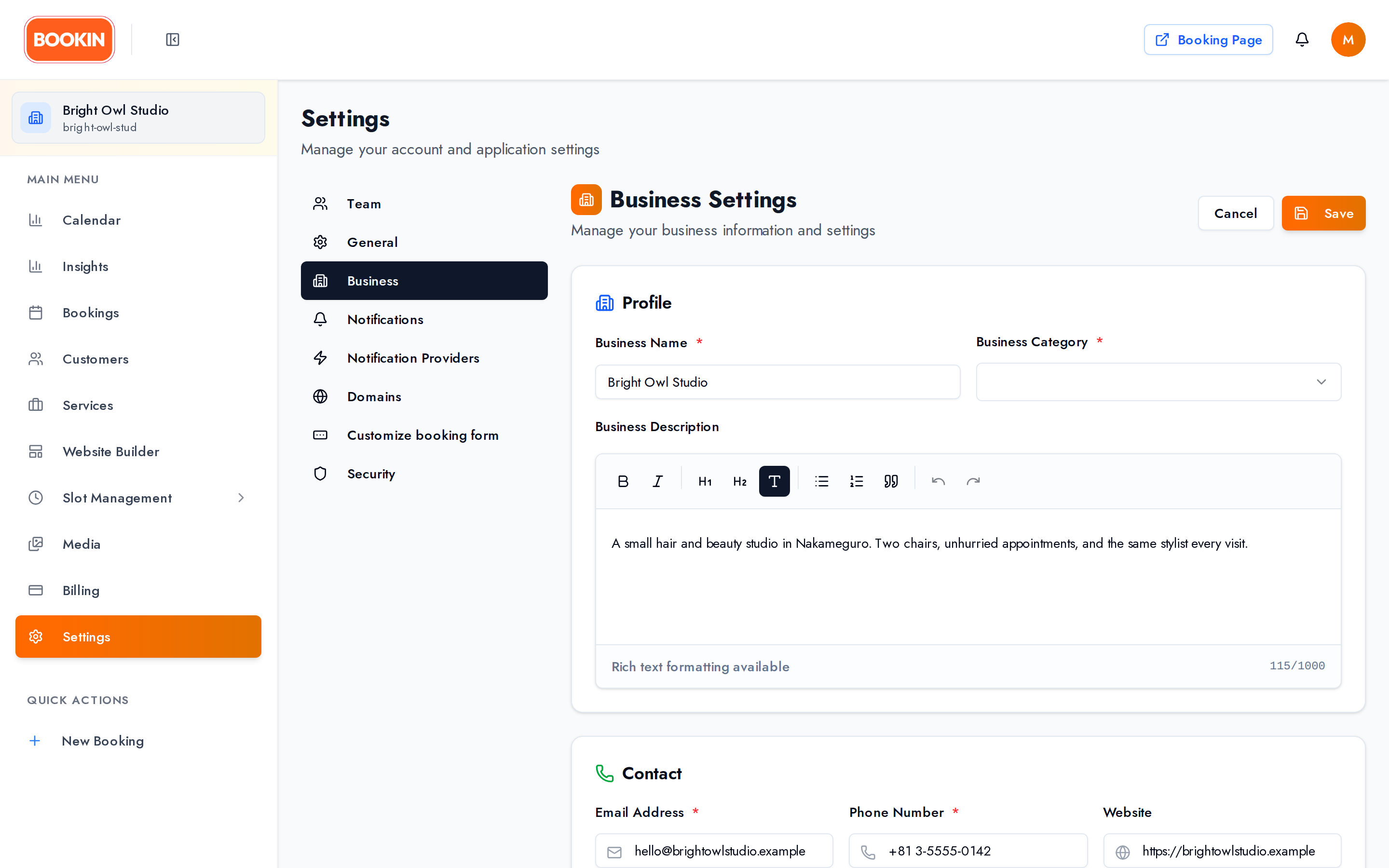
Section titled “Profile”Business Name, a Business Category from a fixed list, and a rich-text Description shown on your booking page.
Contact
Section titled “Contact”Email and Phone are required; Website is optional. Your address is set under Location, not here.
Branding
Section titled “Branding”- Logo — cropped square
- Cover image — cropped 3:1, the banner across your booking page
- Brand Color — presets or a custom hex value, with a live “Book now” preview
Brand colour carries through to your public booking page, your embedded widget and your customer emails, so it’s worth setting properly.
Images come from your Media Library.
Location
Section titled “Location”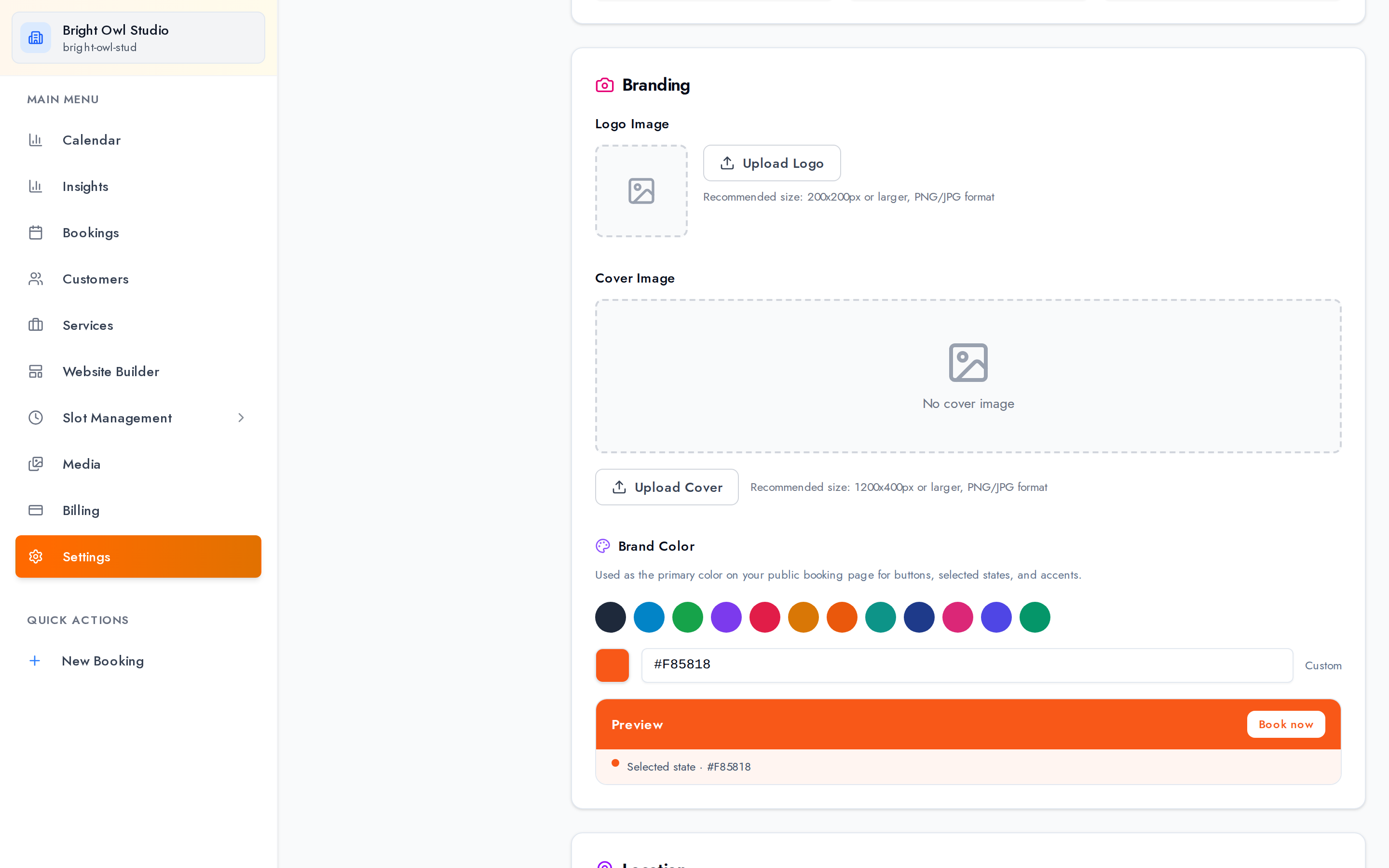
Search for your business, drag the map pin to the exact spot, then fill in address line 1 and 2, city, postal code, state or prefecture, and country.
This drives the map on your public booking page and the structured data search engines read, so precision pays.
Regional
Section titled “Regional”- Customer default language — English or Japanese
- Timezone — full list; this is what “9:00” means to your customers
- Currency — USD, JPY, EUR, GBP, CAD or AUD
Notifications
Section titled “Notifications”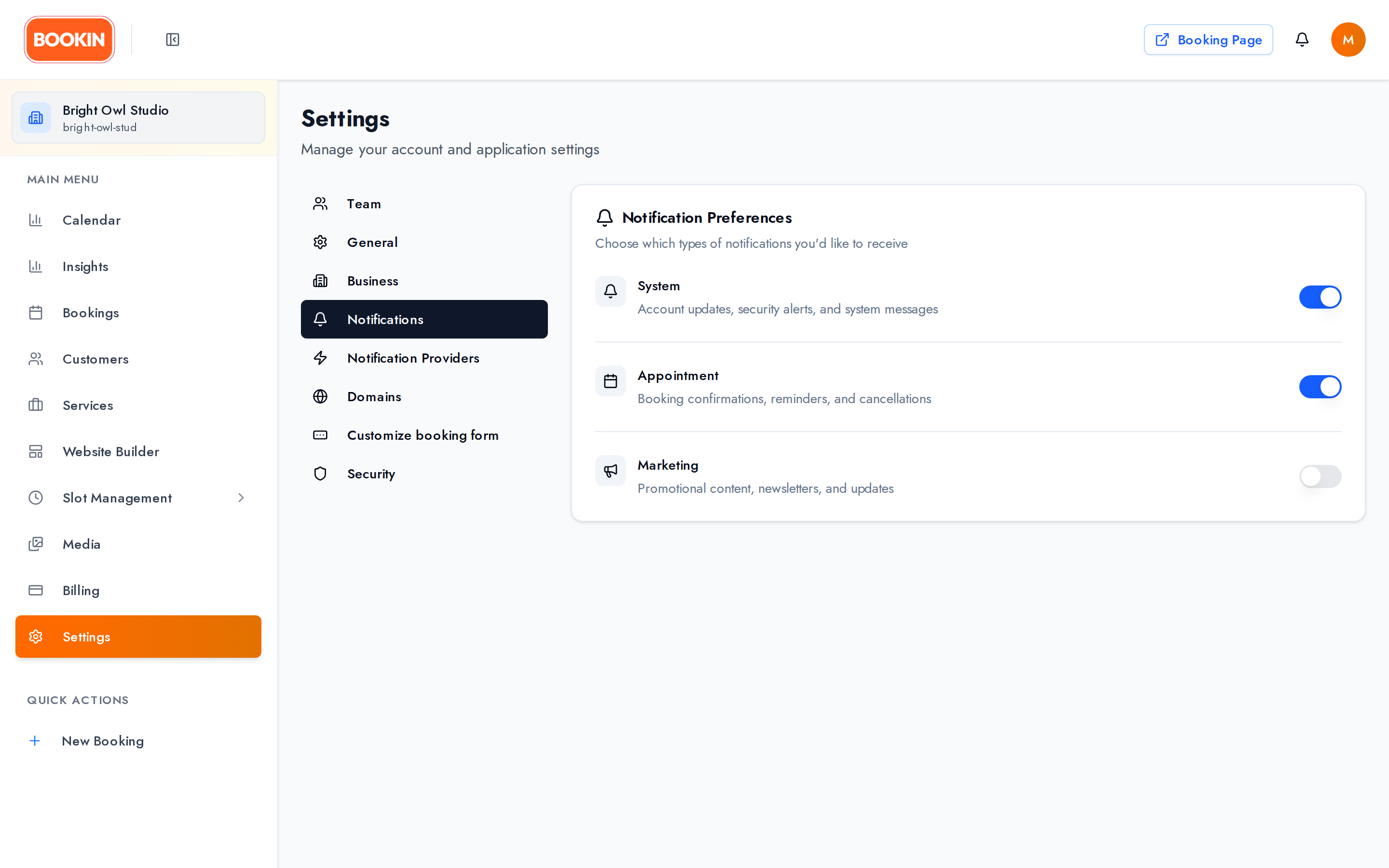
Three switches controlling which categories reach you:
- System — platform and account messages
- Appointment — new bookings, changes, cancellations
- Marketing — product news
These apply across every channel at once.
The notification bell
Section titled “The notification bell”
The bell in the header shows unread activity, refreshing automatically. From it you can mark items read individually or all at once, delete them, refresh, and load older ones ten at a time.
Notification Providers
Section titled “Notification Providers”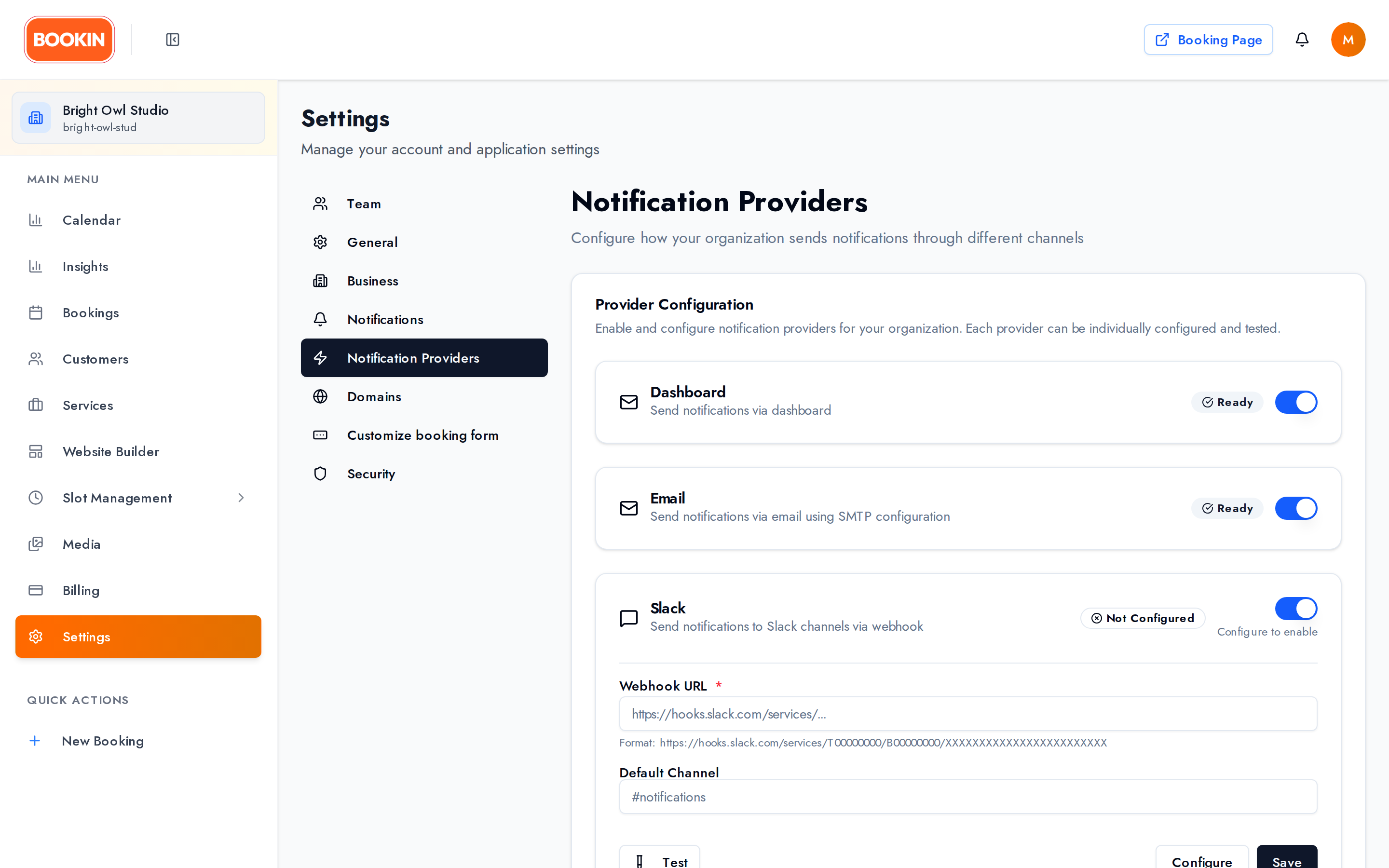
Where your notifications go. For the full list of every message BOOKIN sends, see Notifications & Reminders. There are exactly five channels:
| Channel | Setup | Plan |
|---|---|---|
| Dashboard | On by default | All plans |
| Enable or disable only | Starter+ | |
| Slack | Webhook URL, default channel, avatar | Starter+ |
| Discord | Webhook URL, default channel, avatar | Starter+ |
| LINE | Connect via LINE Login | Starter+ |
Slack and Discord validate the webhook URL format and give you a Test button — use it before you rely on the channel.
Email delivery is configured by BOOKIN centrally, so you get an on/off switch rather than server settings.
For LINE, connect your account through LINE Login. You must add the LINE Official Account as a friend to receive messages.
Domains
Section titled “Domains”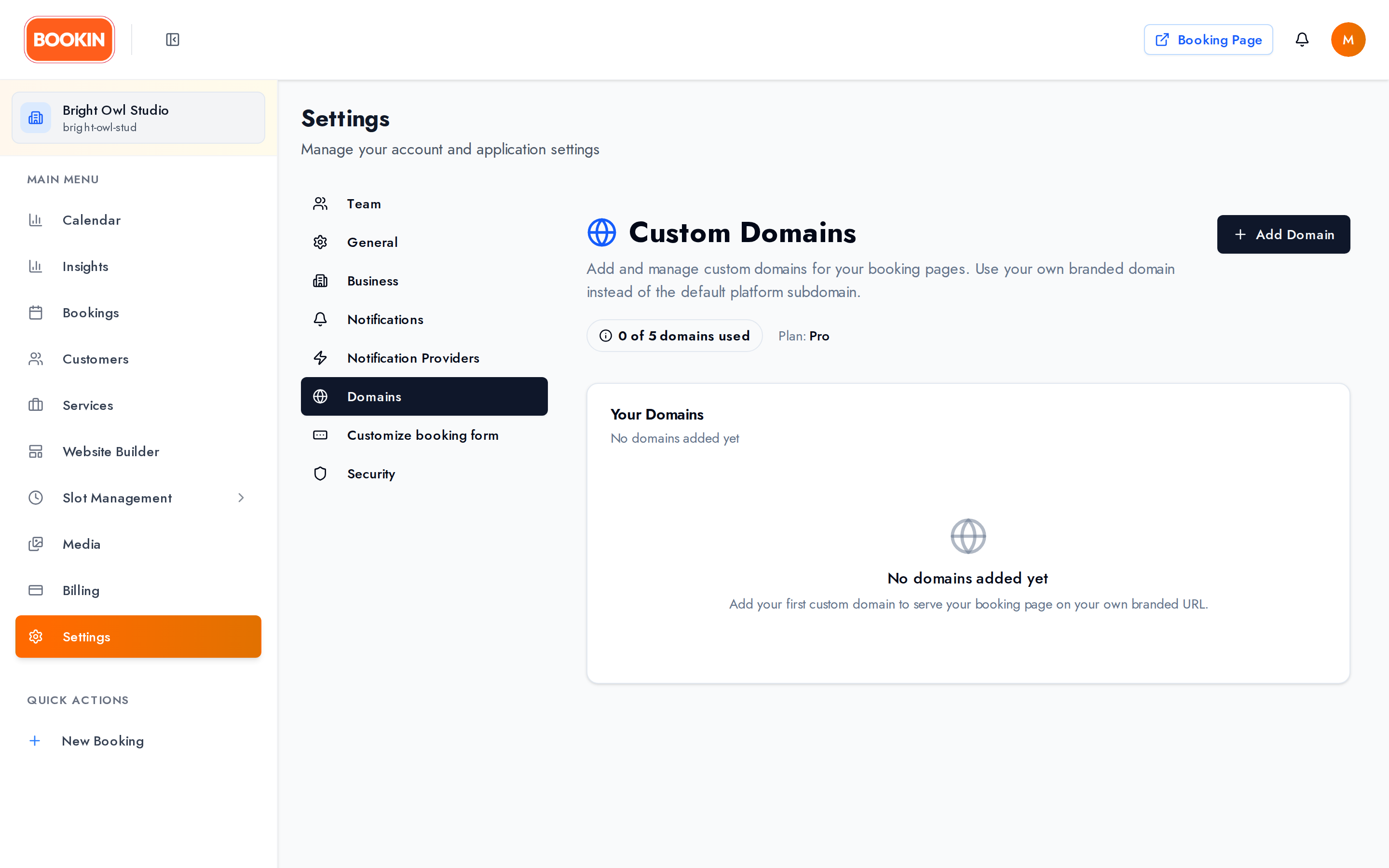
Connect a domain you own — booking.yourbusiness.com, or your apex domain.
Add the domain and BOOKIN gives you a DNS records table (type, name, value, TTL) to copy into your DNS provider, with a Copy all button. From there it walks a DNS → SSL → Live sequence, polling automatically and showing progress. Check now forces a re-check.
Statuses: Pending DNS, DNS failed, Issuing SSL, SSL failed, Finalizing, Live.
You’ll get an email when a domain verifies, fails, goes unreachable, or comes back online.
Deleting a domain requires typing the domain name to confirm.
Every plan includes at least one custom domain — Pro allows 5.
Customize booking form
Section titled “Customize booking form”Add your own steps and fields to the customer booking flow. Needs Pro or above — see Custom booking form.
Security
Section titled “Security”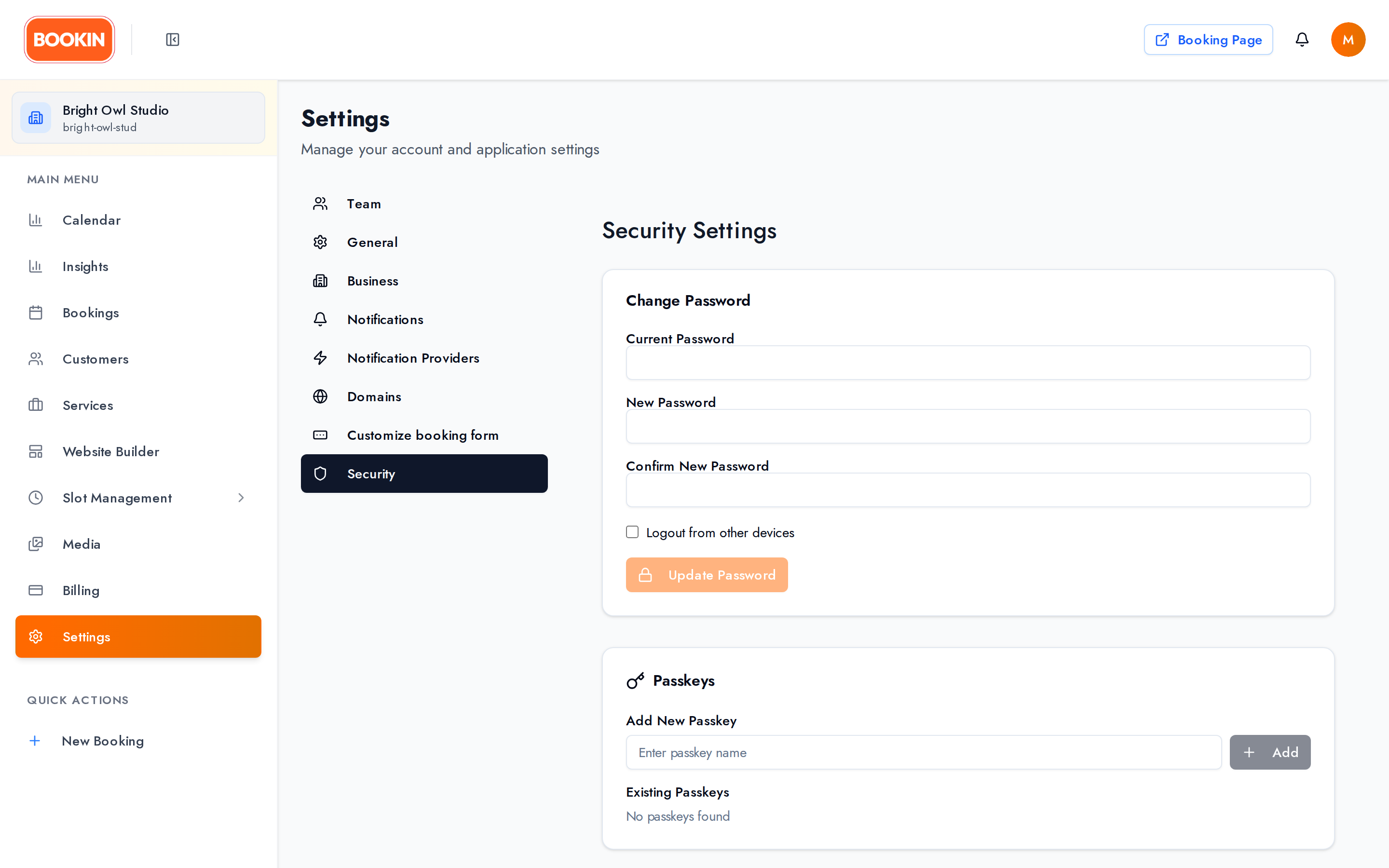
Available to every role.
Password — change it here. If you signed up with Google, you’ll see Set Password instead; do that first, because two-factor can’t be enabled without a password. Changing your password while 2FA is on asks for your code first.
Two-factor authentication — scan the QR code with an authenticator app, enter the verification code, and save your backup codes somewhere safe.
Passkeys — sign in with your device’s biometrics or PIN instead of a password.
Logout from other devices — a checkbox on the password form that ends your other sessions. There’s no separate session list.
Delete account — a four-step process: review the impact, decide what happens to each organization you own (transfer ownership or archive and delete it), confirm with your password and 2FA code, then acknowledge. You have 30 days to contact support and restore it.
Best Practices
Section titled “Best Practices”- Fill in the whole business profile — it’s what customers judge you on.
- Set your brand colour — it reaches your booking page, widget and emails.
- Get the map pin right — customers navigate by it.
- Check timezone and customer language before you take real bookings.
- Test Slack and Discord webhooks rather than assuming they work.
- Claim your subdomain early and use it everywhere.
Next Steps
Section titled “Next Steps”- Set up your services - Create services customers can book
- Configure business hours - Set your availability
- Learn about billing - Manage your subscription
- Custom booking form - Add steps and fields to the public booking flow
Related Guides
Section titled “Related Guides”- Dashboard Overview - Navigate your dashboard
- Managing Services - Set up your service offerings
- Business Hours & Time Slots - Configure availability
- Custom booking form - Custom steps and fields on your booking page
- Billing & Pricing - Manage your subscription