Booking Guide
This guide explains how customers book through a business’s public page.
What’s on the page before you book
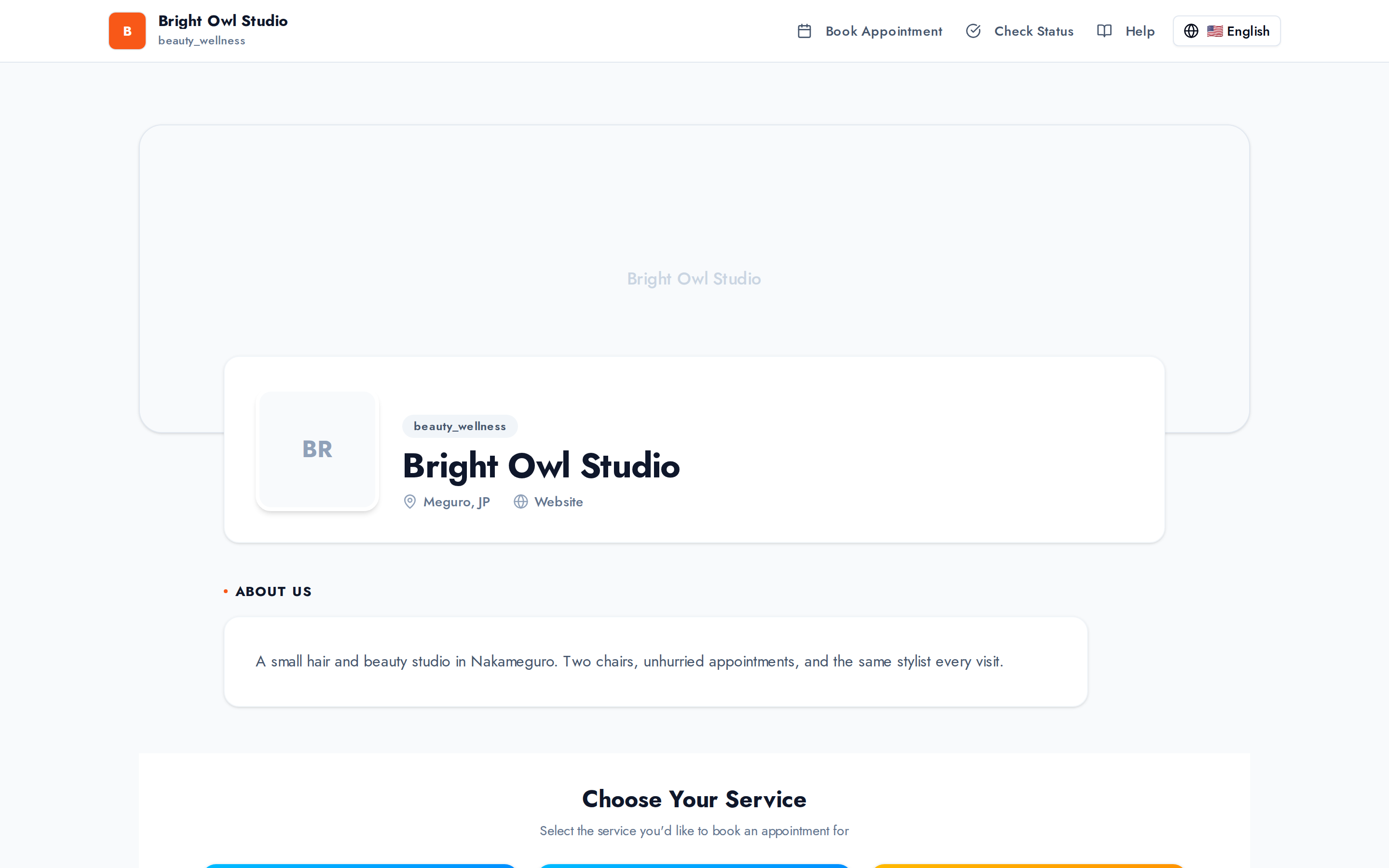
Section titled “What’s on the page before you book”Above the booking steps, the business introduces itself. How much appears depends on how much they’ve filled in:
- A cover image and logo, with the business name and category.
- About Us — their own description.
- Business Hours, day by day, with Today marked and a live Open Now or Closed Now badge. Days they don’t trade show Closed.
- Location — an embedded map, if they’ve set an address.
- Contact and Website links.
How the booking flow works
Section titled “How the booking flow works”Booking is a single flow with five steps:
- Service — pick from the business’s list, with duration and price shown.
- Date & Time — choose from the slots the business actually has open.
- Your Info — your name and contact details.
- Verify Email — confirm your address with a one-time code.
- Confirm — check everything and submit.
Some businesses add extra steps or questions of their own. When they do, those appear just before the final Confirm step.
Reading the availability calendar
Section titled “Reading the availability calendar”Each day shows how it’s doing at a glance — “6 slots”, “2 left”, Full, Holiday, or Unavailable. Times are grouped into Morning, Afternoon and Evening, and displayed in the business’s timezone (shown above the list).
If you can’t see far enough ahead, that’s deliberate: each business has a booking window, and dates past it show “Booking is not available beyond your plan’s limit.”
Email verification
Section titled “Email verification”To reduce fake bookings, you verify your email before confirming:
- Enter your email and request a code.
- Open your inbox and copy the six-digit code.
- Enter it to continue.
The code expires after 10 minutes. You can request a new one after a short cooldown.
After you submit
Section titled “After you submit”- You’ll see a Booking Confirmed! screen with your booking code — copy it, or keep the email.
- Your booking usually starts as pending. Most businesses review requests and move them to confirmed from their dashboard, so the first email you get is “Booking Request Received”, not a final confirmation. You’ll get another message when the business confirms.
- Reminders arrive by email — typically a week before, a day before, and three hours before your appointment.
Checking or cancelling later
Section titled “Checking or cancelling later”Open the business’s booking status page, enter your booking code (it looks like ABC-123-XYZ) and search. Links in your confirmation email take you straight there with the code filled in.
From that page you can see your booking’s current status — Pending, Confirmed, Completed, Cancelled or No Show — along with your service, time and staff member.
Cancelling
Section titled “Cancelling”If your booking is confirmed, there’s a Cancel Booking button on that page. You’ll be asked to confirm, since cancelling can’t be undone.
Two things to know:
- If you booked without an email address, cancellation from this page isn’t available — contact the business directly.
- Rescheduling isn’t self-service. To move a booking, cancel and rebook, or contact the business.
There’s no separate “my bookings” login — your booking code is the key.
Booking inside LINE
Section titled “Booking inside LINE”Some businesses take bookings through LINE. That flow is shorter — choose a service, choose a date and time, then review — and your confirmation arrives as a LINE message. You can also opt in to LINE reminders while booking.
Note that custom questions a business adds to its web booking form don’t appear in the LINE flow.
Embeds
Section titled “Embeds”Some websites embed BOOKIN directly in their own page. The steps are identical to the standalone booking page.
If the page says “Booking Not Available”
Section titled “If the page says “Booking Not Available””Sometimes the booking page loads but won’t take a booking at all. This is about the business’s BOOKIN account, not anything you did, and not a fault in your browser. You’ll see one of:
| Message | What it means |
|---|---|
| ”This business has reached their booking limit.” | They’ve used up the bookings their plan allows this month |
| ”This business’s subscription is inactive.” | Their subscription has lapsed |
| ”This business doesn’t have an active subscription.” | They have no active plan |
| ”Booking is currently not available.” | Any other reason bookings are switched off |
All four end the same way — “Please contact them directly to schedule an appointment” — and that is genuinely the fix. Phone or email them. The business can restore online booking themselves, so it’s usually worth mentioning when you call.
- Book early for busy businesses.
- Double-check date, time, and service on the review step.
- Save your booking code and confirmation emails.
Need help?
Section titled “Need help?”- Didn’t get the code? Wait a minute, check spam, and confirm the email address has no typos.
- Booking page says bookings aren’t available? The business has hit its own booking limit for the month, or its subscription is inactive — contact them directly.
- For issues with the BOOKIN product itself, reach out via bookin.biz.
Related
Section titled “Related”- User manual — customers and business owners
- Getting started — for business accounts