Billing & Pricing
This guide covers what each BOOKIN plan includes, how to upgrade or downgrade, and how billing works day to day.
Where to see pricing
Section titled “Where to see pricing”There are two places, depending on whether you’re signed in:
- Not signed in — the pricing section on the BOOKIN homepage.
- Signed in (owner) — Dashboard → Billing → Pricing tab.
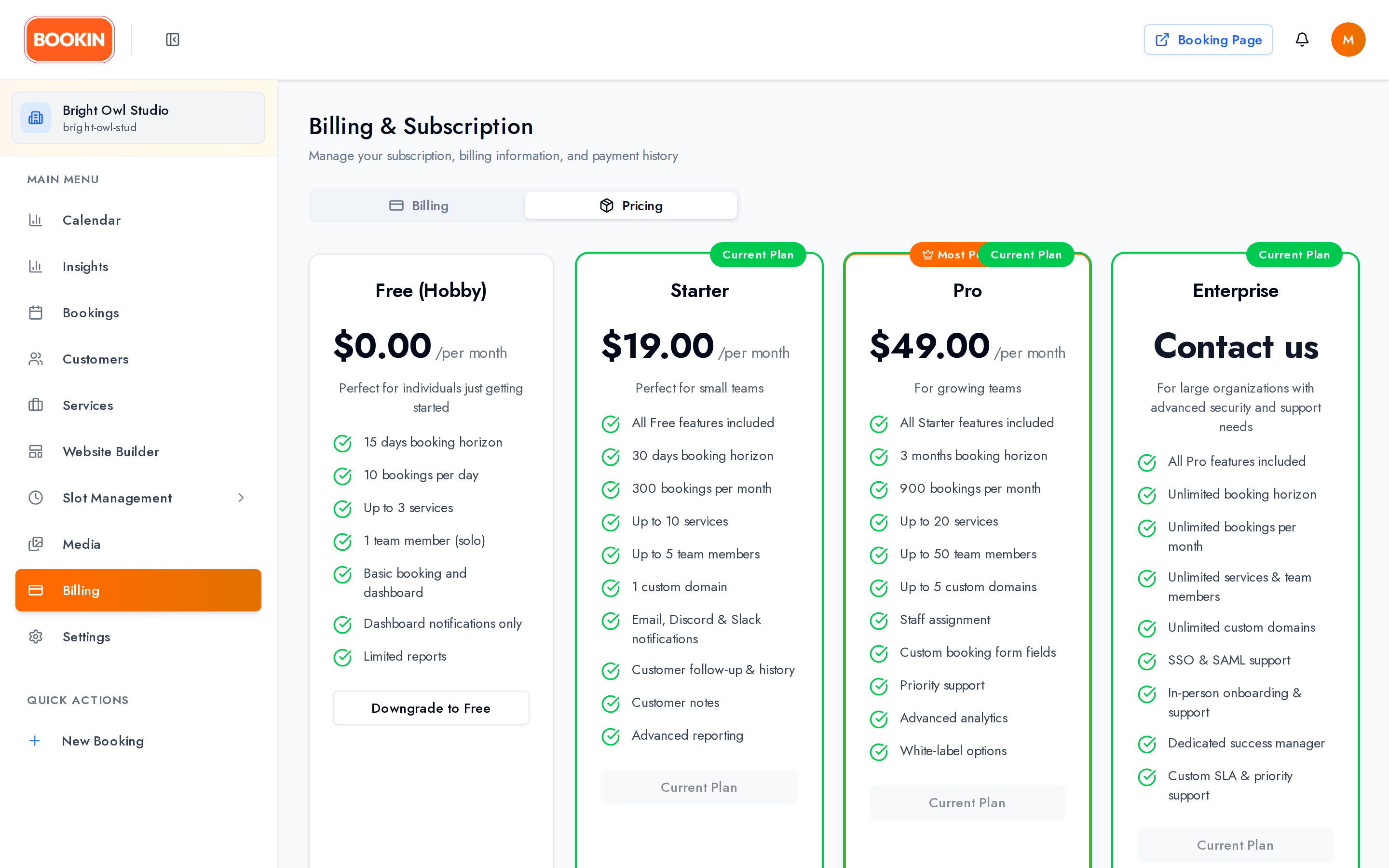
All plans bill monthly. There is no annual billing option.
| Plan | Price (USD) | Price (JPY) | Best for |
|---|---|---|---|
| Free | Free, forever | Free, forever | Trying BOOKIN, or a solo operator with a light schedule |
| Starter | $19 / month | ¥2,900 / month | A single location that needs reminders and a small team |
| Pro | $49 / month | ¥7,900 / month | Busier businesses that want insights and a custom booking form |
| Enterprise | Contact sales | Contact sales | Larger operations with bespoke requirements |
Enterprise doesn’t check out online — selecting it opens a contact form instead.
Limits by plan
Section titled “Limits by plan”| Limit | Free | Starter | Pro | Enterprise |
|---|---|---|---|---|
| Bookings | 50 per month | 300 per month | 900 per month | Unlimited |
| Services | 3 | 10 | 20 | Unlimited |
| Team members | 1 | 5 | 50 | Unlimited |
| Booking horizon | 15 days | 30 days | 90 days | Unlimited |
| Custom domains | 1 | 1 | 5 | Unlimited |
“Booking horizon” is how far into the future customers can pick a slot.
Features by plan
Section titled “Features by plan”| Feature | Free | Starter | Pro | Enterprise |
|---|---|---|---|---|
| Public booking page, calendar, bookings list | ✅ | ✅ | ✅ | ✅ |
| Customer management | ✅ | ✅ | ✅ | ✅ |
| Dashboard notifications | ✅ | ✅ | ✅ | ✅ |
| Custom domain | ✅ | ✅ | ✅ | ✅ |
| AI website builder | ✅ | ✅ | ✅ | ✅ |
| Email, Slack & Discord reminders | — | ✅ | ✅ | ✅ |
| LINE integration | — | ✅ | ✅ | ✅ |
| Customer notes & follow-up | — | ✅ | ✅ | ✅ |
| Booking form customization | — | — | ✅ | ✅ |
| Insights & analytics | — | — | ✅ | ✅ |
Pro is marked Most Popular on the pricing cards.
The Free plan
Section titled “The Free plan”The Free plan is permanent — no time limit, no credit card, no expiry. You can run your booking page on it for as long as you like and upgrade only when you outgrow the limits.
It includes a genuine feature set, not just a preview: your public booking page, calendar and bookings, customer management, dashboard notifications, one custom domain, and the AI website builder.
What hitting a limit looks like
Section titled “What hitting a limit looks like”BOOKIN doesn’t hide what your plan can’t do — it shows you the screen and blocks the part you can’t use, so it’s clear what upgrading would buy. You’ll meet one of these:
| What you see | Why | Where it takes you |
|---|---|---|
| Premium Feature — “This feature is available in our premium plans.” | The feature isn’t in your tier at all | Unlock Feature |
| Usage Limit Exceeded — “You’ve reached your usage limit for this resource. Current usage: n/limit” | You’re within the feature but out of allowance | Upgrade Plan |
| Subscription Required — “An active subscription is required to access this feature.” | No active subscription | Upgrade Now |
They appear two ways. Some screens blur the content behind a translucent overlay, so you can see the shape of what’s there — Insights does this, showing every report blurred with a preview note. Others replace the content with a dashed grey card carrying the message and an upgrade button.
Either way the underlying data is untouched. Nothing was deleted when you hit the limit, and it comes back when you upgrade.
Some limits show up earlier, as a disabled control rather than an overlay — at your service quota the Add New Service button is disabled and relabelled Limit Reached. See Managing Services.
Upgrading
Section titled “Upgrading”- Go to Dashboard → Billing → Pricing.
- Pick the plan you want.
- Complete checkout. Have a promotion code? Enter it at the checkout step — codes are accepted here.
- Your new limits and features apply as soon as payment succeeds.
Downgrading and cancelling
Section titled “Downgrading and cancelling”Both take effect at the end of your current billing period — you keep what you’re paying for until then.
To cancel, use Cancel subscription on the Billing page. Your subscription stays active to the end of the period, then reverts to Free. To come back, pick a plan from the Pricing tab again.
Renewal reminders
Section titled “Renewal reminders”Paid plans renew automatically. BOOKIN warns you as the renewal date approaches, with the message getting more prominent the closer it gets:
| When | What you see |
|---|---|
| 15 days out | An informational note that your plan auto-renews soon |
| 7 days out | The notice escalates to a warning |
| 3 days out | A strong warning |
These appear on the Billing page and as a banner across the dashboard.
If a payment fails, your subscription goes to past due and you keep full access for a 3-day grace period while you fix it. During that window the billing page shows a Pay now link that opens the invoice directly. After 3 days, paid features lock until payment succeeds.
Website builder costs
Section titled “Website builder costs”The AI website builder is included on every plan, but using it beyond the free allowance costs money separately from your subscription. Two distinct charges:
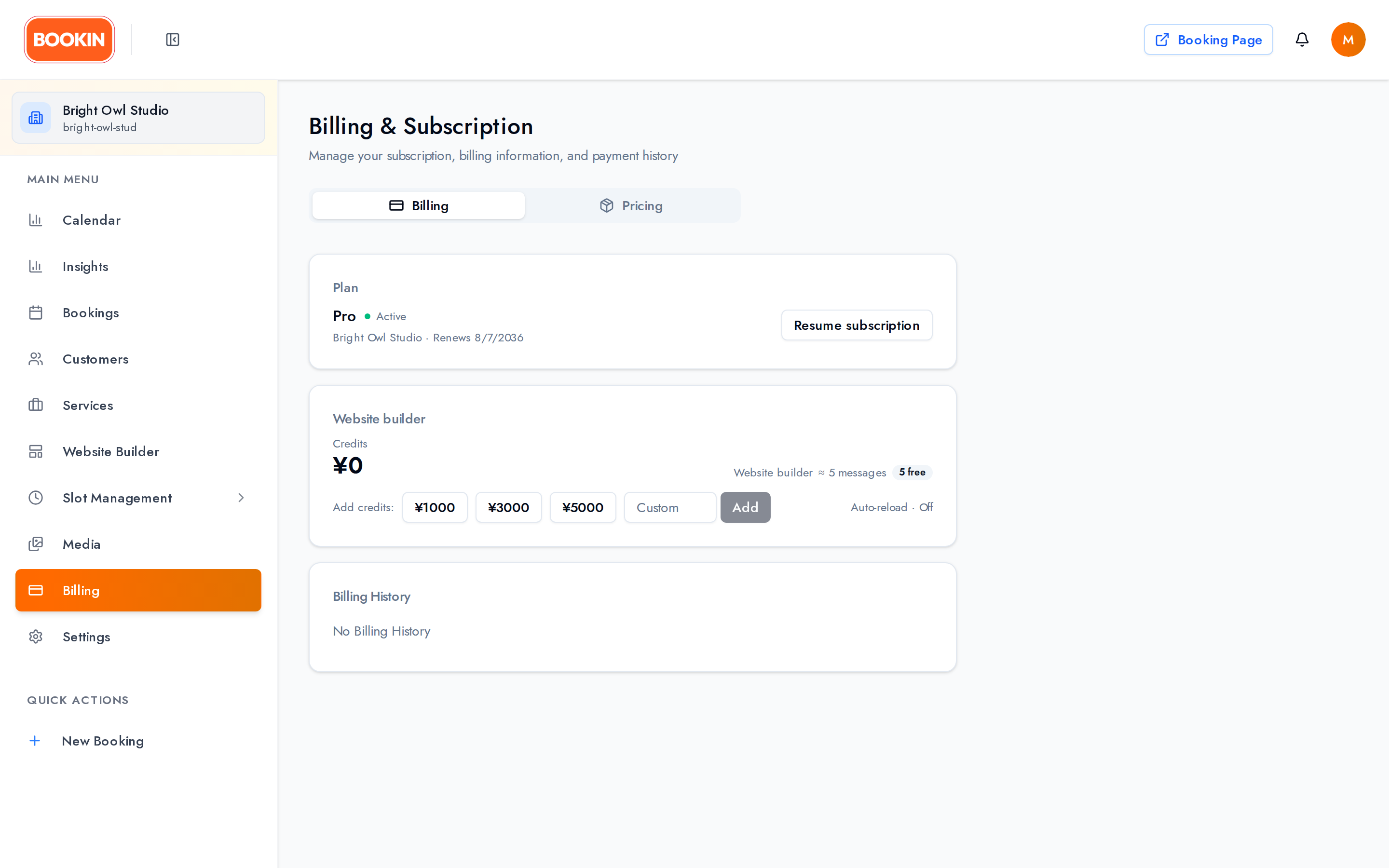
AI messages — pay as you go. Every organization gets 5 free AI messages. After that, each message costs ¥10 / $0.06, drawn from a prepaid credit wallet you top up in advance.
Top-up amounts are ¥1,000 / ¥3,000 / ¥5,000 or $5 / $15 / $30, or a custom amount from ¥500–¥50,000 / $5–$500. Auto-reload is available but off by default — nothing tops up without you turning it on.
Website hosting — recurring. Publishing your generated website starts a separate recurring subscription of ¥980 / $5 per month, billed independently of your plan. Building and previewing a site is free; publishing is what starts the charge.
You’ll find both on the Billing page alongside your plan.
Payment method and invoices
Section titled “Payment method and invoices”The Billing page shows your current plan, next billing date, payment method, and full billing history. From there you can update your card and download past invoices for your records.
Next Steps
Section titled “Next Steps”- Explore settings - Configure your account
- Set up services - Create your service offerings
- Configure business hours - Set your availability
Related Guides
Section titled “Related Guides”- Settings & Configuration - Configure your account settings
- Dashboard Overview - Navigate your dashboard
- Managing Services - Set up services for customers