
Business Hours & Time Slots
Configuring your business hours and time slots is essential for managing when customers can book appointments. This guide covers setting up operating hours, creating time slots, and managing availability.
Business Opening and Closing Hours
Section titled “Business Opening and Closing Hours”Set your operating hours for each day of the week to control when customers can book appointments.
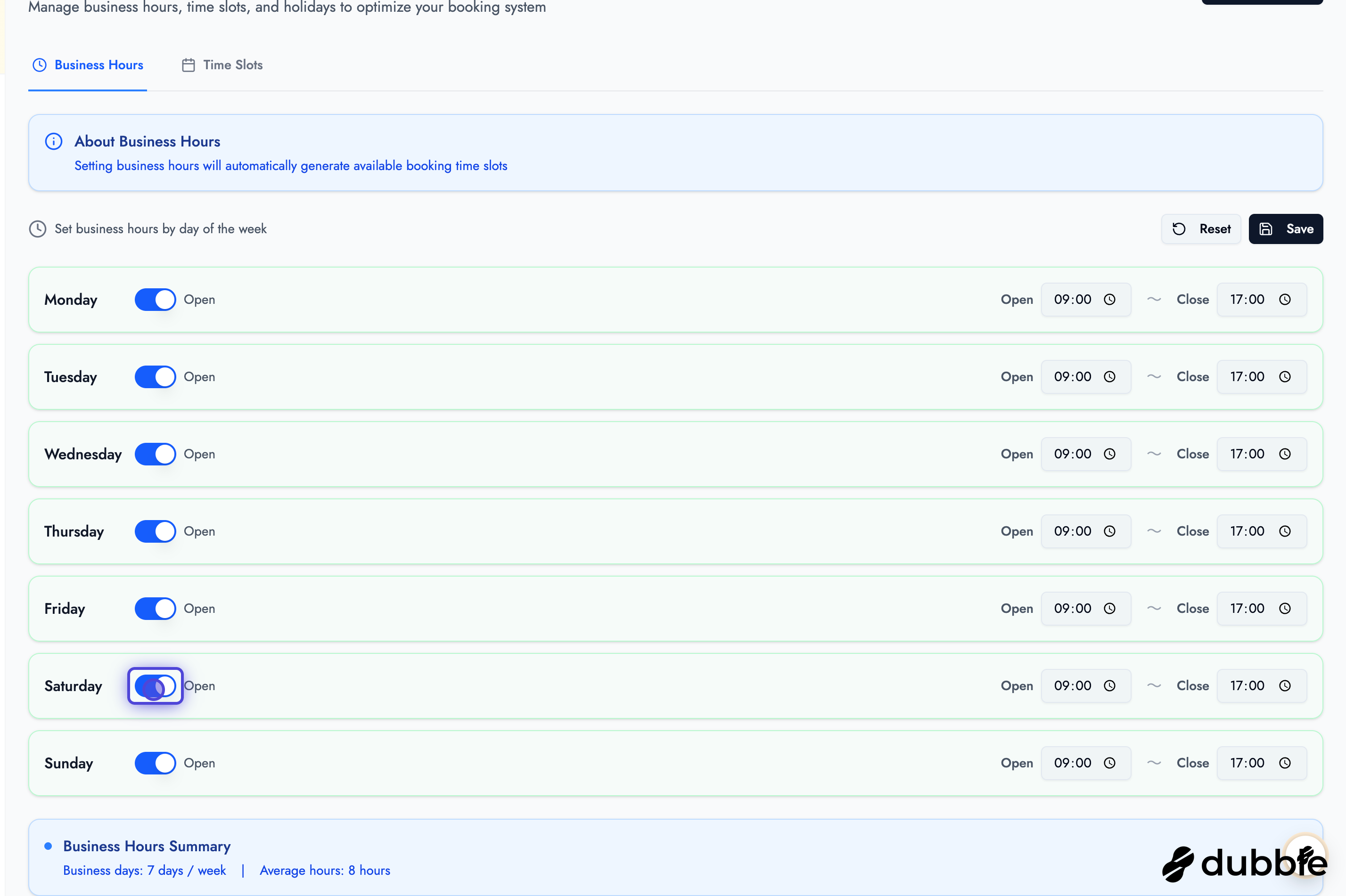
Setting Business Hours
Section titled “Setting Business Hours”- Navigate to the Slots page
- You’ll see a weekly schedule with all 7 days
- For each day, set:
- Opening Time: When your business opens
- Closing Time: When your business closes
- After updating hours, click the “Save” button in the top right corner
Weekly Schedule
Section titled “Weekly Schedule”Configure hours for each day:
- Monday through Sunday: Set individual hours for each day
- Different Hours per Day: You can set different hours for weekdays vs weekends
- Closed Days: Leave hours empty or set to closed for days you don’t operate
Save Changes
Remember to click the “Save” button after making any changes to business hours.
Time Slot Management
Section titled “Time Slot Management”Time slots define the specific times when customers can book appointments. You can create slots manually or generate them automatically.
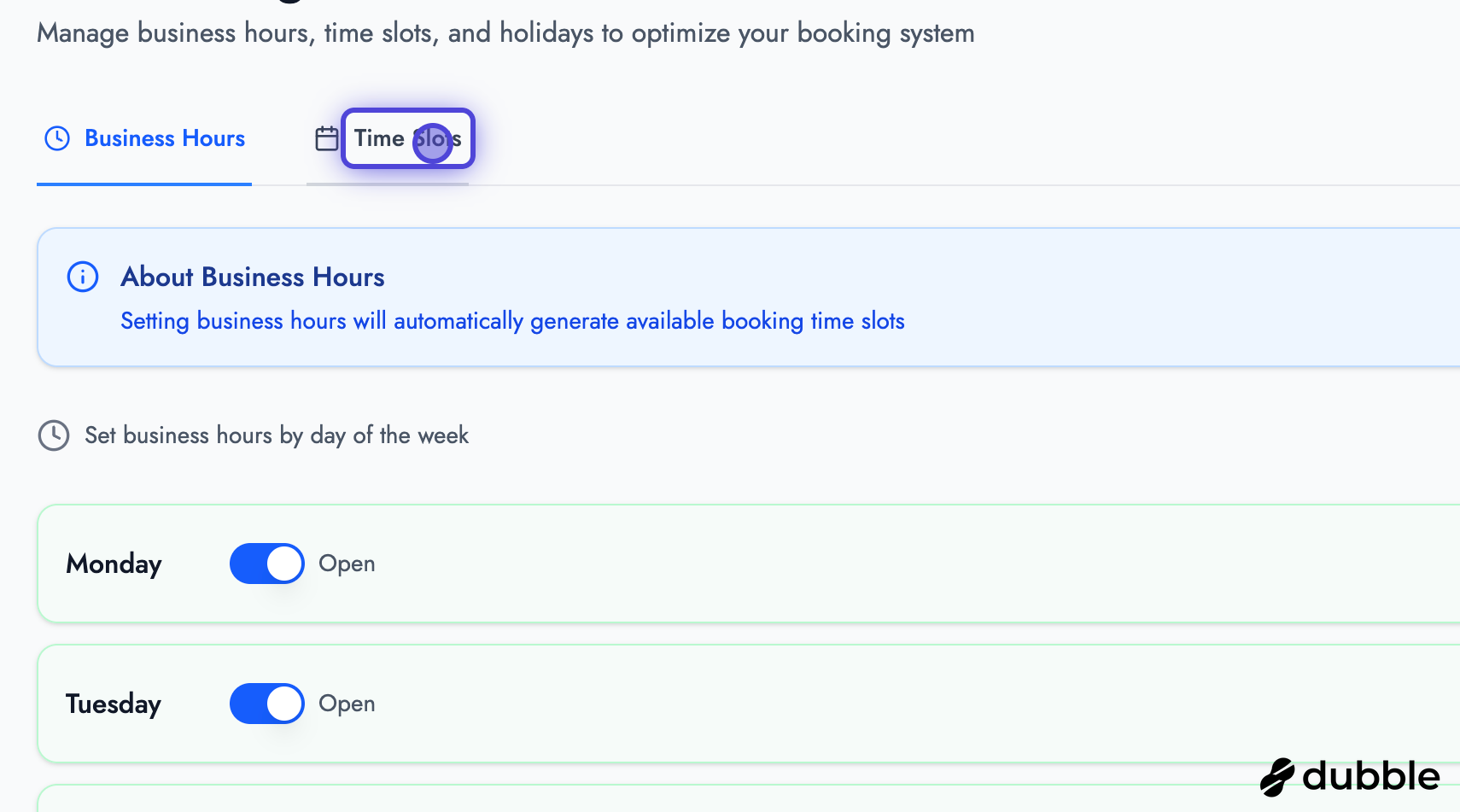
Accessing Time Slot Management
Section titled “Accessing Time Slot Management”- On the Slots page, click the “Time Slots” tab
- You’ll see the time slot management interface
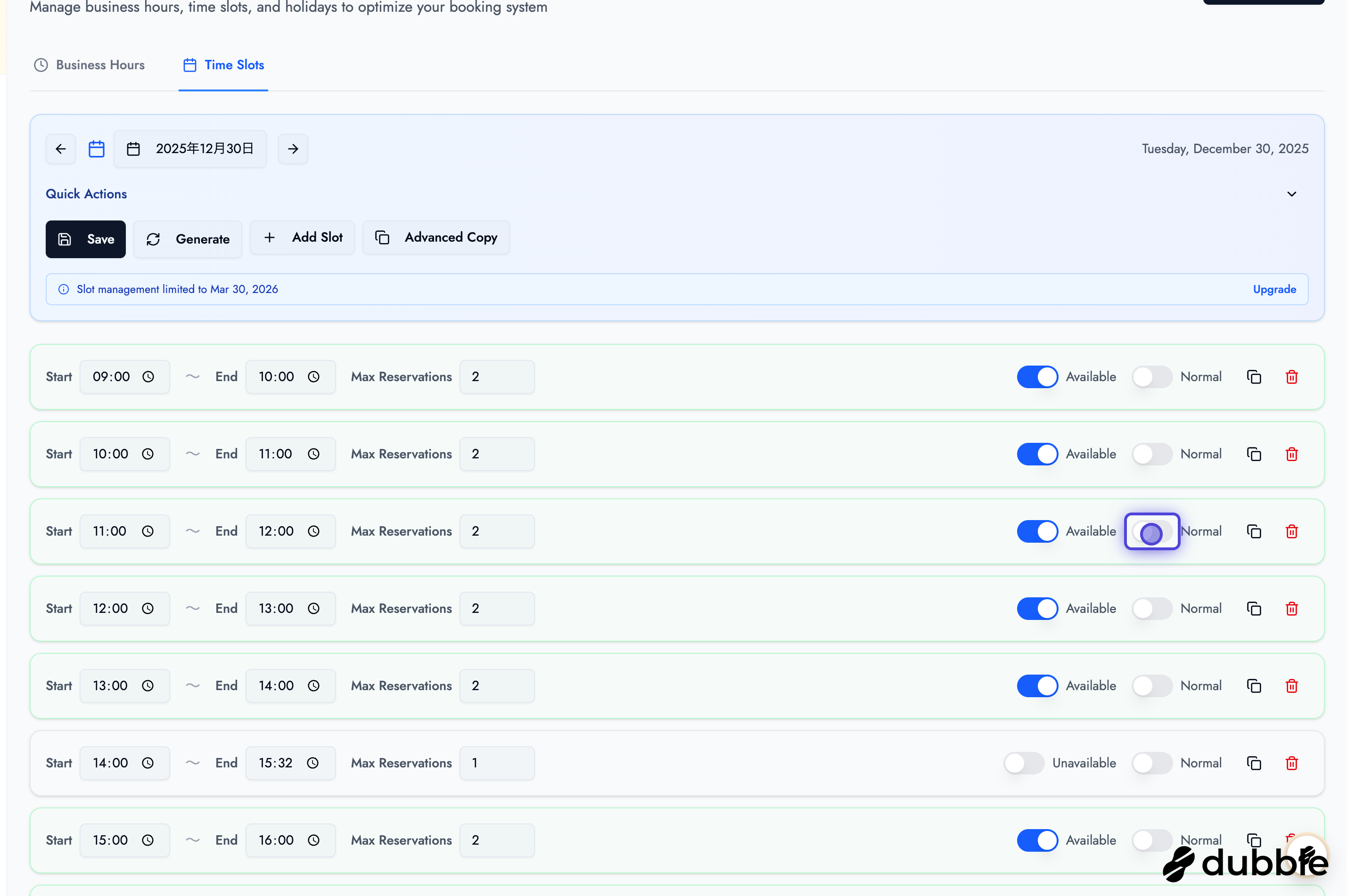
Time Slot Interface
Section titled “Time Slot Interface”The time slot page includes:
Top Section:
- Date Selector: Choose the date you want to manage
- Action Buttons:
- Save: Save all changes
- Generate: Automatically generate time slots
- Add Slot: Create a single time slot manually
- Advanced Copy: Copy slots between dates
Slot List:
- All time slots for the selected date
- Each slot shows start time, end time, and max reservations
- Available/unavailable toggle for each slot
Creating Time Slots
Section titled “Creating Time Slots”Method 1: Generate Time Slots Automatically
Section titled “Method 1: Generate Time Slots Automatically”If you don’t have any time slots for a date, you can generate them automatically.
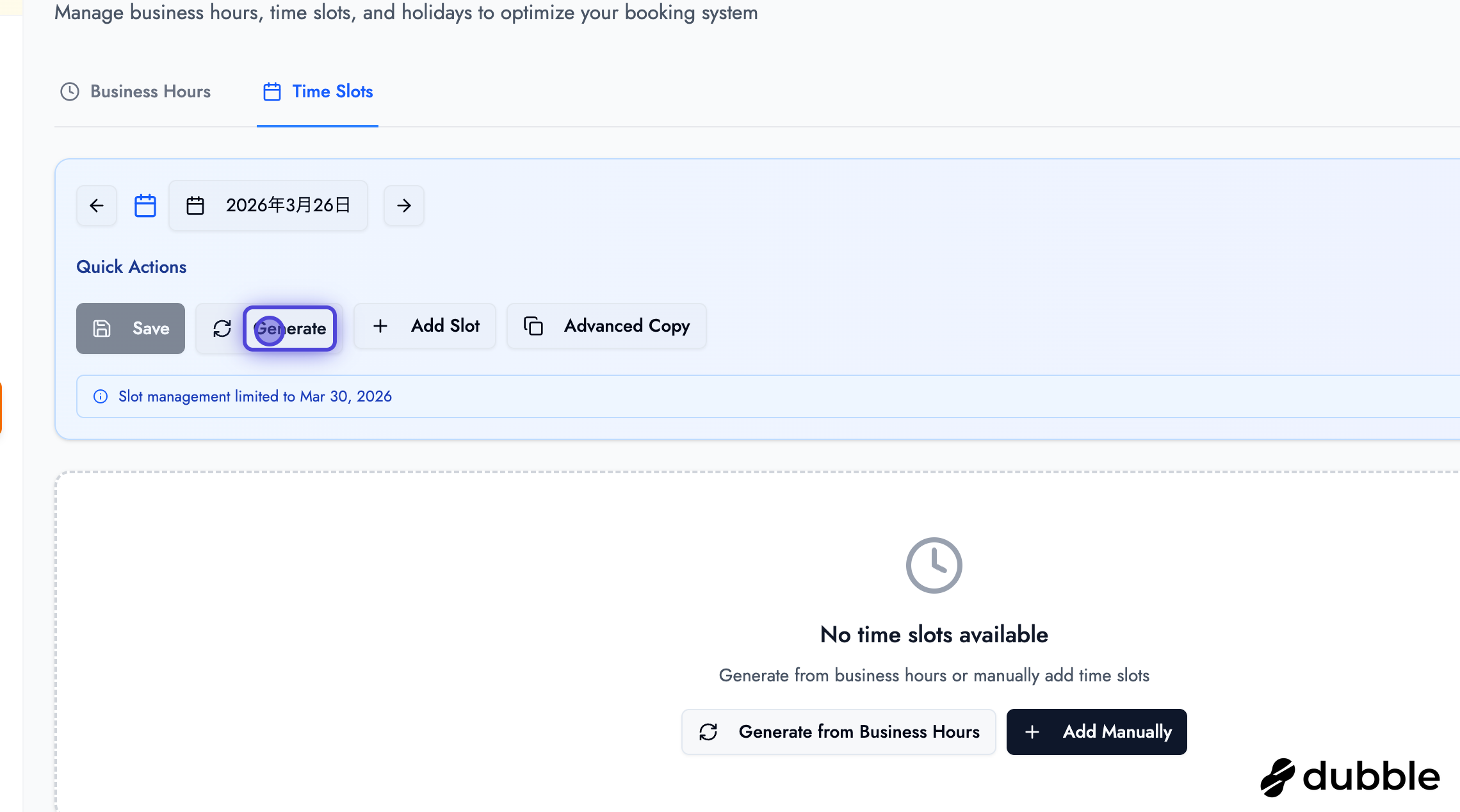
- Select the date you want to create slots for
- Click the “Generate” button
- The Generate Time Slot modal will open
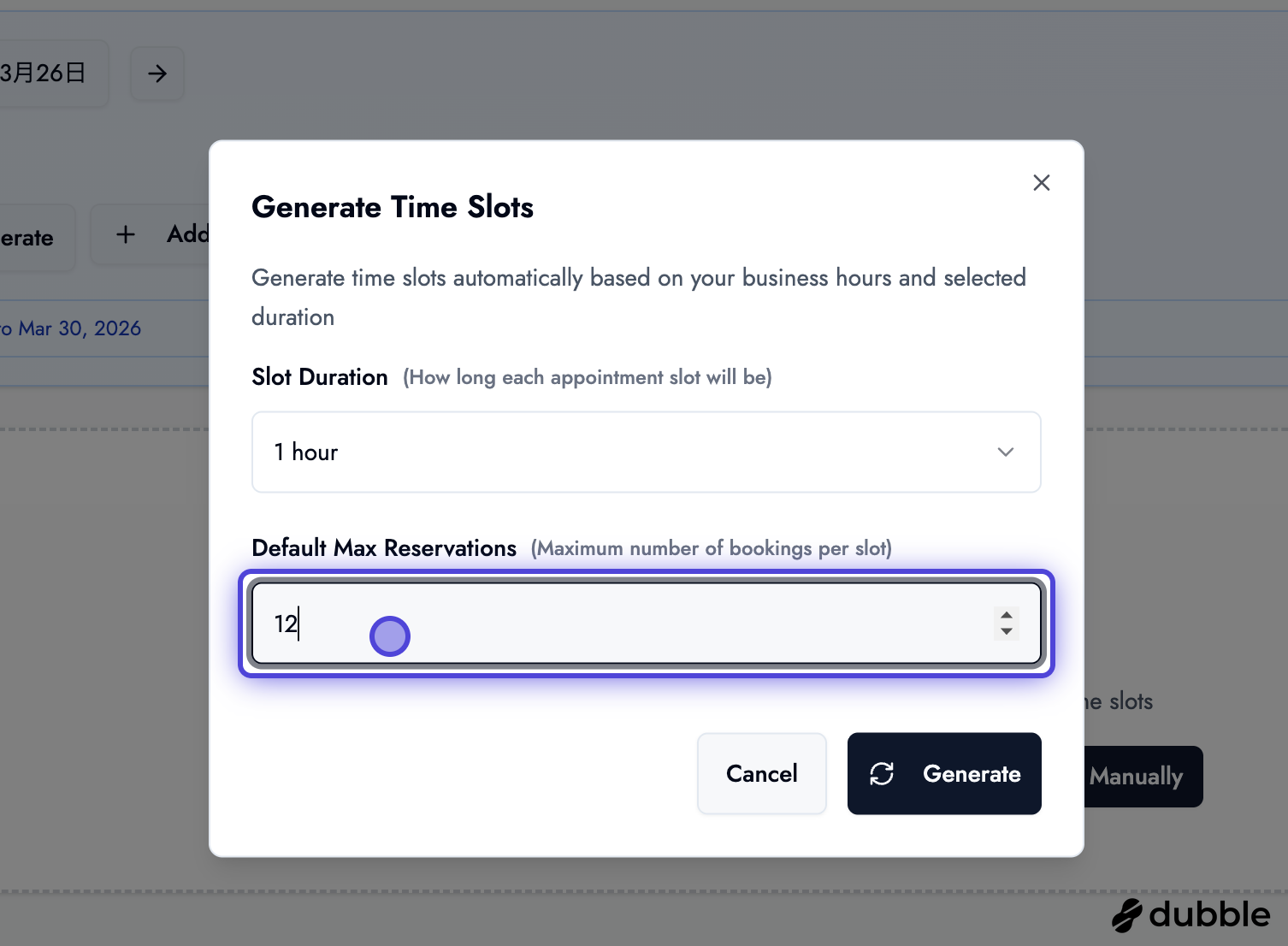
- Configure the generation settings:
- Slot Duration: Select from dropdown (e.g., 1 hour, 2 hours, 30 minutes)
- Default Max Reservations: Enter how many parallel reservations each slot can handle
- Click “Generate”
- The system will create time slots based on your business hours
- You can then edit, add, or remove slots as needed
Method 2: Add Individual Time Slots
Section titled “Method 2: Add Individual Time Slots”
To add a single time slot manually:
- Click “Add Slot”
- Configure the slot:
- Start Time: When the slot begins (e.g., 9:00 AM)
- End Time: When the slot ends (e.g., 10:00 AM)
- Max Reservations: How many parallel appointments this slot can handle
- Available Toggle: Enable or disable the slot
- Click to save the slot
Editing Time Slots
Section titled “Editing Time Slots”You can modify existing time slots:
- Change Times: Click on start or end times to modify them
- Adjust Max Reservations: Change how many parallel bookings are allowed
- Toggle Availability: Enable or disable slots
- Duplicate Slots: Click the copy icon to duplicate a slot
- Delete Slots: Remove slots you no longer need
Blocking Time Slots
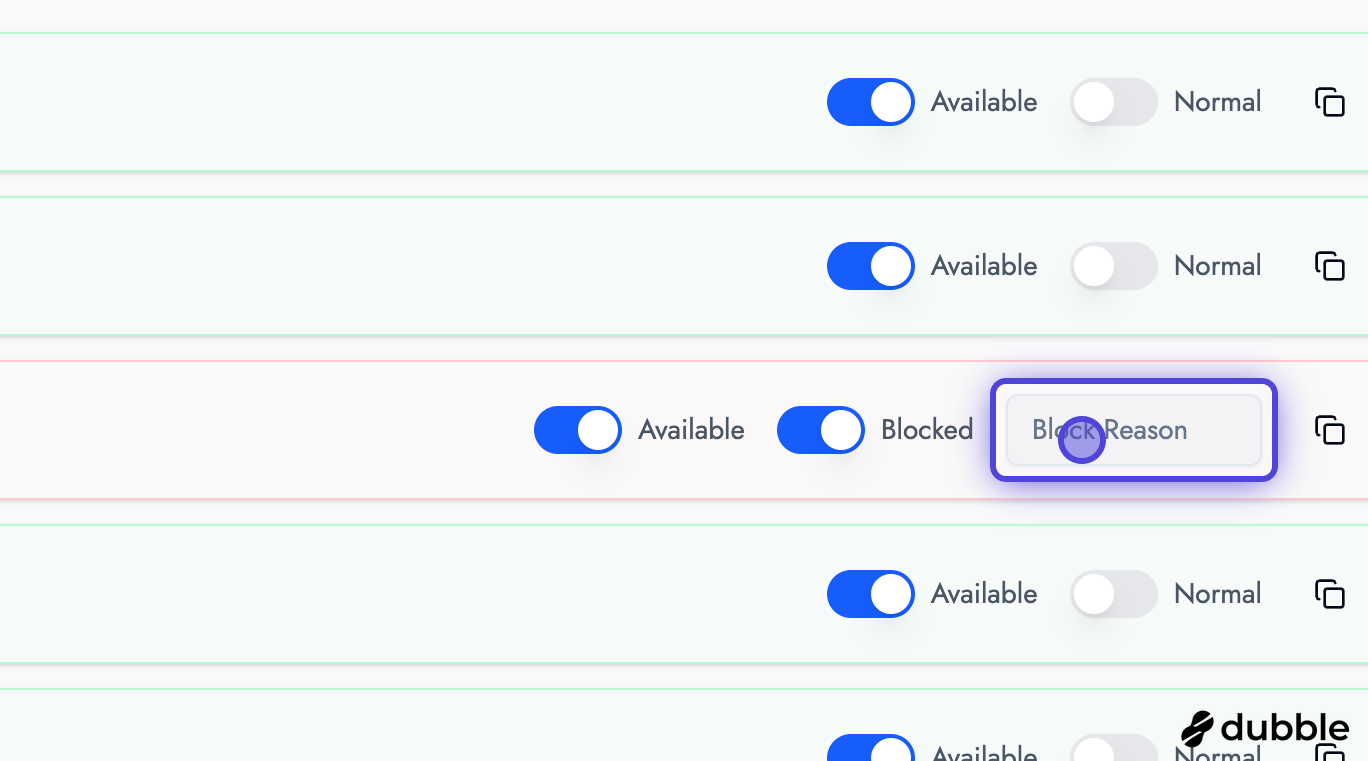
Section titled “Blocking Time Slots”Sometimes you need to block specific time slots (e.g., for breaks, maintenance, or private events).
How to Block a Slot
Section titled “How to Block a Slot”- Find the time slot you want to block
- Toggle the “Available/Normal” switch to “Blocked”
- Optionally add a note or reason for blocking:
- “Lunch Break”
- “Maintenance”
- “Private Event”
- Any other reason
- The slot will be unavailable for customer bookings
Blocked Slots
Blocked slots are not visible to customers and cannot be booked. They remain in your system so you can unblock them later if needed.
Navigating Between Dates
Section titled “Navigating Between Dates”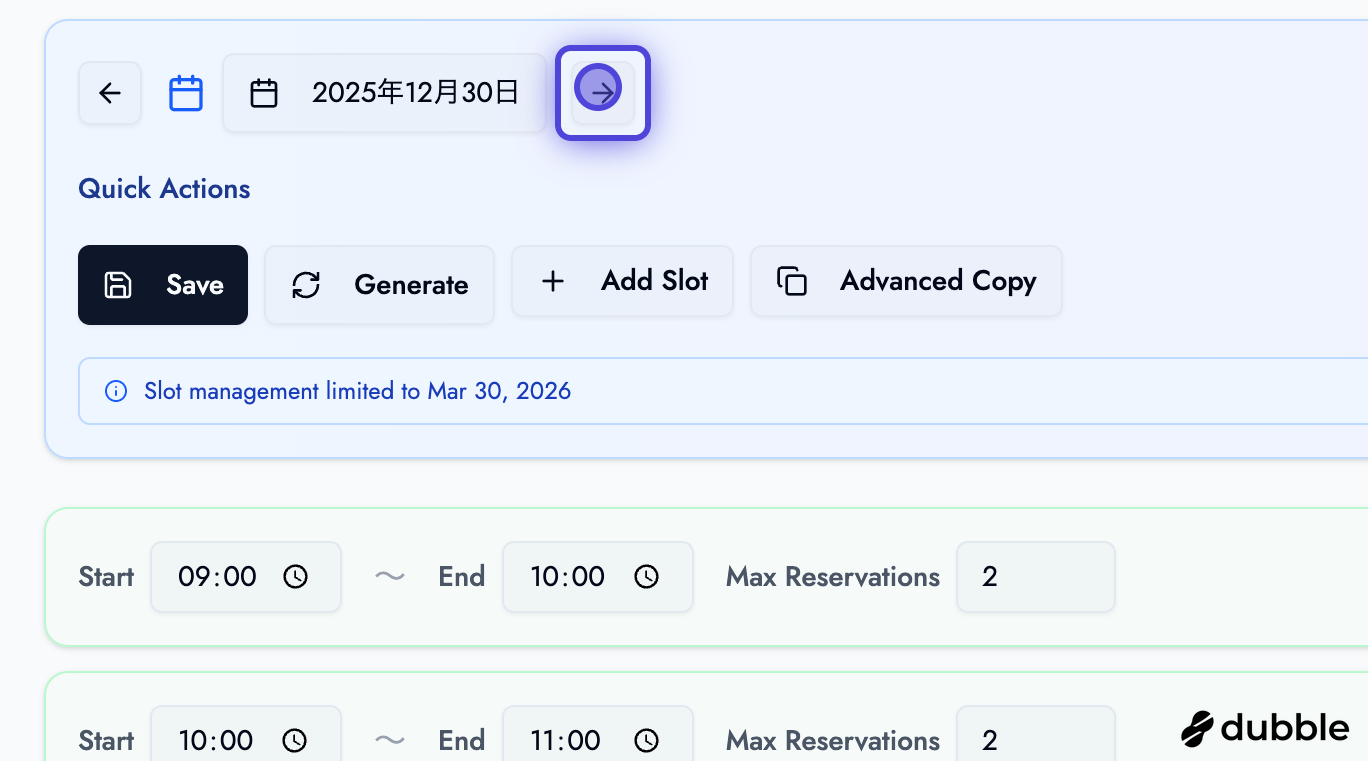
You can manage time slots for different dates:
- Arrow Navigation: Use left/right arrows to move between dates
- Date Picker: Click on the date to open a calendar picker
- Quick Date Selection: Jump to specific dates quickly
Advanced Copy Feature
Section titled “Advanced Copy Feature”The Advanced Copy feature allows you to copy time slots from one date to multiple dates, saving time when setting up recurring schedules.
Copy To (Copy Current Date to Other Dates)
Section titled “Copy To (Copy Current Date to Other Dates)”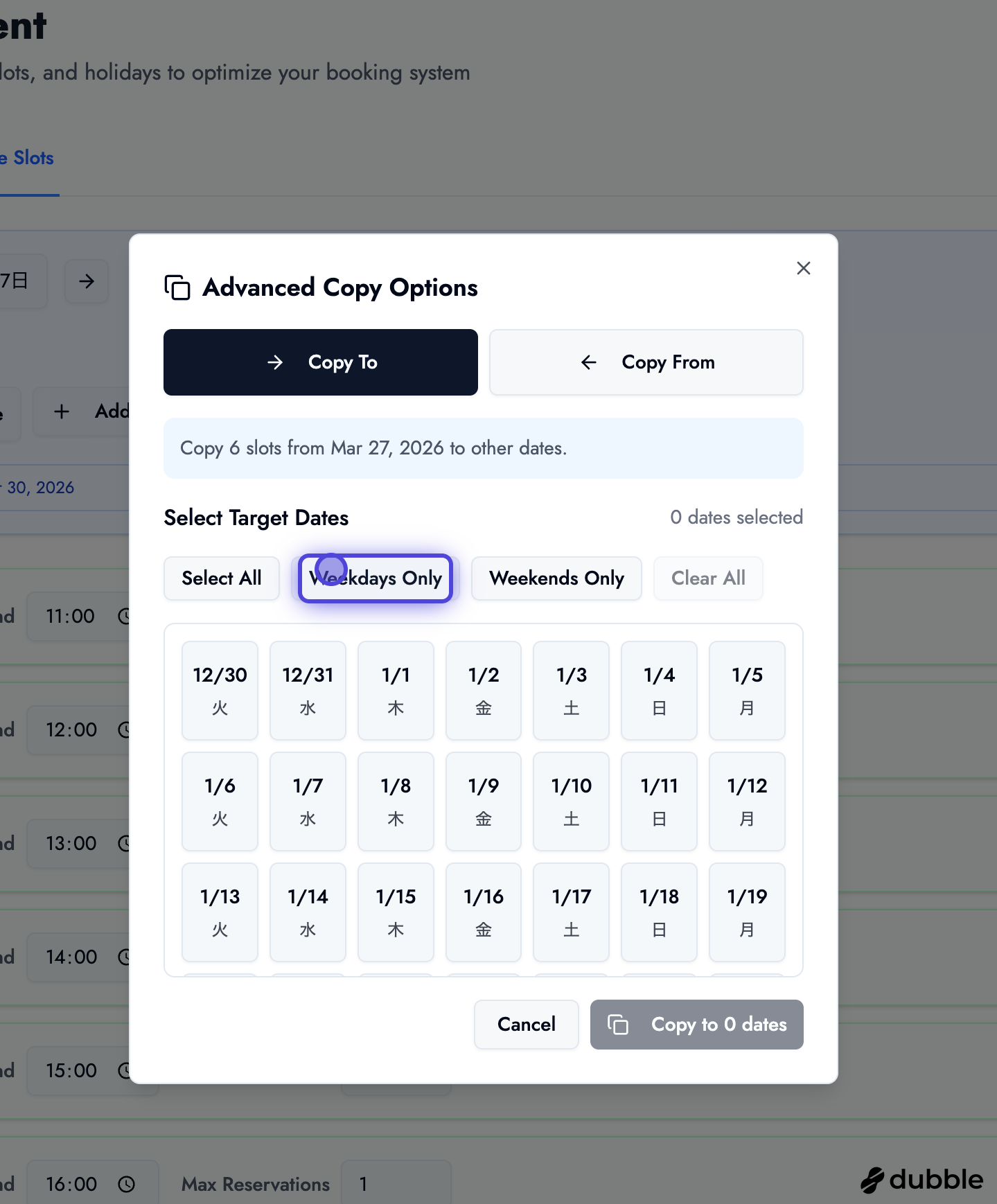
- Set up time slots for a specific date (your template)
- Click “Advanced Copy”
- Select the “Copy To” tab (default)
- Choose destination dates:
- Select All: Select all available dates
- Weekdays Only: Select only Monday-Friday
- Weekends Only: Select only Saturday-Sunday
- Manual Selection: Click individual dates
- Review your selection
- Click “Copy” to apply slots to selected dates
Duplicate Prevention
Make sure the destination dates don’t already have existing slots to prevent duplicates. The system will warn you if duplicates are detected.
Copy From (Copy from Another Date to Current Date)
Section titled “Copy From (Copy from Another Date to Current Date)”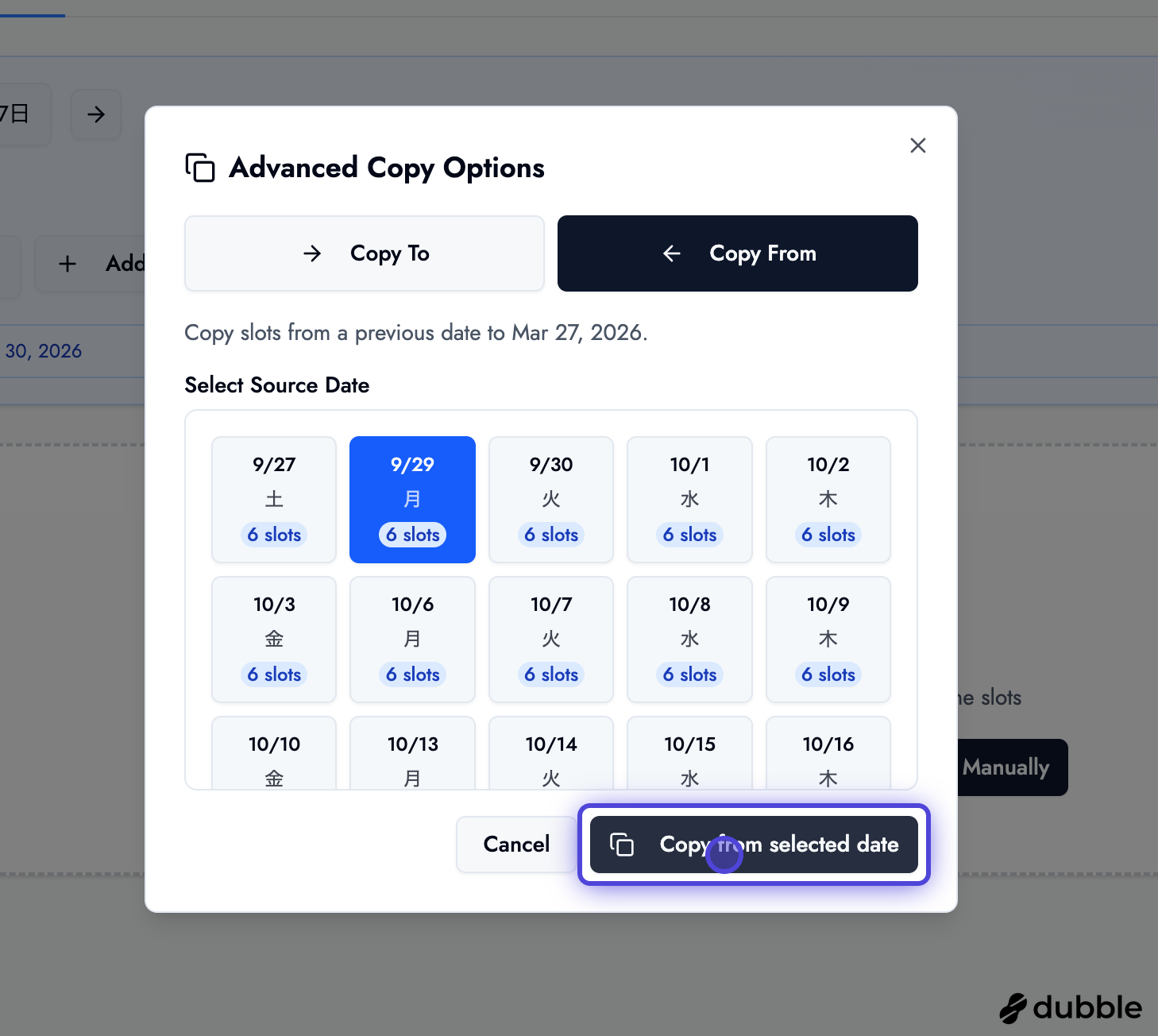
- Select the date you want to copy slots to (current date)
- Click “Advanced Copy”
- Select the “Copy From” tab
- Browse available dates (excluding the current date)
- Each date shows a badge with the number of available slots
- Click on a date to copy all its slots to the current date
- Confirm the copy operation
Plan Limits
Your plan determines how far in advance you can create slots:
- Standard plan: Up to 3 months in advance
- We recommend copying 1 month at a time for easier management
Best Practices
Section titled “Best Practices”Time Slot Management Tips
Section titled “Time Slot Management Tips”- Start with Business Hours: Set your operating hours first
- Generate Then Customize: Use auto-generation, then fine-tune slots
- Regular Reviews: Review and update slots weekly or monthly
- Block Strategically: Block slots for breaks and maintenance
- Use Advanced Copy: Save time by copying templates to multiple dates
- Monitor Capacity: Adjust max reservations based on demand
Setting Max Reservations
Section titled “Setting Max Reservations”Max reservations determine how many parallel appointments a slot can handle:
- 1 Reservation: One appointment at a time (most common)
- 2+ Reservations: Multiple appointments simultaneously (for multiple staff or services)
Consider:
- Number of staff members available
- Service capacity
- Equipment availability
- Customer experience
Weekly Patterns
Section titled “Weekly Patterns”For businesses with consistent weekly schedules:
- Set up slots for one week
- Use Advanced Copy to replicate to future weeks
- Make adjustments as needed for holidays or special events
Next Steps
Section titled “Next Steps”Now that you’ve configured your business hours and time slots:
- Learn about creating appointments - Book appointments in your time slots
- Explore settings - Configure additional business settings
- Manage your services - Set up services customers can book
Related Guides
Section titled “Related Guides”- Creating Appointments - Book appointments in your configured time slots
- Managing Appointments - Manage bookings in your time slots
- Settings & Configuration - Additional business configuration options