
Creating Appointments
This guide will walk you through the process of creating appointments on behalf of your customers. You can create appointments directly from the calendar view, which provides a visual interface for managing your schedule.
Accessing the Calendar
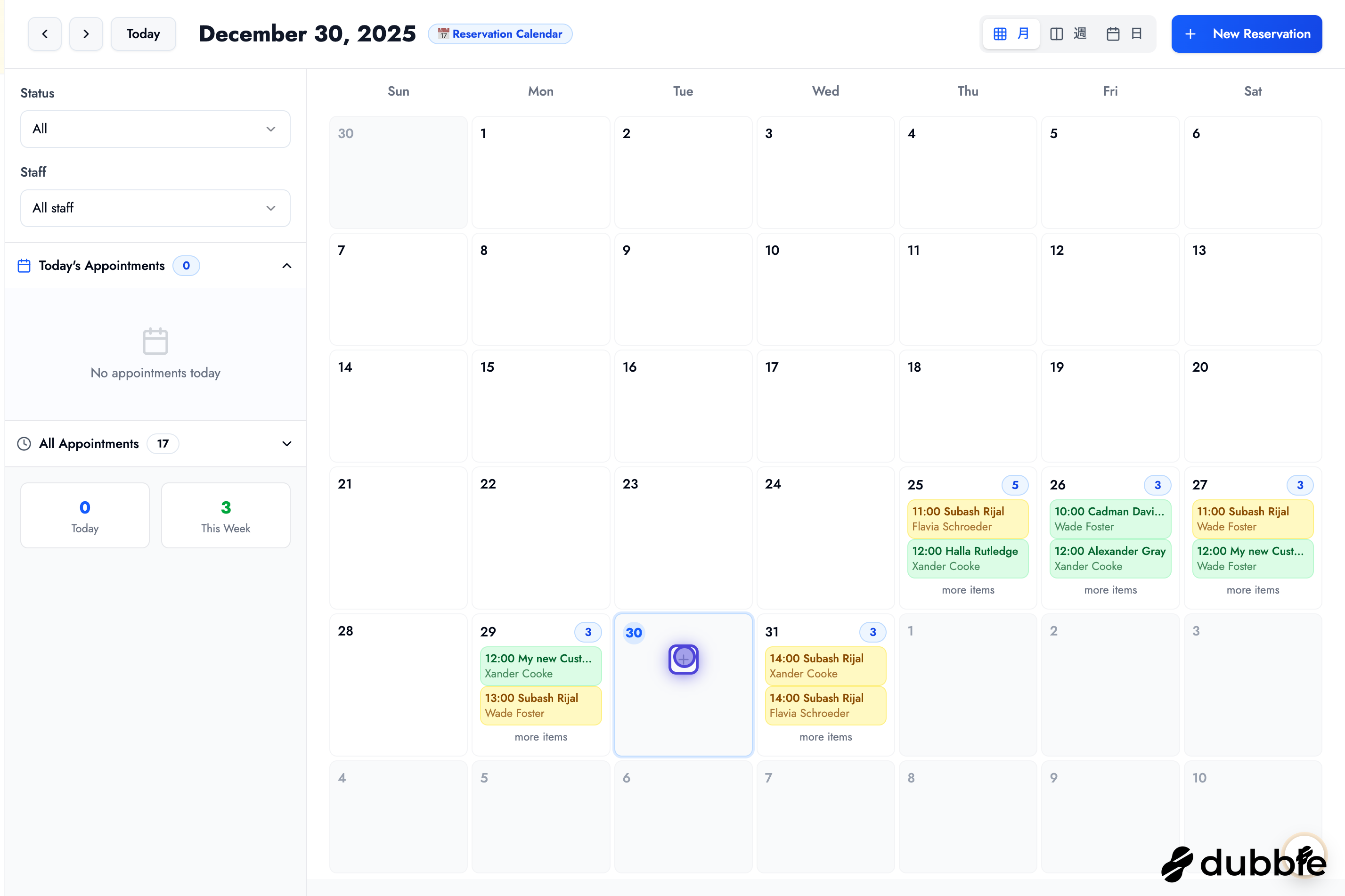
Section titled “Accessing the Calendar”The calendar page provides a comprehensive view of all your appointments and allows you to create new bookings easily.
Calendar Layout
Section titled “Calendar Layout”The calendar page is divided into two main sections:
Left Side:
- Filters: Filter appointments by staff member or status
- Today’s Bookings: List of all appointments scheduled for today
- All Appointments: Complete list of all appointments
Right Side:
- Full Calendar View: Visual calendar with all bookings displayed
- Color-Coded Status:
- Green indicates confirmed appointments
- Yellow indicates pending appointments
Calendar Views
Section titled “Calendar Views”You can switch between different calendar views to suit your needs:
Month View: See the entire month at a glance
Week View: Focus on a single week
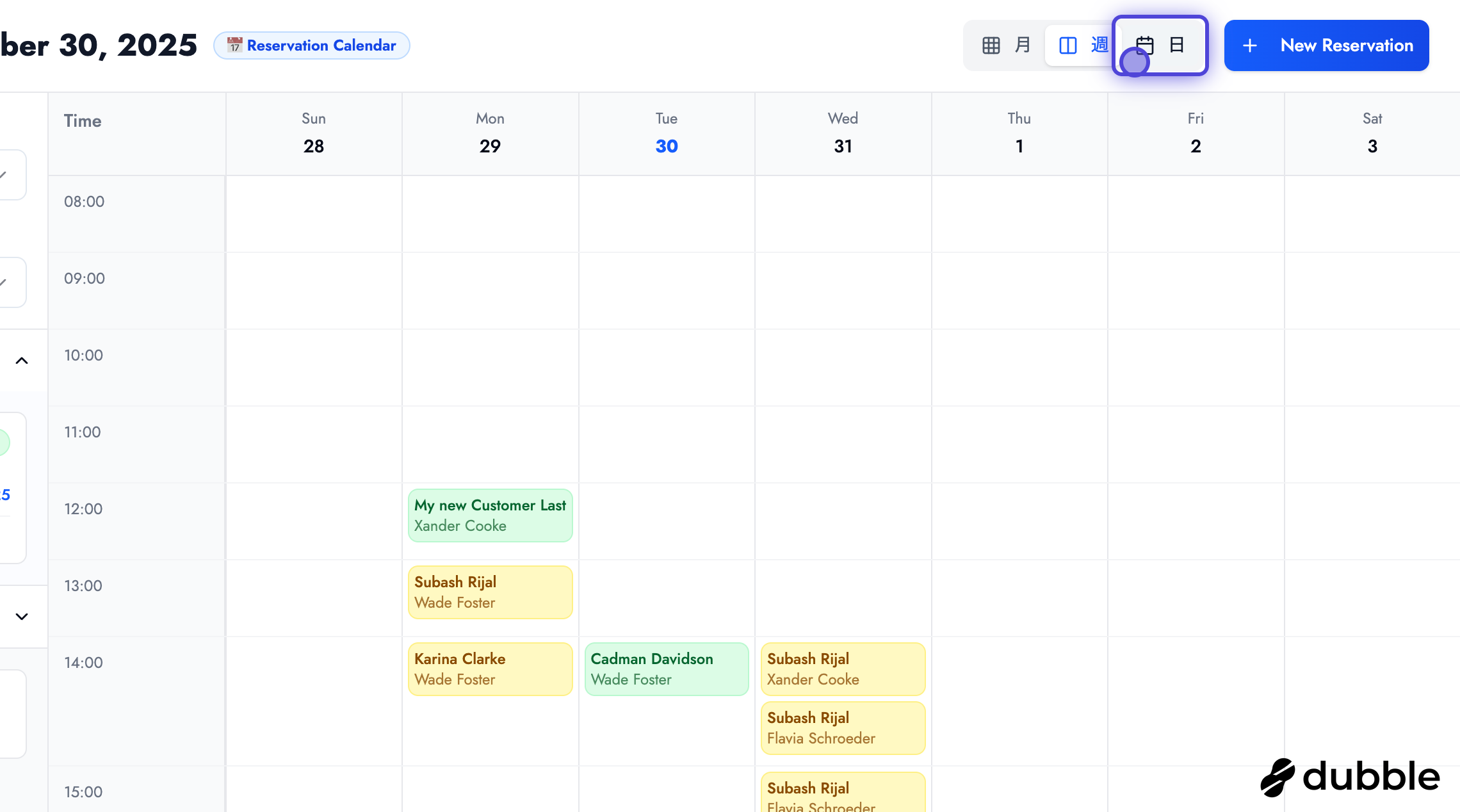
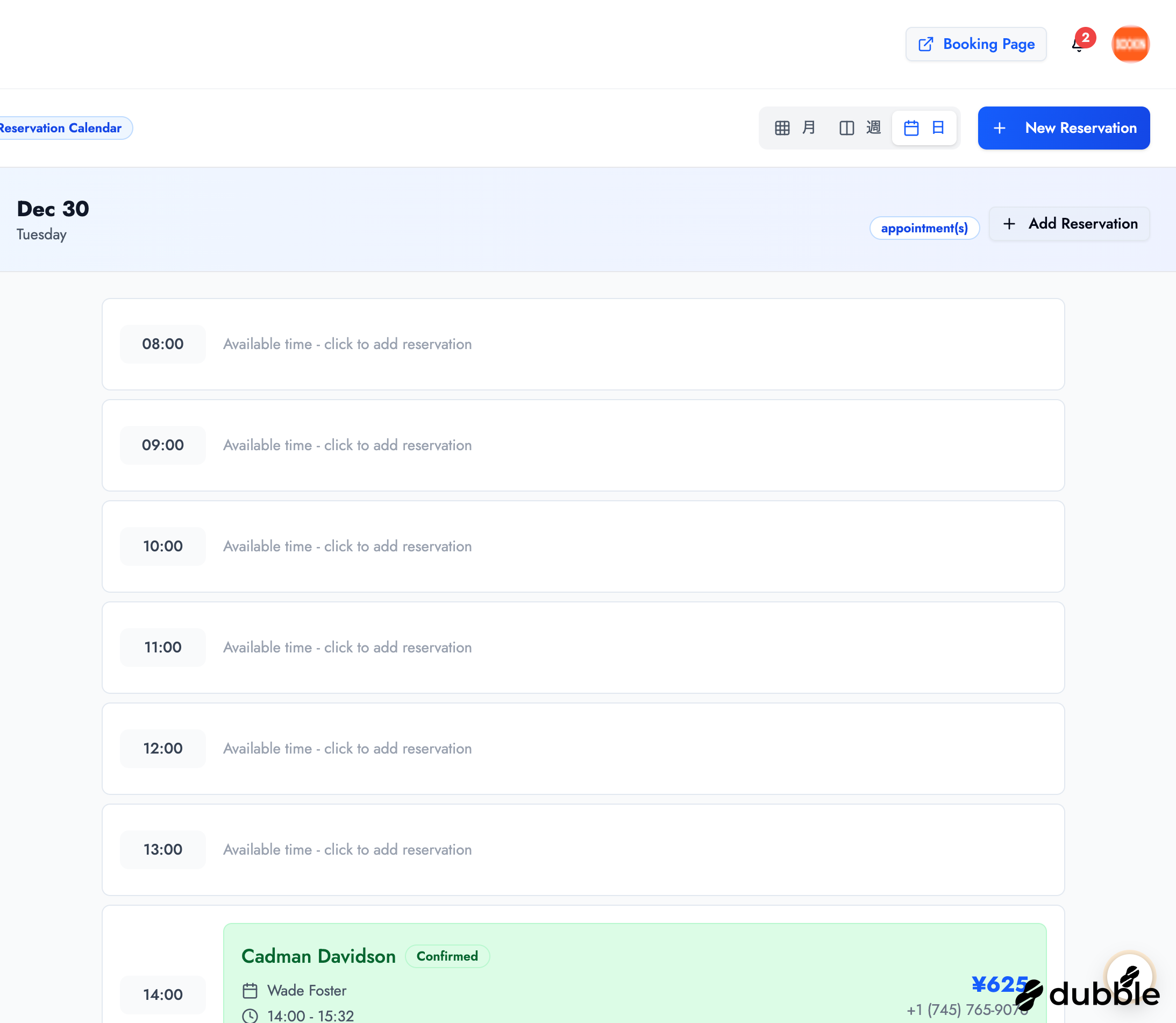
Day View: Detailed view of a single day with available time slots
Creating a New Appointment
Section titled “Creating a New Appointment”Step 1: Select a Date
Section titled “Step 1: Select a Date”Click on any date in the calendar to open the appointment creation modal. You can also click on a specific time slot in the day view to create an appointment for that time.
Step 2: Select or Create a Customer
Section titled “Step 2: Select or Create a Customer”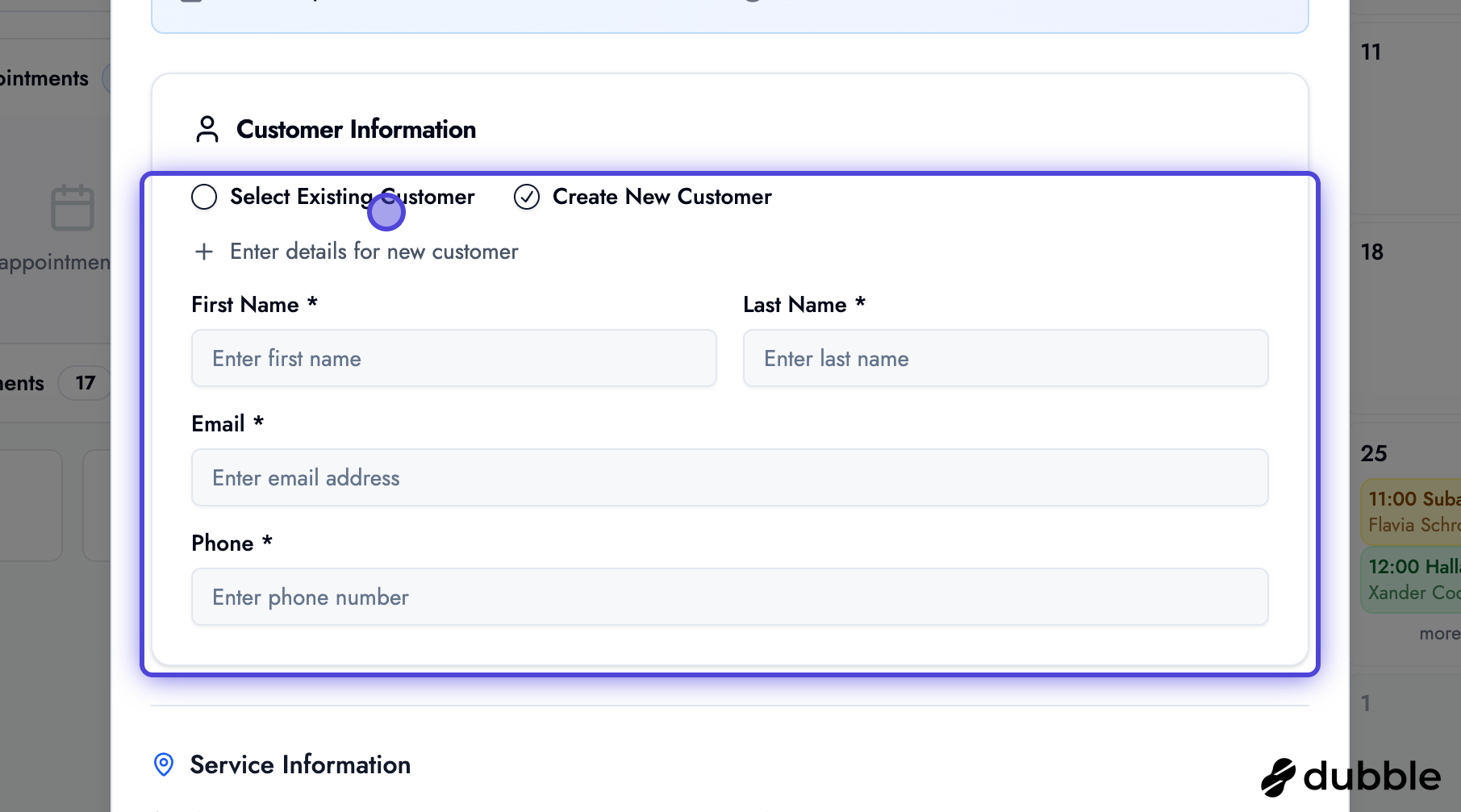
In the appointment modal, you have two options:
Option A: Select Existing Customer
- Use the search field to find an existing customer
- Type the customer’s name or email to filter the list
- Click on the customer to select them
Option B: Create New Customer
- If the customer doesn’t exist, click to create a new customer
- Fill in the customer’s information:
- Name
- Email address
- Phone number (optional)
- Any other relevant details
Step 3: Select a Service
Section titled “Step 3: Select a Service”
- Click on the service dropdown menu
- Select the service the customer wants to book
- The price will automatically populate based on the service
- You can modify the price if needed (for discounts, special pricing, etc.)
Step 4: Select Date and Time
Section titled “Step 4: Select Date and Time”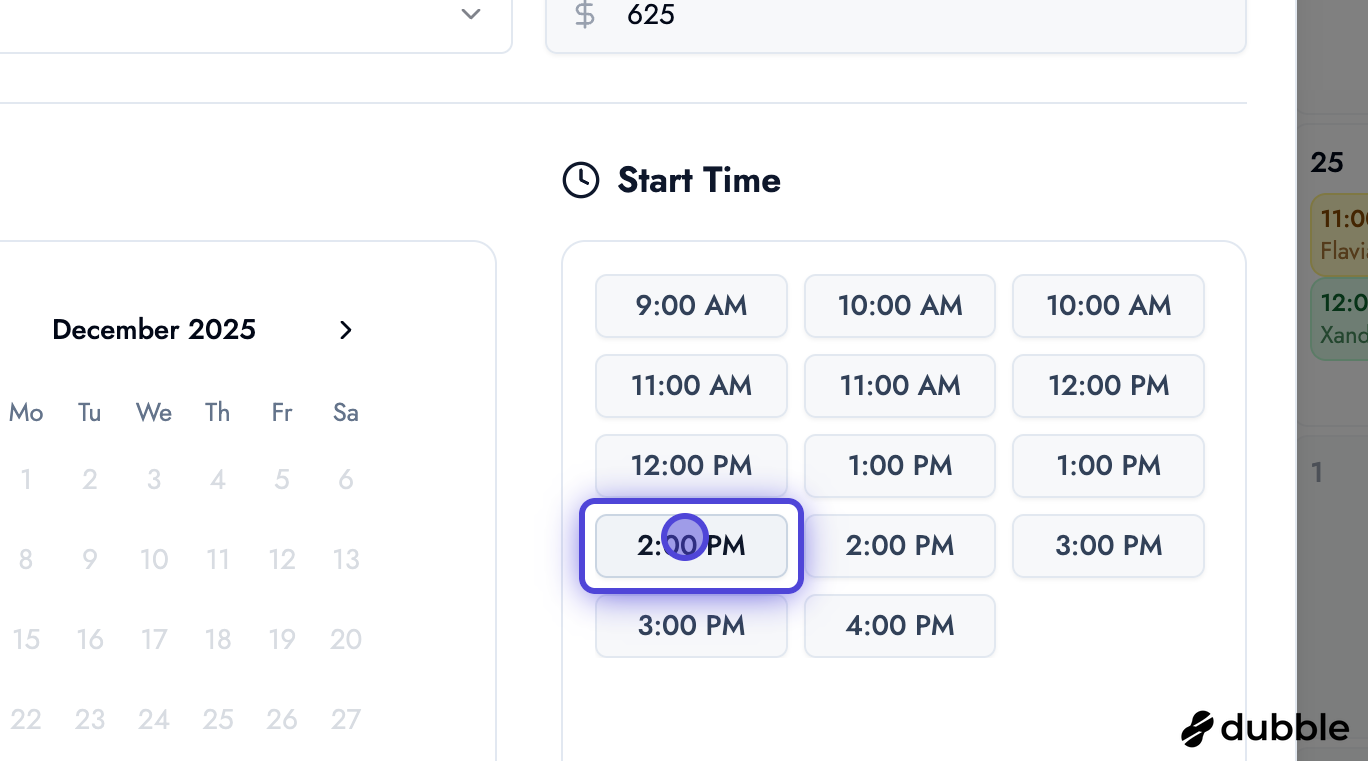
- Choose the appointment date (if not already selected)
- After selecting the date, the system will display all available time slots for that day
- Click on your preferred time slot
- The system will automatically check availability and prevent double-booking
Step 5: Add Notes or Special Requests
Section titled “Step 5: Add Notes or Special Requests”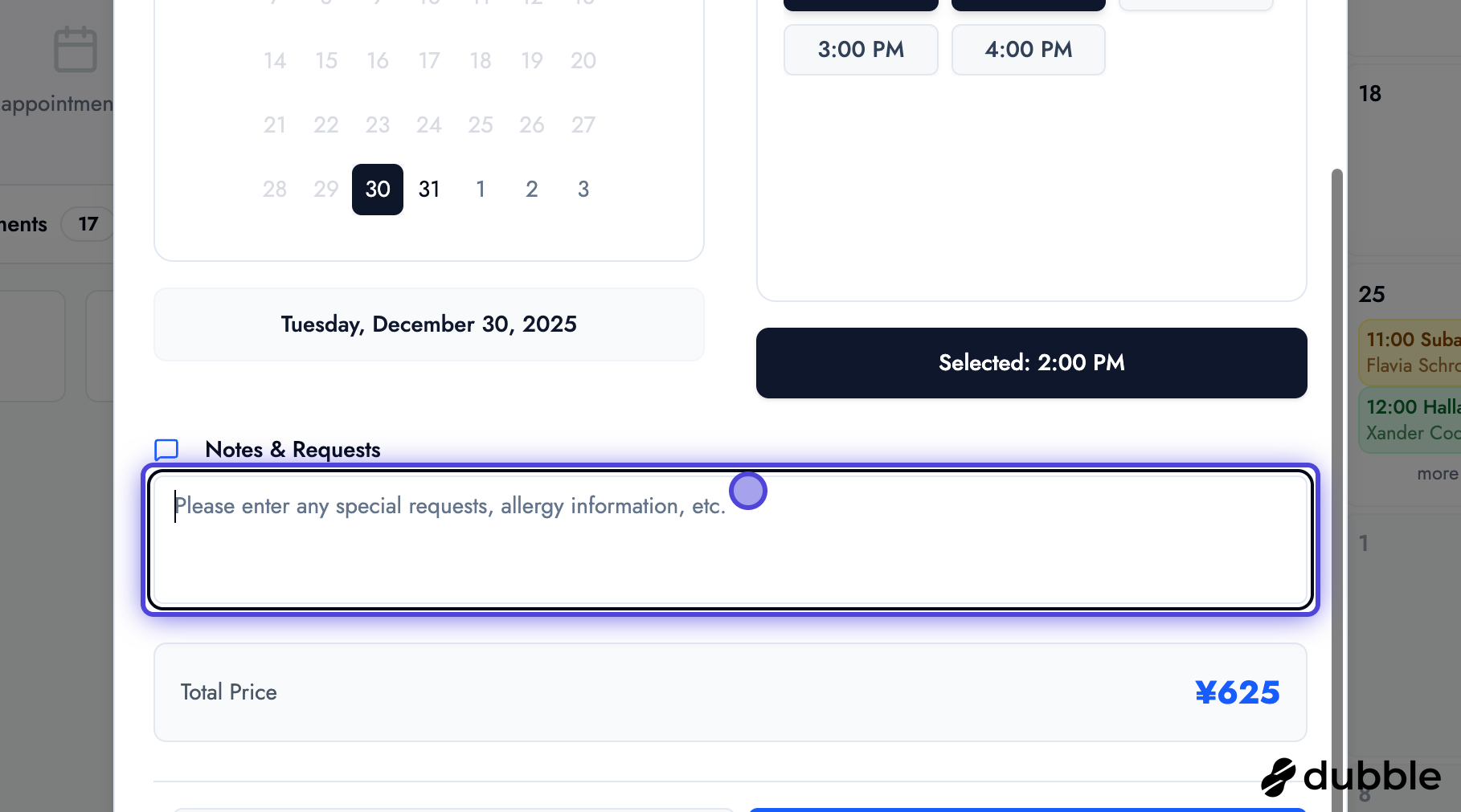
Optionally add any notes or special requests for this appointment:
- Customer preferences
- Special instructions
- Equipment or materials needed
- Any other relevant information
These notes will be visible to staff members and can help ensure the appointment runs smoothly.
Step 6: Save the Appointment
Section titled “Step 6: Save the Appointment”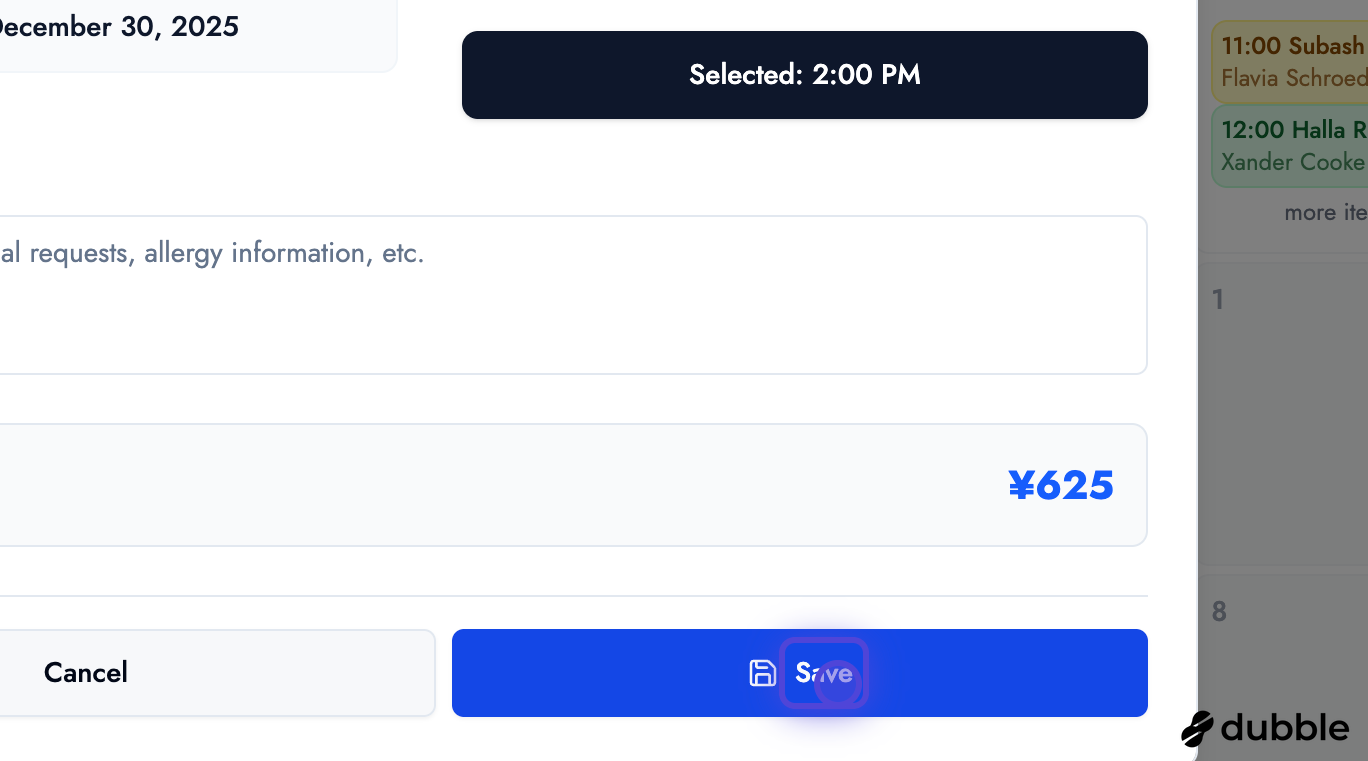
- Review all the appointment details
- Click “Save” or “Confirm” to create the appointment
- The customer will automatically receive a confirmation email with all appointment details
Email Confirmation
Once saved, the customer will receive an email confirmation with:
- Appointment date and time
- Service details
- Booking confirmation code
- Any special instructions or notes
Tips for Creating Appointments
Section titled “Tips for Creating Appointments”- Check Availability First: Always verify that the time slot is available before confirming
- Double-Check Customer Information: Ensure email addresses are correct so customers receive confirmations
- Add Detailed Notes: Include any special requirements or preferences to help staff prepare
- Use Day View for Precision: Switch to day view when you need to see exact time slot availability
- Verify Service Pricing: Confirm the service price is correct, especially if you’ve modified it
Next Steps
Section titled “Next Steps”After creating an appointment:
Related Guides
Section titled “Related Guides”- Managing Appointments - Edit, confirm, and manage existing appointments
- Managing Customers - View customer details and booking history
- Dashboard Overview - Navigate the dashboard and view analytics