Dashboard Overview
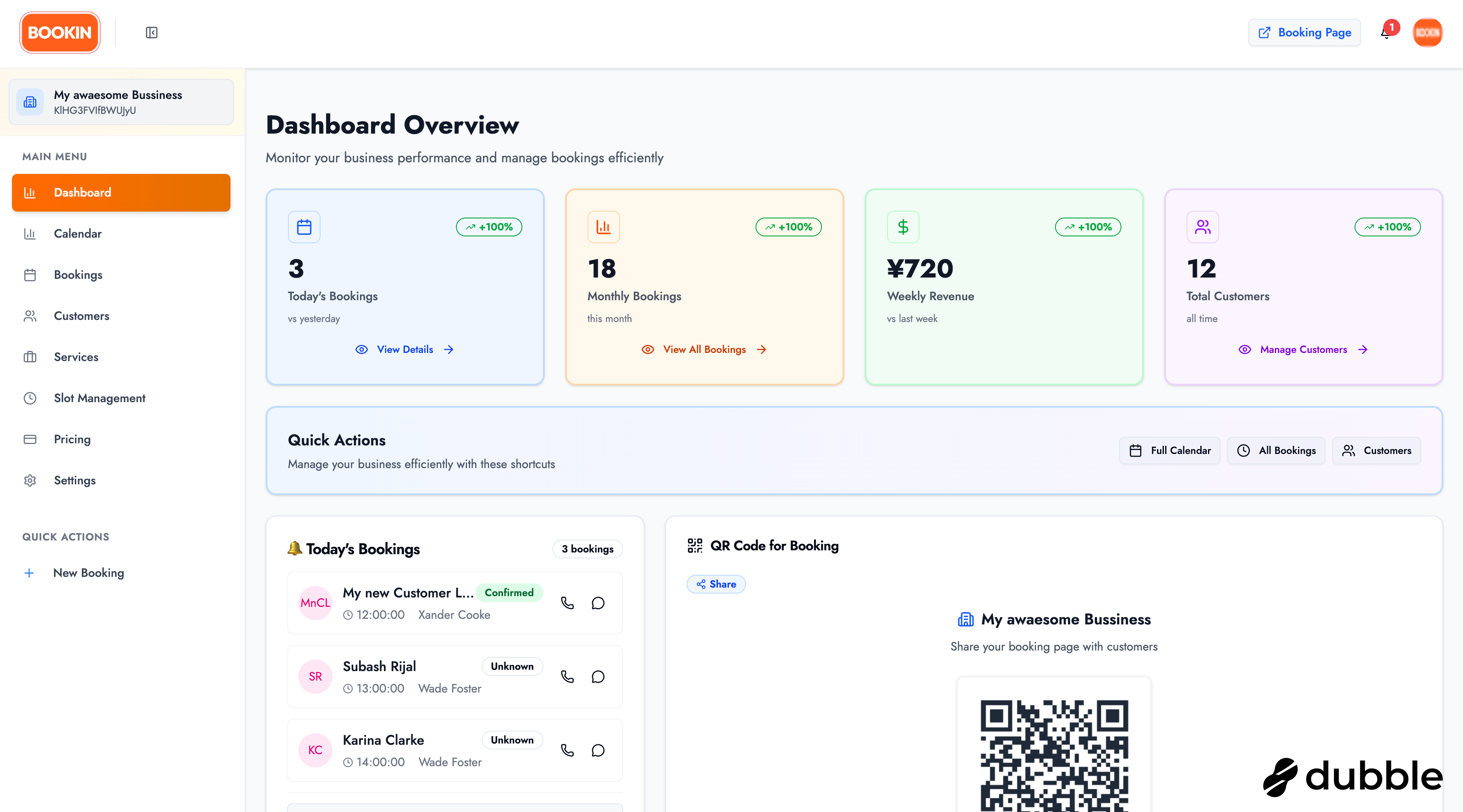
The dashboard is your central command center for managing your booking business. It provides a comprehensive overview of your operations, quick access to key features, and valuable insights into your business performance.
Signing In
Section titled “Signing In”To access your dashboard, you’ll need to sign in to your BOOKIN account.
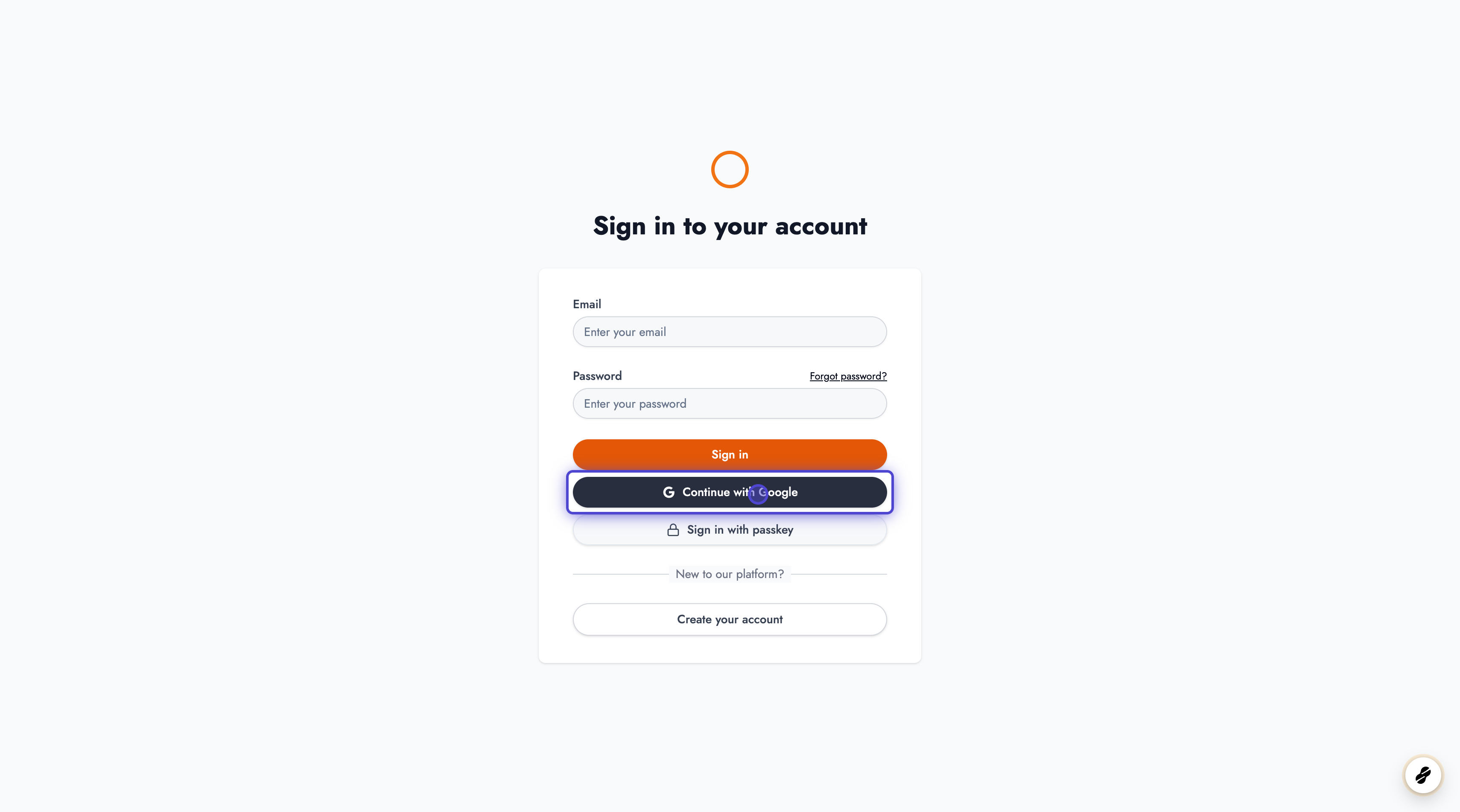
- Navigate to the sign-in page
- Enter your credentials
- Click “Sign In” to access your dashboard
Dashboard Features
Section titled “Dashboard Features”The dashboard provides a comprehensive overview of your business with the following key sections:
Quick Stats
Section titled “Quick Stats”Monitor your business performance at a glance with real-time statistics:
- Today’s Booking Count: See how many appointments you have scheduled for today
- Monthly Bookings: Track your total bookings for the current month
- Weekly Revenue: Monitor your revenue for the current week
- Total Customers: View the total number of customers in your system
Quick Actions
Section titled “Quick Actions”Access frequently used features quickly:
- Full Calendar: Jump directly to your calendar view
- All Bookings: View and manage all your appointments
- Customers: Access your customer management page
Today’s Bookings
Section titled “Today’s Bookings”View all appointments scheduled for today, allowing you to quickly see what’s coming up and manage your daily schedule.
QR Code for Booking Page
Section titled “QR Code for Booking Page”Download and share a QR code that links directly to your public booking page. This makes it easy for customers to find and book appointments with you.
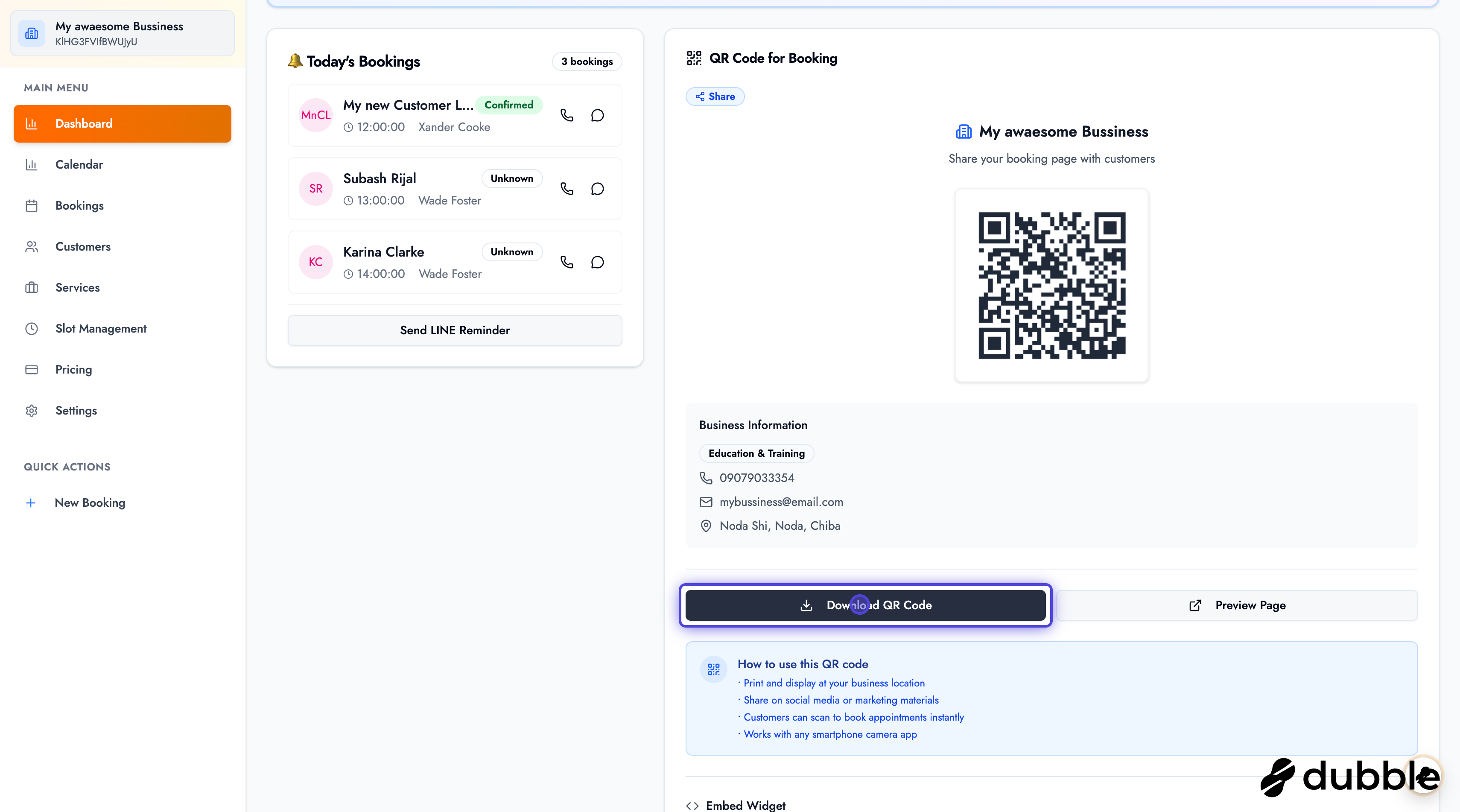
The QR code section also includes:
- Preview Page: See how your booking page appears to customers
- Widget Code: Copy embeddable booking widget code to add booking functionality to your website
Analytics and Insights
Section titled “Analytics and Insights”The dashboard provides several visual analytics to help you understand your business:
- Weekly Revenue and Booking Chart: Track revenue and booking trends over the past week
- Monthly Trend: View booking patterns and growth over time
- Service Distribution: See which services are most popular
- Peak Booking Hours: Identify the busiest times of day for bookings
- Revenue Comparison: Compare revenue across different time periods
Next Steps
Section titled “Next Steps”Now that you’re familiar with the dashboard:
- Learn how to create appointments
- Explore calendar management
- Set up your services
- Configure your business hours
Related Guides
Section titled “Related Guides”- Creating Appointments - Step-by-step guide to creating new appointments
- Managing Appointments - Learn how to view, edit, and manage existing appointments
- Managing Services - Set up and manage your service offerings