
Managing Appointments
Managing Appointments
Section titled “Managing Appointments”This guide covers all aspects of managing appointments, from viewing details to editing, confirming, and canceling bookings. Effective appointment management is crucial for maintaining a smooth booking operation.
Viewing Appointment Details
Section titled “Viewing Appointment Details”From the Calendar
Section titled “From the Calendar”Click on any appointment in the calendar view to see its details.
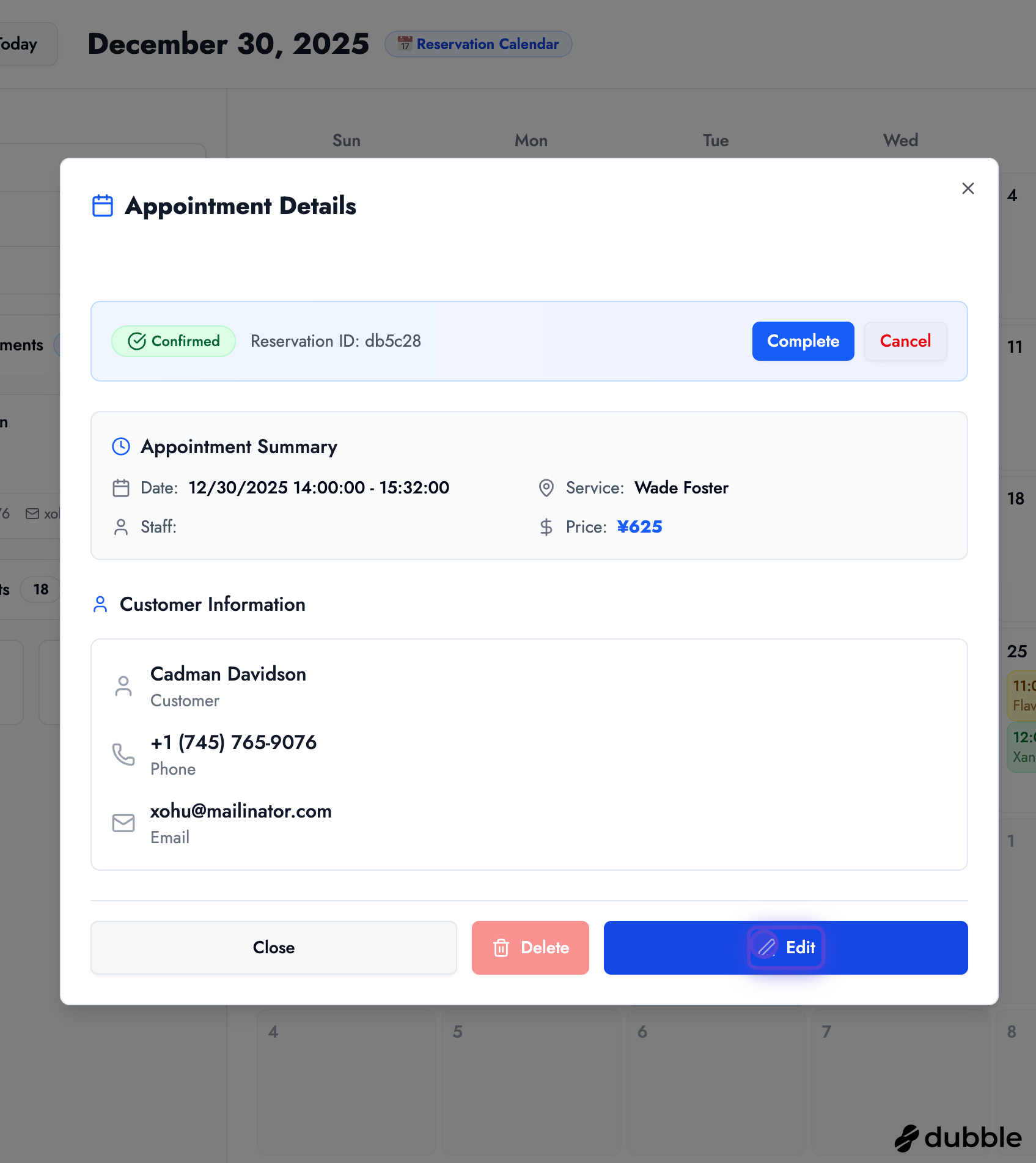
The appointment detail view shows:
- Customer Information: Name, email, phone number
- Service Details: Service name, duration, price
- Appointment Time: Date and time of the appointment
- Status: Current status (pending, confirmed, completed, canceled)
- Notes: Any special requests or notes
- Booking Code: Unique identifier for the appointment
From the Bookings Page
Section titled “From the Bookings Page”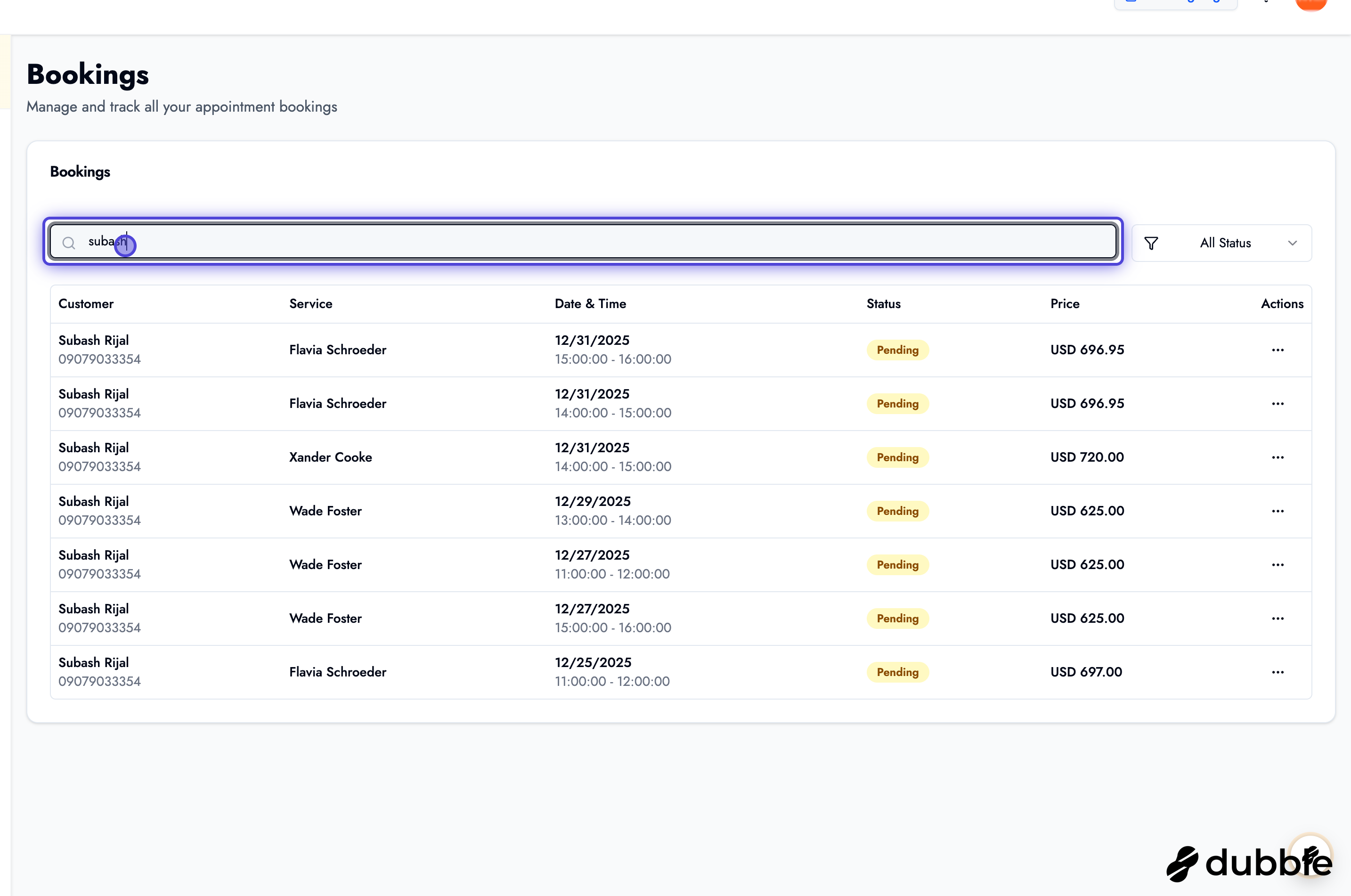
The bookings page provides a comprehensive list of all appointments with filtering options:
- Navigate to the Bookings page
- Use filters to find specific appointments:
- Filter by customer name
- Filter by service
- Filter by status (pending, confirmed, completed, canceled)
- Filter by date range
Editing Appointments
Section titled “Editing Appointments”You can edit appointment details at any time before the appointment occurs.
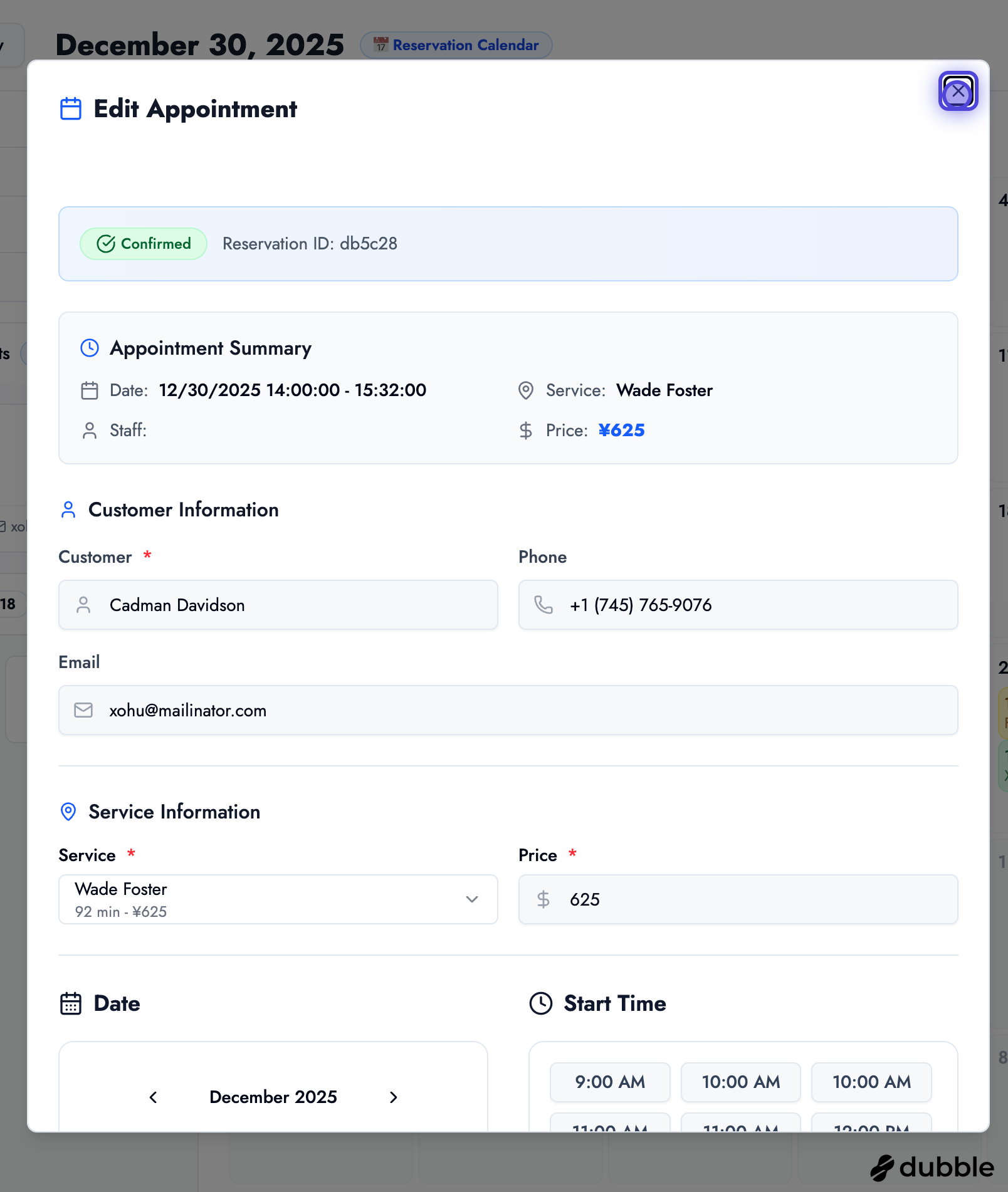
How to Edit an Appointment
Section titled “How to Edit an Appointment”- Click on the appointment from the calendar or bookings list
- Click the “Edit” button
- Modify any of the following:
- Customer information
- Service selection
- Date and time
- Price
- Notes or special requests
- Click “Save” to apply changes
Email Notifications
When you edit an appointment, the customer will receive an email notification with the updated details.
Managing Appointment Status
Section titled “Managing Appointment Status”Confirming Pending Bookings
Section titled “Confirming Pending Bookings”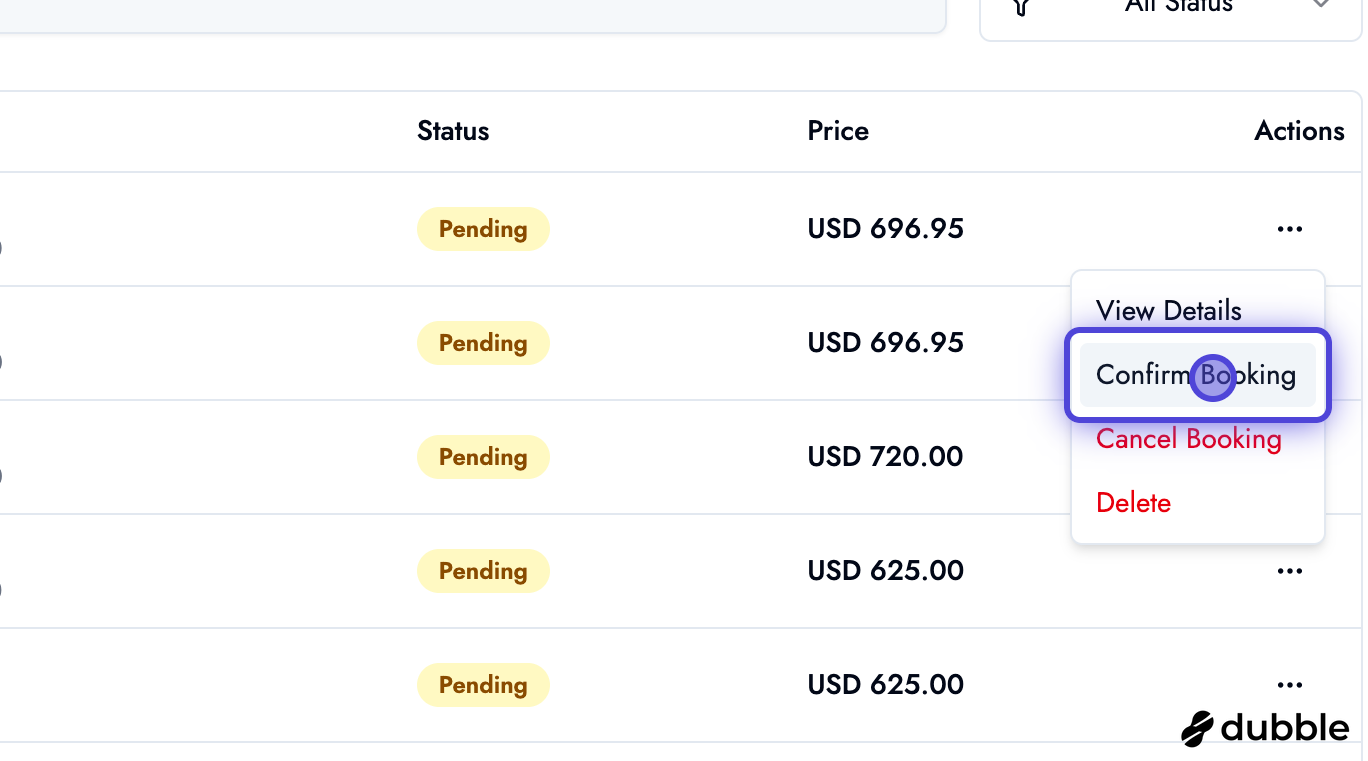
When a customer books an appointment, it starts as “pending”. You can confirm it:
- Go to the Bookings page
- Find the pending appointment
- Click “Confirm Booking”
- The status will change to “confirmed” and the customer will receive a confirmation email
Marking Appointments as Completed
Section titled “Marking Appointments as Completed”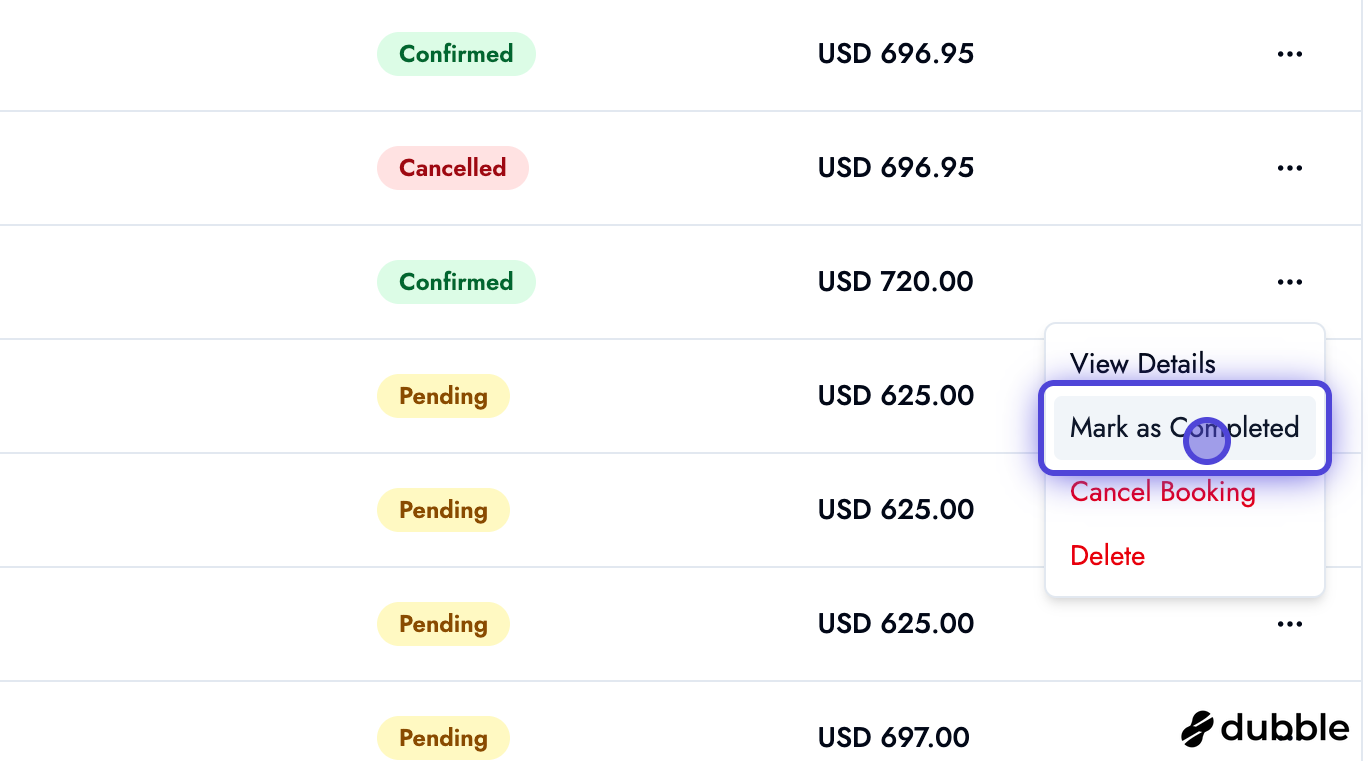
After an appointment has taken place:
- Find the confirmed appointment
- Click “Mark as Completed”
- The appointment status will update to “completed”
- This helps track your service history and customer visits
Canceling Appointments
Section titled “Canceling Appointments”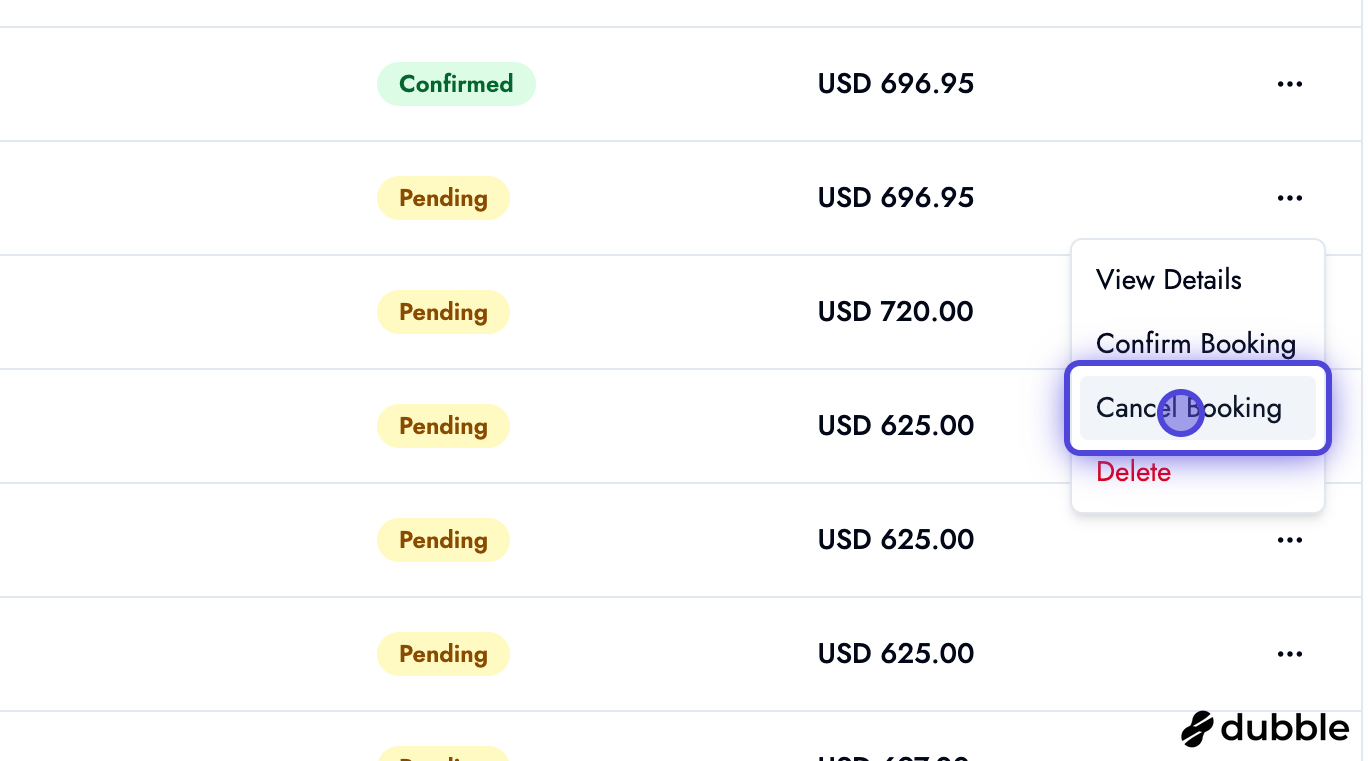
If you need to cancel an appointment:
- Find the appointment you want to cancel
- Click “Cancel”
- Confirm the cancellation
- The customer will receive a cancellation email
- The time slot will become available for other bookings
Cancellation Policy
Consider setting up a cancellation policy in your business settings to manage customer expectations.
Calendar View Management
Section titled “Calendar View Management”Switching Calendar Views
Section titled “Switching Calendar Views”The calendar offers three view options to help you manage appointments:
Month View: Best for seeing the big picture and planning ahead
- See all appointments for the entire month
- Color-coded by status for quick identification
Week View: Ideal for weekly planning
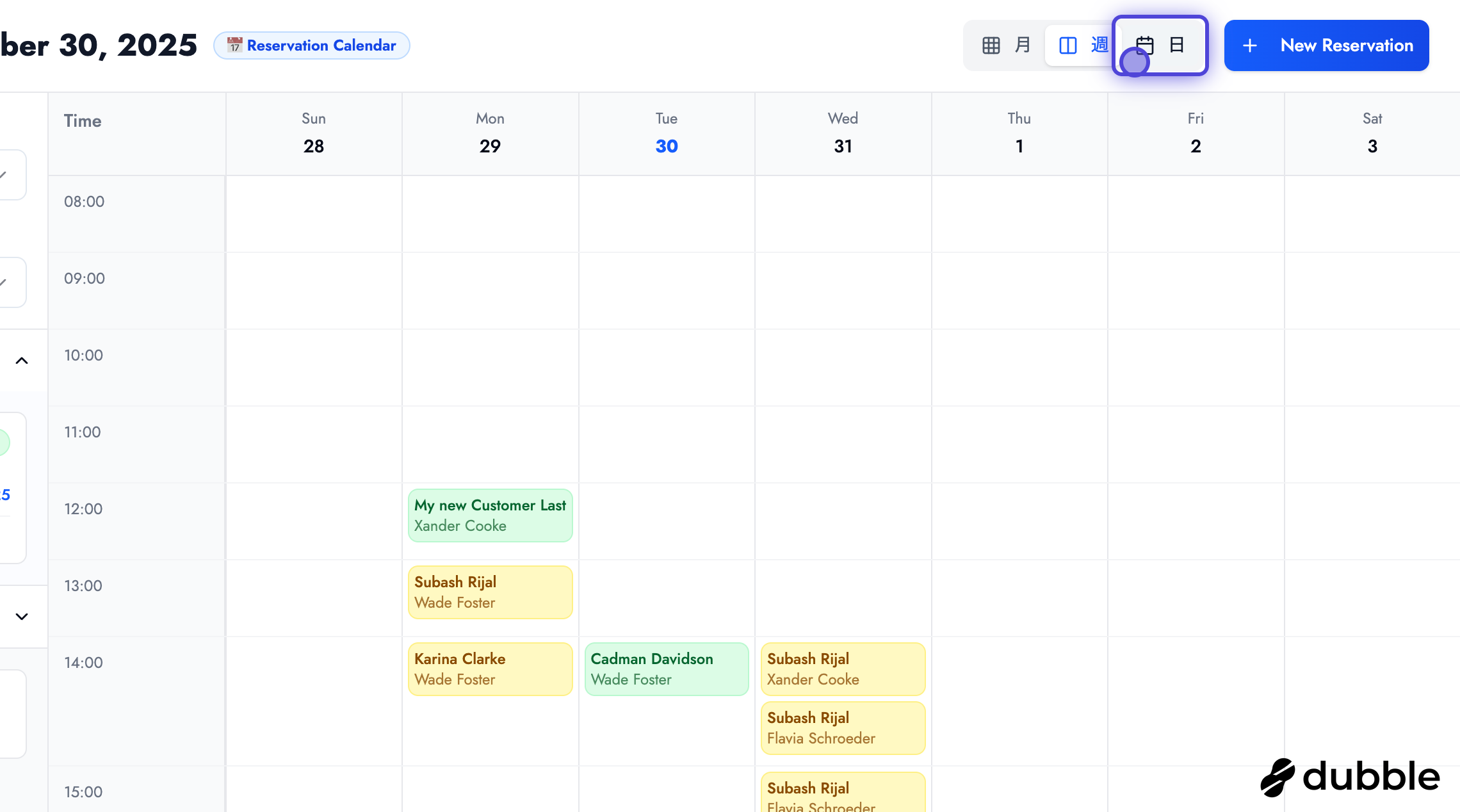
- Focus on a single week
- See daily breakdowns
Day View: Perfect for detailed daily management
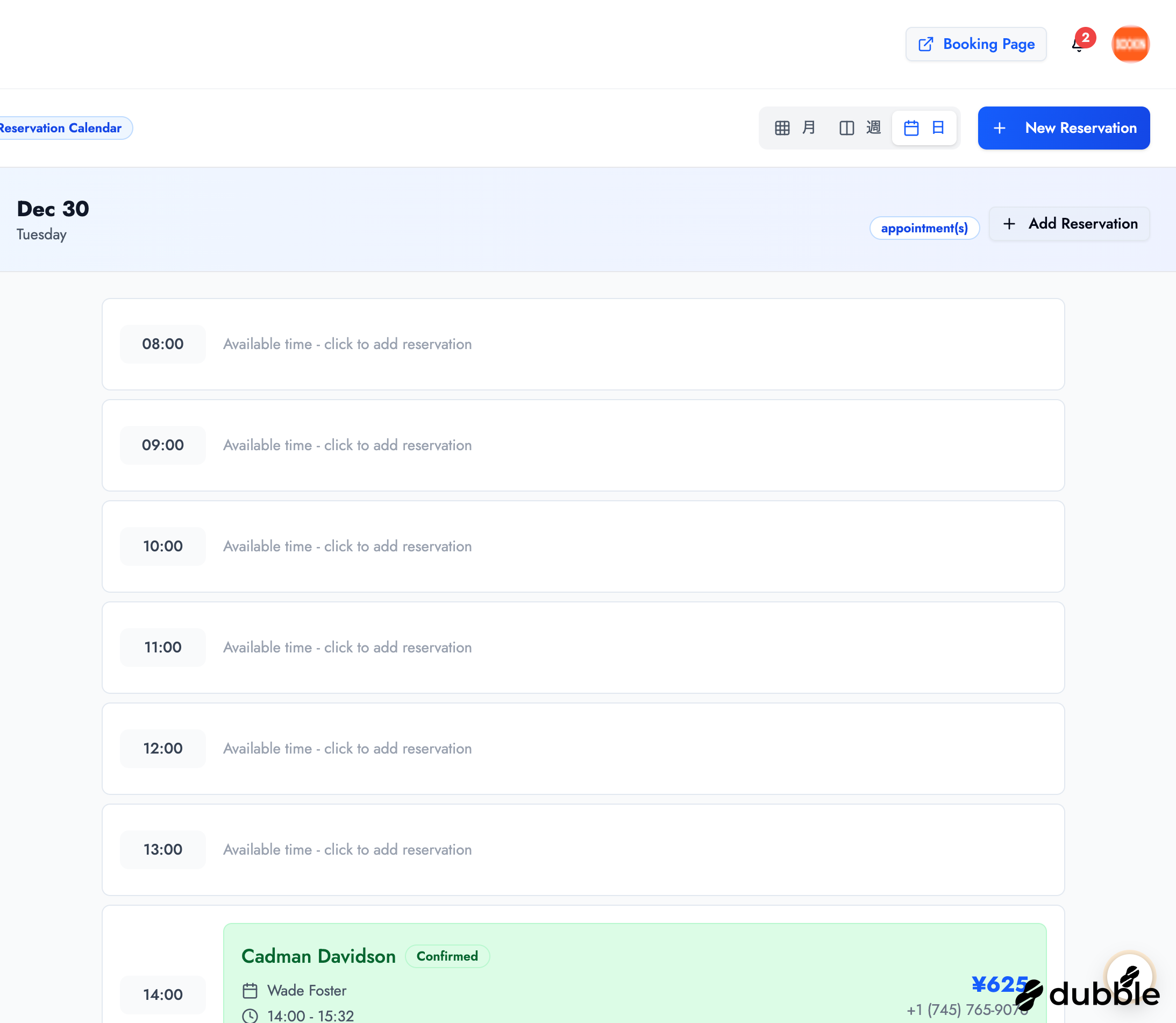
- View all time slots for a specific day
- See available slots clearly marked
- Click on time slots to create new appointments
Using Filters
Section titled “Using Filters”The calendar sidebar includes filters to help you focus:
- Staff Filter: View appointments for specific staff members
- Status Filter: Show only appointments with specific statuses
- Pending appointments
- Confirmed appointments
- Completed appointments
- Canceled appointments
Best Practices
Section titled “Best Practices”Appointment Management Tips
Section titled “Appointment Management Tips”- Review Daily: Check your calendar each morning to prepare for the day
- Confirm Early: Confirm pending appointments as soon as possible
- Update Status Promptly: Mark appointments as completed immediately after service
- Use Notes: Add detailed notes to help staff prepare for appointments
- Monitor Cancellations: Track cancellation patterns to identify issues
- Follow Up: Use the customer detail page to book follow-up appointments
Status Workflow
Section titled “Status Workflow”The typical appointment status flow:
Pending → Confirmed → Completed ↓ Canceled- Pending: Customer has requested an appointment, awaiting your confirmation
- Confirmed: You’ve confirmed the appointment, customer is expecting service
- Completed: Service has been provided
- Canceled: Appointment was canceled (by you or the customer)
Next Steps
Section titled “Next Steps”Now that you can manage appointments:
- Learn about customer management - View customer history and details
- Set up your services - Configure your service offerings
- Configure business hours - Set your availability
Related Guides
Section titled “Related Guides”- Creating Appointments - Step-by-step guide to creating new appointments
- Managing Customers - View customer details and booking history
- Business Hours & Time Slots - Configure when customers can book