
Managing Customers
Managing Customers
Section titled “Managing Customers”The customer management system helps you build relationships with your customers by tracking their history, preferences, and interactions. This guide covers how to view customer details, add notes, and manage customer relationships.
Customer Detail View
Section titled “Customer Detail View”The customer detail page provides a comprehensive view of each customer’s information and booking history.
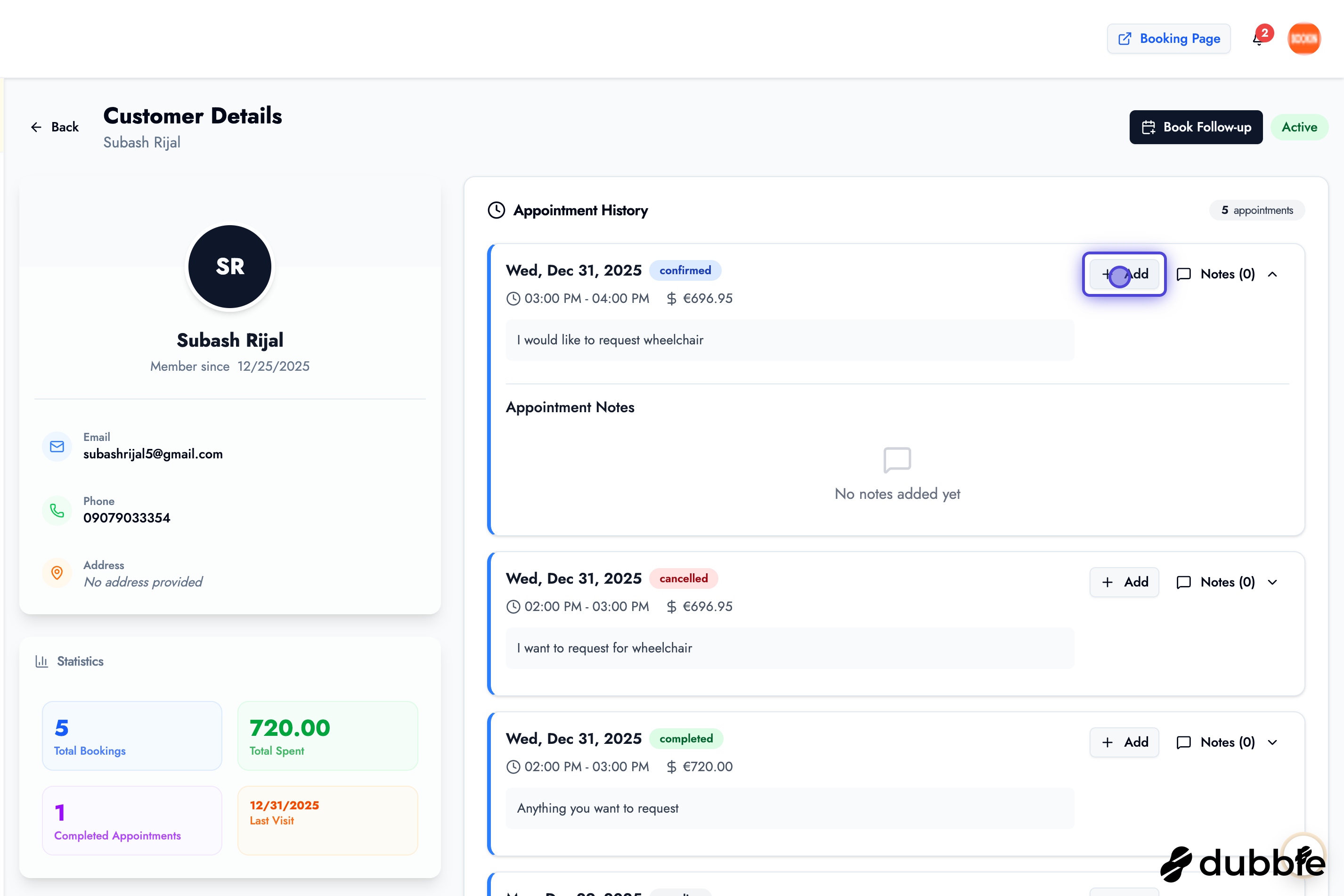
Left Side Panel - Customer Information
Section titled “Left Side Panel - Customer Information”The left side displays essential customer details:
- Customer Profile: Name, email, phone number, and profile picture
- Statistics:
- Total number of visits
- Total income from this customer
- Last visit date
- Customer since date
- Contact Information: All available contact methods
- Customer Notes: Quick access to important notes about the customer
Right Side Panel - Booking History
Section titled “Right Side Panel - Booking History”The right side shows a toggleable list of all appointments:
- Appointment List: All past and upcoming appointments
- Toggle to Expand: Click on any appointment to see full details
- Rich Text Notes: View previous notes for each appointment
- Add New Notes: Add notes directly from this view
- Book Follow-up: Schedule a follow-up appointment from a single screen
Adding Notes to Appointments
Section titled “Adding Notes to Appointments”Notes help you track important information about each appointment and customer interaction.
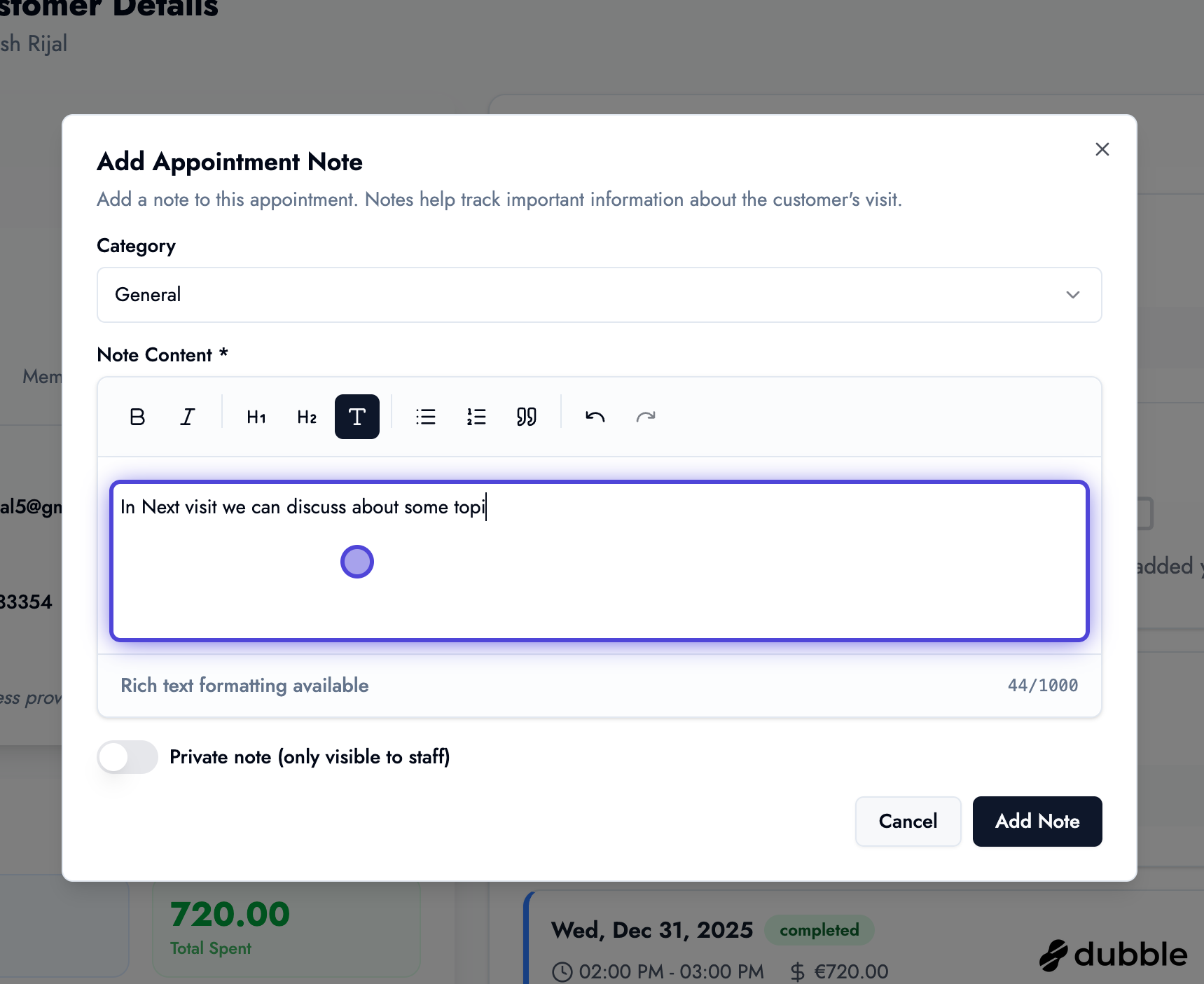
How to Add a Note
Section titled “How to Add a Note”-
Navigate to the customer detail page
-
Find the appointment you want to add a note to
-
Click “Add Note” or expand the appointment
-
Fill in the note details:
Note Content:
- Use the rich text editor to format your note
- Include any relevant information about the appointment
- Document customer preferences, special requests, or follow-up actions
Category (Optional):
- Select a category to organize your notes
- Categories help you filter and find notes later
- Examples: “Follow-up”, “Preferences”, “Issues”, “Feedback”
Visibility:
- Private (Staff Only): Only you and your staff can see this note
- Customer Visible: The customer can also see this note in their booking details
-
Click “Save” to add the note
Note Best Practices
Section titled “Note Best Practices”- Be Specific: Include dates, times, and specific details
- Use Categories: Organize notes with categories for easy filtering
- Document Preferences: Record customer preferences for future reference
- Track Follow-ups: Note any follow-up actions needed
- Privacy Considerations: Use “Staff Only” for sensitive information
Booking Follow-up Appointments
Section titled “Booking Follow-up Appointments”You can quickly book a follow-up appointment directly from the customer detail page:
- Navigate to the customer’s detail page
- Click “Book Follow-up” or use the appointment creation feature
- The customer information will be pre-filled
- Select the service, date, and time
- Add any notes about the follow-up
- Confirm the appointment
This streamlined process makes it easy to maintain ongoing relationships with your customers.
Customer Statistics
Section titled “Customer Statistics”The customer detail page provides valuable insights:
Visit History
Section titled “Visit History”- See all past appointments
- Track frequency of visits
- Identify patterns in booking behavior
Revenue Tracking
Section titled “Revenue Tracking”- Total income generated from this customer
- Average appointment value
- Revenue trends over time
Engagement Metrics
Section titled “Engagement Metrics”- Last visit date
- Days since last visit
- Customer lifetime value
Managing Customer Information
Section titled “Managing Customer Information”Viewing Customer Details
Section titled “Viewing Customer Details”Access comprehensive customer information including:
- Personal contact information
- Booking history and preferences
- Payment history
- Notes and special instructions
Updating Customer Information
Section titled “Updating Customer Information”You can update customer information when needed:
- Edit contact details
- Update preferences
- Modify notes
- Add tags or categories
Tips for Customer Management
Section titled “Tips for Customer Management”Building Customer Relationships
Section titled “Building Customer Relationships”- Track Preferences: Use notes to remember customer preferences
- Follow Up: Book follow-up appointments to maintain relationships
- Personal Touch: Reference previous visits and preferences
- Document Everything: Keep detailed notes for continuity
- Use Categories: Organize notes to find information quickly
Customer Retention
Section titled “Customer Retention”- Regular Follow-ups: Schedule follow-up appointments proactively
- Personalized Service: Use notes to provide personalized experiences
- Track Engagement: Monitor visit frequency and reach out to inactive customers
- Value Tracking: Understand which customers are most valuable to your business
Next Steps
Section titled “Next Steps”Now that you understand customer management:
- Learn about creating appointments - Create new bookings for customers
- Explore appointment management - Manage existing appointments
- Configure your services - Set up services customers can book
Related Guides
Section titled “Related Guides”- Creating Appointments - Step-by-step guide to creating new appointments
- Managing Appointments - Edit, confirm, and manage existing appointments
- Dashboard Overview - Navigate the dashboard and view analytics