
Managing Services
Services are the core offerings that customers can book. This guide covers how to create new services, edit existing ones, and manage your service catalog effectively.
Services Overview Page
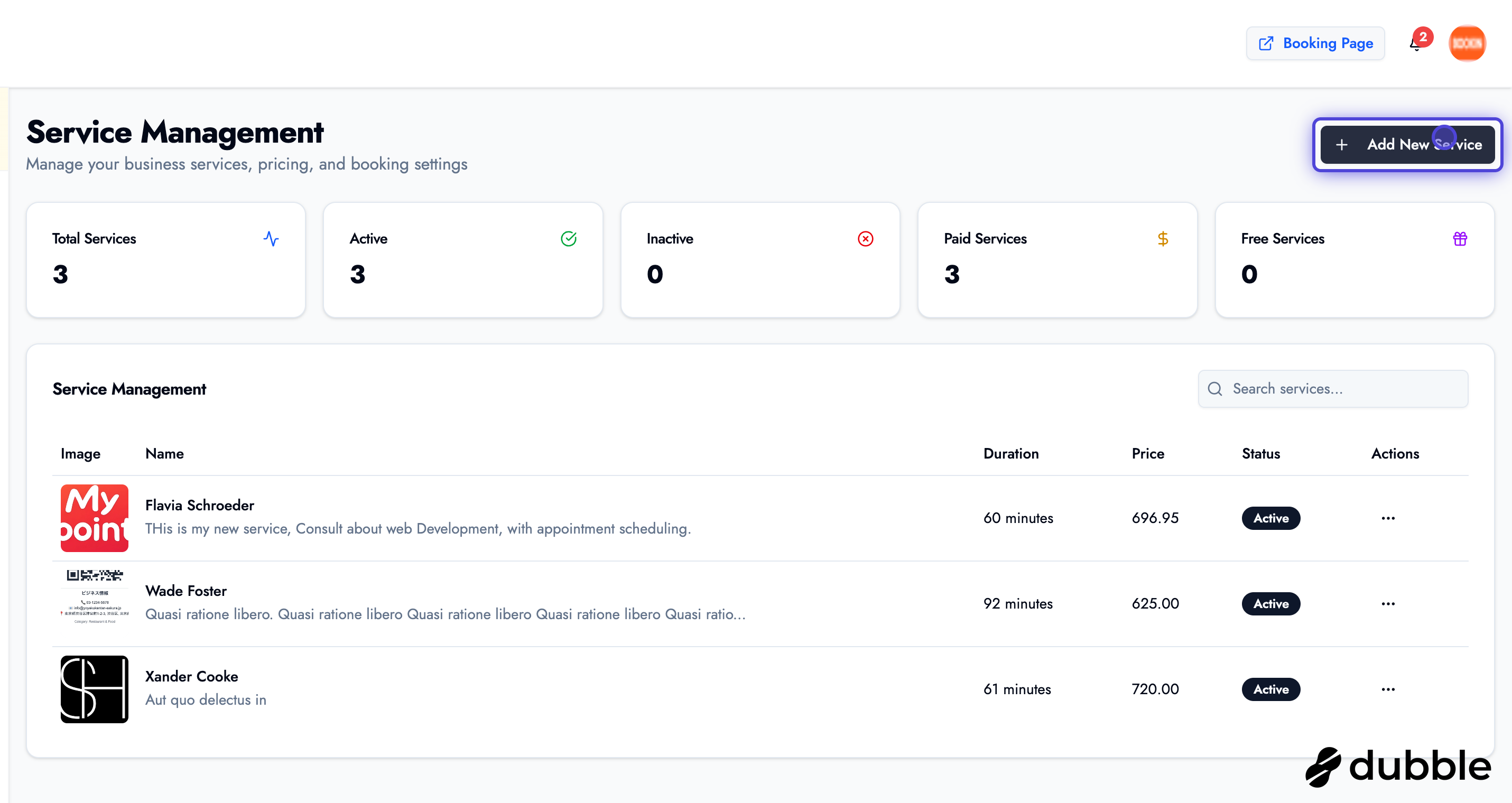
Section titled “Services Overview Page”The services page provides an overview of all your service offerings.
Service Statistics
Section titled “Service Statistics”The page displays key metrics:
- Total Service Count: Number of services you offer
- Active Services: Currently available services
- Inactive Services: Temporarily disabled services
- Paid/Free Services: Breakdown of pricing types
Service List
Section titled “Service List”View all your services in one place with:
- Service name and description
- Pricing information
- Duration
- Status (active/inactive)
- Quick actions (edit, duplicate, delete)
Creating a New Service
Section titled “Creating a New Service”Step 1: Access the Add Service Page
Section titled “Step 1: Access the Add Service Page”- Navigate to the Services page
- Click “Add New Service” or “Create Service”
- You’ll be taken to the service creation form
Step 2: Fill in Service Details
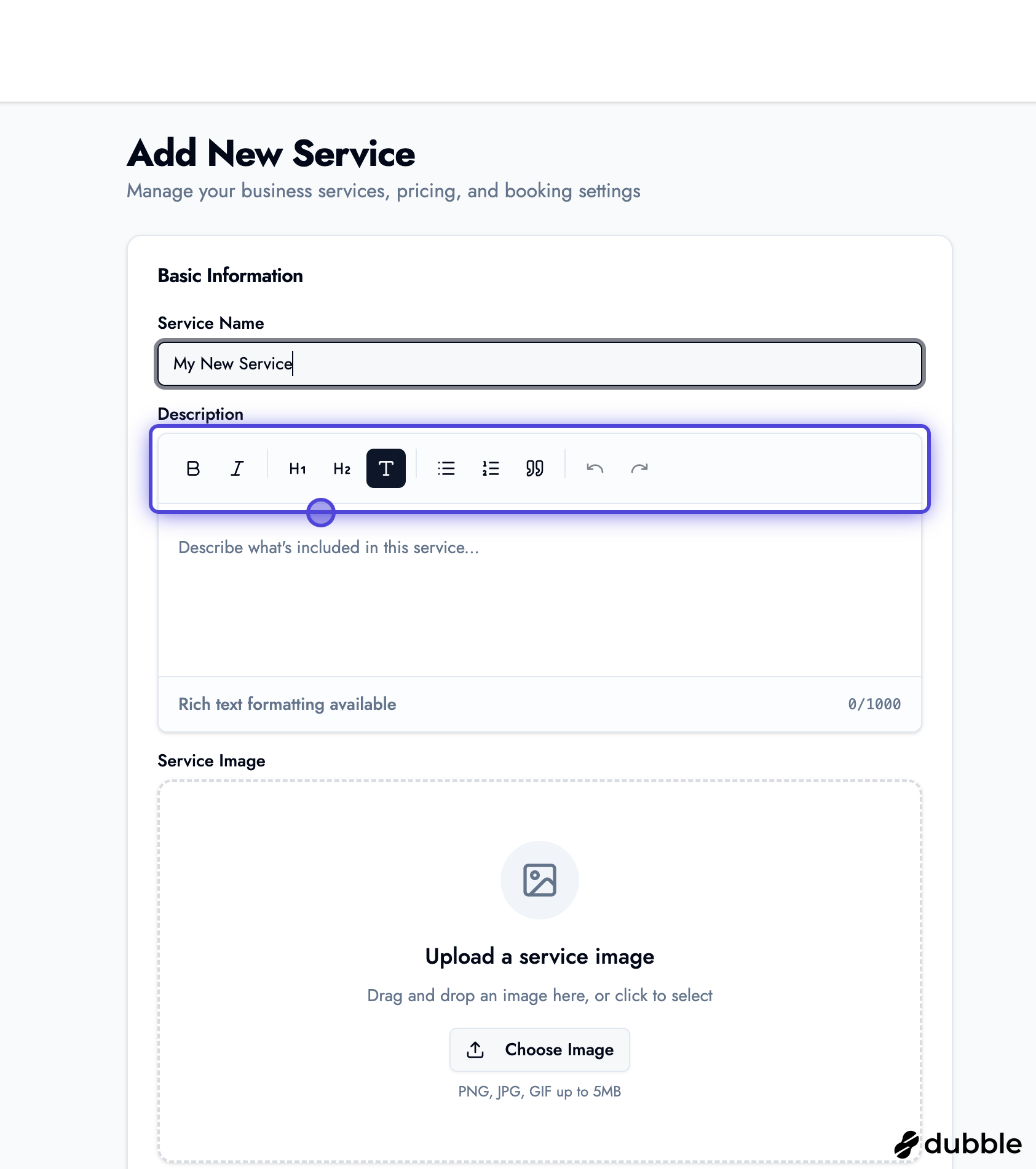
Section titled “Step 2: Fill in Service Details”Basic Information:
- Service Name: Enter a clear, descriptive name
- Description: Use the rich text editor to create a detailed description
- Include what’s included in the service
- Mention any special features or benefits
- Add formatting, lists, and links as needed
Pricing:
- Price: Set the service price
- Currency: Select the appropriate currency
- Free Service: Toggle if this is a free service
Duration:
- Service Duration: Set how long the service takes
- Choose from preset durations or enter custom time
Additional Options:
- Category: Organize services into categories
- Tags: Add tags for better organization and searchability
Step 3: Upload Service Image
Section titled “Step 3: Upload Service Image”
- Click “Upload Image” or drag and drop an image
- The image cropper will open
- Adjust and crop the image as needed:
- Resize the crop area
- Move the image to focus on important elements
- Ensure the image looks good at different sizes
- Click “Save” to apply the cropped image
Step 4: Save the Service
Section titled “Step 4: Save the Service”- Review all the information you’ve entered
- Click “Save” or “Create Service”
- The service will be added to your catalog and immediately available for booking
Editing a Service
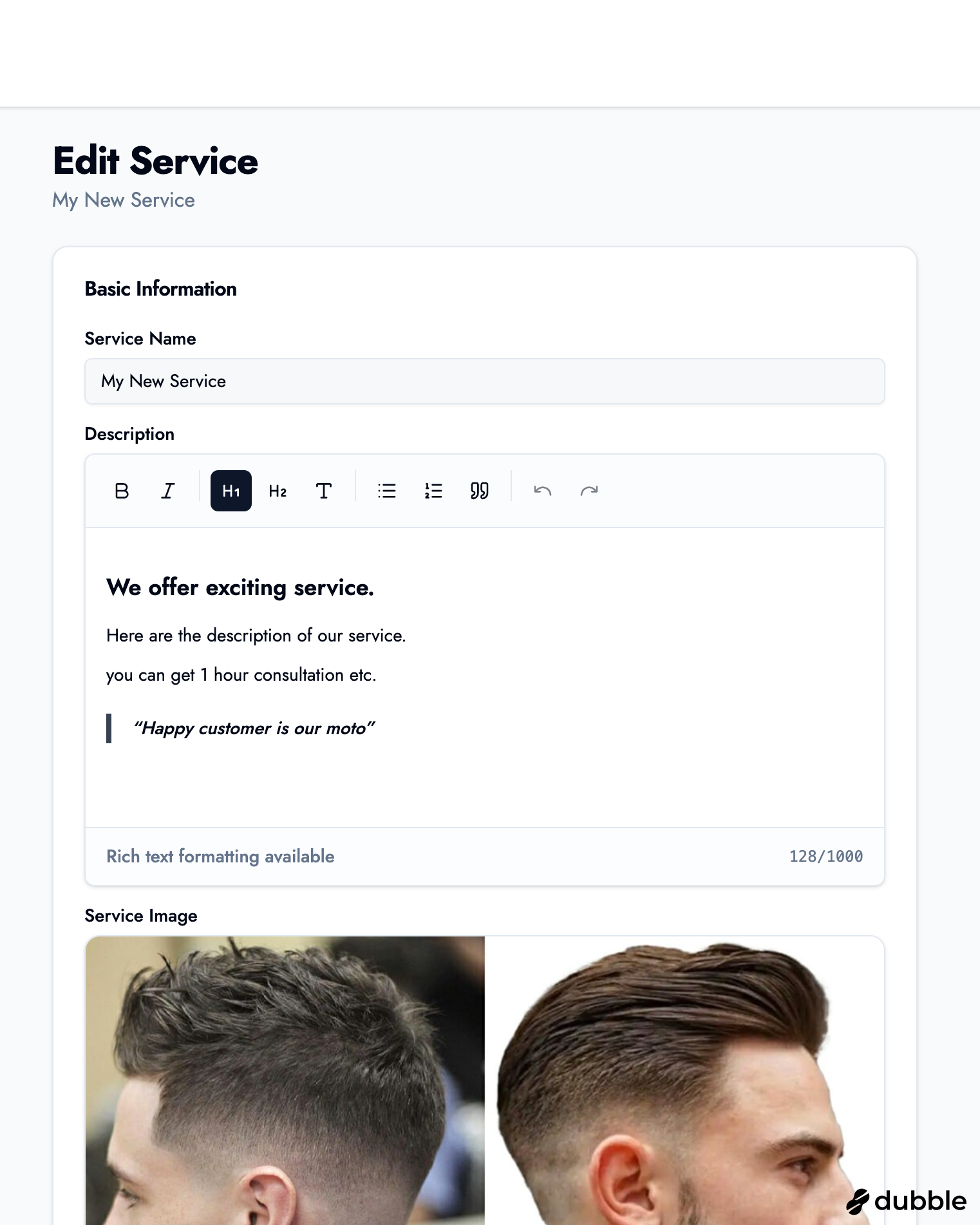
Section titled “Editing a Service”You can edit any service at any time to update information, pricing, or images.
How to Edit a Service
Section titled “How to Edit a Service”- Navigate to the Services page
- Find the service you want to edit
- Click “Edit” on the service card
- Modify any of the following:
- Service name
- Description (using rich text editor)
- Price
- Duration
- Image
- Category and tags
- Active/inactive status
- Click “Save” to apply changes
Active vs Inactive
- Active: Service is available for customers to book
- Inactive: Service is hidden from customers but remains in your system
Service Management Best Practices
Section titled “Service Management Best Practices”Organizing Services
Section titled “Organizing Services”- Use Categories: Group related services together
- Clear Naming: Use descriptive, customer-friendly names
- Detailed Descriptions: Help customers understand what they’re booking
- Quality Images: Use professional, representative images
- Accurate Pricing: Keep prices up to date
Service Descriptions
Section titled “Service Descriptions”When writing service descriptions, include:
- What’s Included: Clearly list what the service includes
- Duration: Mention how long the service takes
- Benefits: Highlight the value and benefits
- Requirements: Note any prerequisites or requirements
- What to Expect: Set customer expectations
Pricing Strategy
Section titled “Pricing Strategy”- Competitive Pricing: Research market rates
- Clear Pricing: Avoid hidden fees
- Value Communication: Explain why the price is justified
- Regular Updates: Keep prices current with market changes
Service Status Management
Section titled “Service Status Management”Activating and Deactivating Services
Section titled “Activating and Deactivating Services”You can temporarily disable services without deleting them:
- Go to the service edit page
- Toggle the “Active” status
- Active: Service appears in your booking page
- Inactive: Service is hidden but can be reactivated later
This is useful for:
- Seasonal services
- Services under maintenance
- Temporarily unavailable offerings
- Testing new services
Tips for Service Management
Section titled “Tips for Service Management”Creating Effective Services
Section titled “Creating Effective Services”- Start with Your Most Popular: Add your most requested services first
- Be Specific: Create separate services for different variations
- Use Rich Descriptions: Help customers make informed decisions
- Professional Images: Invest in quality service images
- Regular Updates: Keep service information current
Service Organization
Section titled “Service Organization”- Categories: Group related services (e.g., “Hair Services”, “Nail Services”)
- Tags: Add searchable tags for better organization
- Ordering: Arrange services in order of popularity or importance
- Bundles: Consider creating service packages
Next Steps
Section titled “Next Steps”Now that you can manage services:
- Set up business hours - Configure when services can be booked
- Learn about creating appointments - Book services for customers
- Explore settings - Configure your business profile
Related Guides
Section titled “Related Guides”- Creating Appointments - Book services for customers
- Business Hours & Time Slots - Set availability for services
- Settings & Configuration - Configure your business profile