
Media Library
The Media Library holds every image your account uses — service photos, your logo and cover image, pictures on your generated website. Upload once, use anywhere.
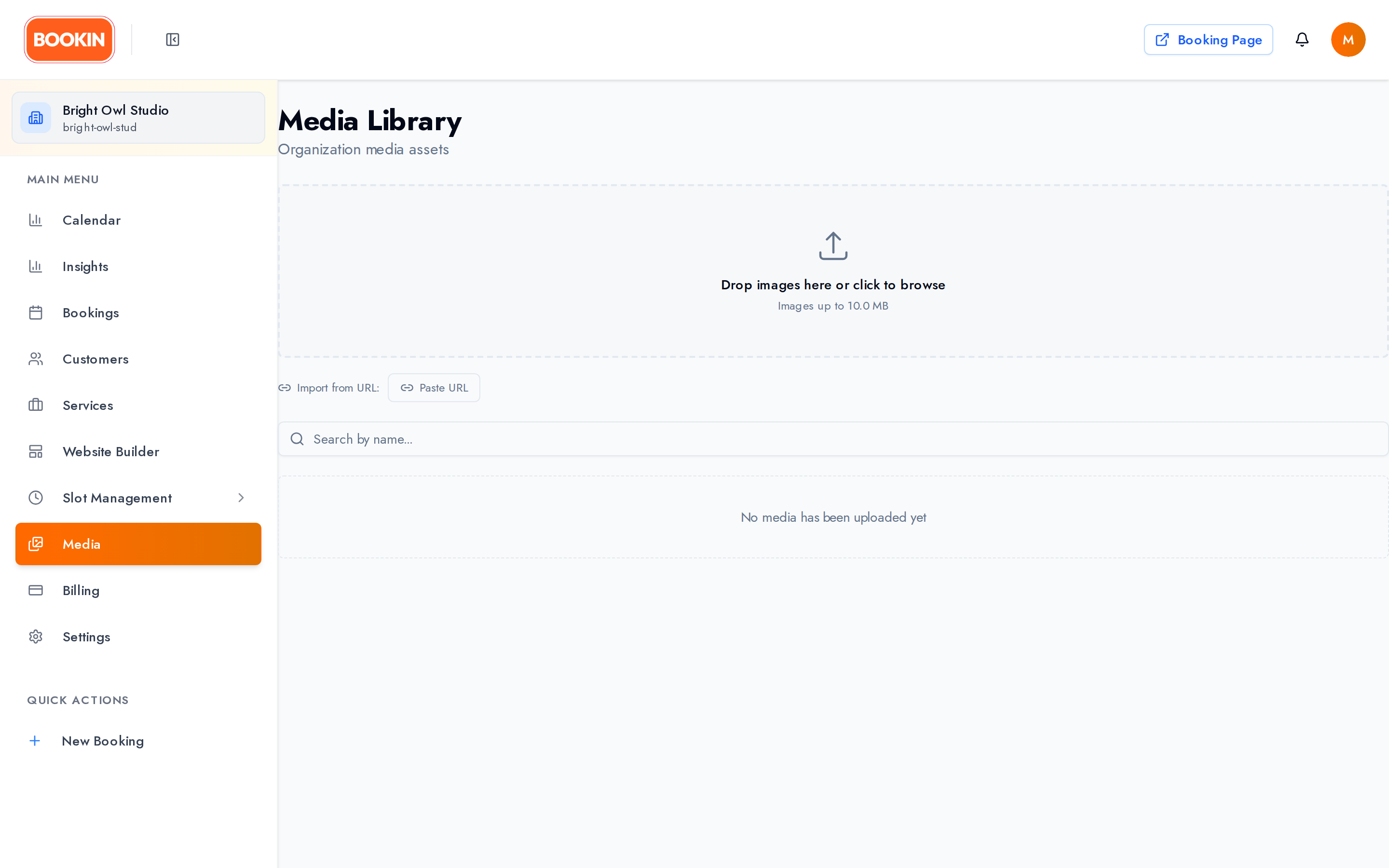
Adding files
Section titled “Adding files”Drag and drop files onto the page, or click to browse. You can select several at once — they queue up and upload with progress shown for each.
Import from a URL
Section titled “Import from a URL”Instead of downloading a picture and re-uploading it, paste its web address and BOOKIN fetches it straight into your library. Useful for photos already on your old website or a supplier’s product shots.
Only import images you have the right to use.
Limits
Section titled “Limits”| Limit | |
|---|---|
| General library upload | 10 MB per file |
| Service images | 5 MB per file |
| Formats | JPEG, PNG, WebP, GIF, BMP, TIFF, ICO, and PDF in the general library |
A photo straight off a phone is often over 5 MB. If a service image is rejected, resize it before uploading.
Finding files
Section titled “Finding files”Search by filename, and scroll the thumbnail grid — older items load as you go with Load more.
Filenames are what search has to work with, so IMG_4821.jpg will be hard to find later. Rename files to something you’d actually search for.
Renaming and deleting
Section titled “Renaming and deleting”Each item offers Rename and Delete.
Where the library shows up
Section titled “Where the library shows up”You’ll meet the media picker throughout the product rather than only on this page:
- Service images — Managing Services and Creating a New Service
- Logo and cover image — Settings → Business → Branding
- Website images — replacing pictures in the Website Builder
In each case you’re choosing from the same library, so an image uploaded for one purpose is immediately available for another.
Keeping it usable
Section titled “Keeping it usable”- Rename on upload.
haircut-mens-short.jpgbeatsIMG_4821.jpg. - Resize before uploading. Smaller files mean faster booking pages for your customers.
- Crop for the shape you need — service images and cover images have different aspect ratios, and the crop tool appears when you select.
- Check before deleting, since removal reaches everywhere the image was used.
Related Guides
Section titled “Related Guides”- Managing Services - Service images
- Settings & Configuration - Logo, cover image and branding
- Website Builder - Images on your generated site