
Website Builder
The Website Builder creates a full website from information BOOKIN already has about you — your services, hours and location — then lets you refine it by chatting with an AI or editing it directly.
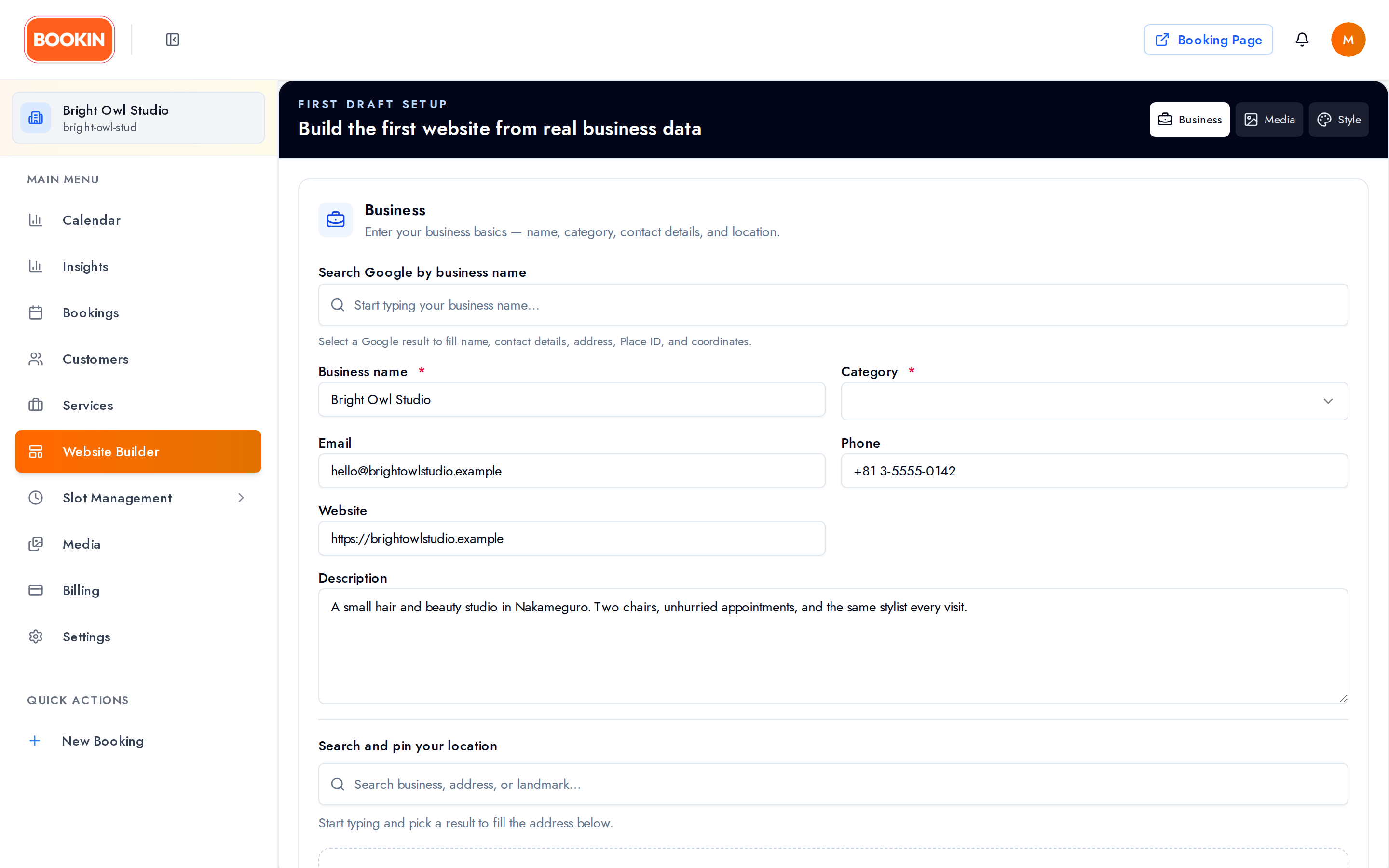
First draft setup
Section titled “First draft setup”The first time you open the builder, a three-step wizard builds your first draft: Business → Media → Style.
Business confirms your business name, category, email, phone, website and description. These are the same fields as Settings → Business, so anything you fix here is worth fixing there too.
Media shows your current logo and cover image, and — if your business is linked to a Google listing — offers to import photos from it into your Media Library.
Style asks for the experience you want, a palette, and optionally a custom brand colour.
Then it generates, streaming its progress as it reads your services, plans the layout and builds the sections.
Editing with the Design Agent
Section titled “Editing with the Design Agent”The chat panel is the main way to change your site. Describe what you want and the AI edits the page with you.
- Cmd/Ctrl+Enter sends your message.
- Attach an image to a message when you want it used or matched.
- Select an element on the canvas and attach it to target your instruction precisely — the message shows “Sent with: {target}”. Far more reliable than describing the element in words.
- An activity timeline records what changed, and Clear conversation starts fresh.
The agent also raises problems it can’t solve alone, such as “Some links are still placeholders. Select those buttons or links and set their URL.” Act on those before publishing.
If you run out of credits mid-edit, the panel tells you and pauses until you top up.
Editing on the canvas
Section titled “Editing on the canvas”You can also work directly:
- Desktop, tablet and mobile viewports, plus a dark-mode preview
- Preview mode to click through as a visitor would
- Undo and redo
- Save state shows as “Saved {time}” or “Draft not saved yet”
Selecting an element opens an inspector for the link URL, whether it opens in a new tab, the section ID (so other links can jump to it with #anchor), background colour — brand, theme, recent, custom or none — and background image.
BOOKIN blocks
Section titled “BOOKIN blocks”Two blocks connect the site to your live BOOKIN data. Both are protected from AI edits, so the chat agent won’t accidentally break your booking flow.
BOOKIN Booking embeds your actual booking flow. Choose the mode — booking only, status lookup only, or tabs showing both — plus primary colour, header, corner radius, width, alignment and minimum height.
BOOKIN Managed Data shows your Google map, opening hours and Google rating, pulled live from your saved business data, so it stays current without you editing the page. Layouts include card, compact, split and summary, with masonry, grid or carousel for reviews.
Versions
Section titled “Versions”The version dropdown groups your site into Drafts, Published and Archived. You can save the current state as a new draft at any point, and click any earlier version to roll back to it.
Save a draft before a big change. Rolling back is much easier than undoing twenty AI edits.
Publishing
Section titled “Publishing”Preview checks your work; View live opens the published site; Republish pushes new changes.
Publishing asks you to confirm, and says so plainly: “Publishing makes your site live and starts {price}/month hosting. You can unpublish anytime to stop it.” The confirm button shows the price.
Unpublishing stops the hosting charge.
You can point a domain you own at the site from Settings → Domains; there’s a shortcut in the builder’s top bar.
Credits and top-ups
Section titled “Credits and top-ups”Your credit balance sits on the Billing page, showing the balance, roughly how many messages it’s worth, and your remaining free messages.
Add credits in preset amounts (¥1,000 / ¥3,000 / ¥5,000, or $5 / $15 / $30) or a custom amount from ¥500–¥50,000 / $5–$500.
Auto-reload tops up when your balance runs low, up to a monthly ceiling you set. It’s off by default — nothing charges you automatically unless you turn it on.
A Recent usage ledger shows where credits went.
Getting a good result
Section titled “Getting a good result”- Fix your services and hours first. The generator reads them, so bad input means a bad draft.
- Select the element, then describe the change. Vague instructions burn credits.
- Save a draft before big changes.
- Clear placeholder links before publishing — the agent will tell you which.
- Check the mobile viewport. Most customers are on a phone.
- Publish when it’s ready, since that’s when hosting starts.
Related Guides
Section titled “Related Guides”- Billing & Pricing - Credits, hosting, and your plan
- Media Library - Where imported and uploaded images live
- Settings & Configuration - Custom domains and branding
- Managing Services - The data the generator reads