
Signing In & Account Access
Everything between “I have an account somewhere” and “I’m looking at the dashboard”. This page is for business owners and staff — customers who only book online never sign in at all.
Ways to sign in
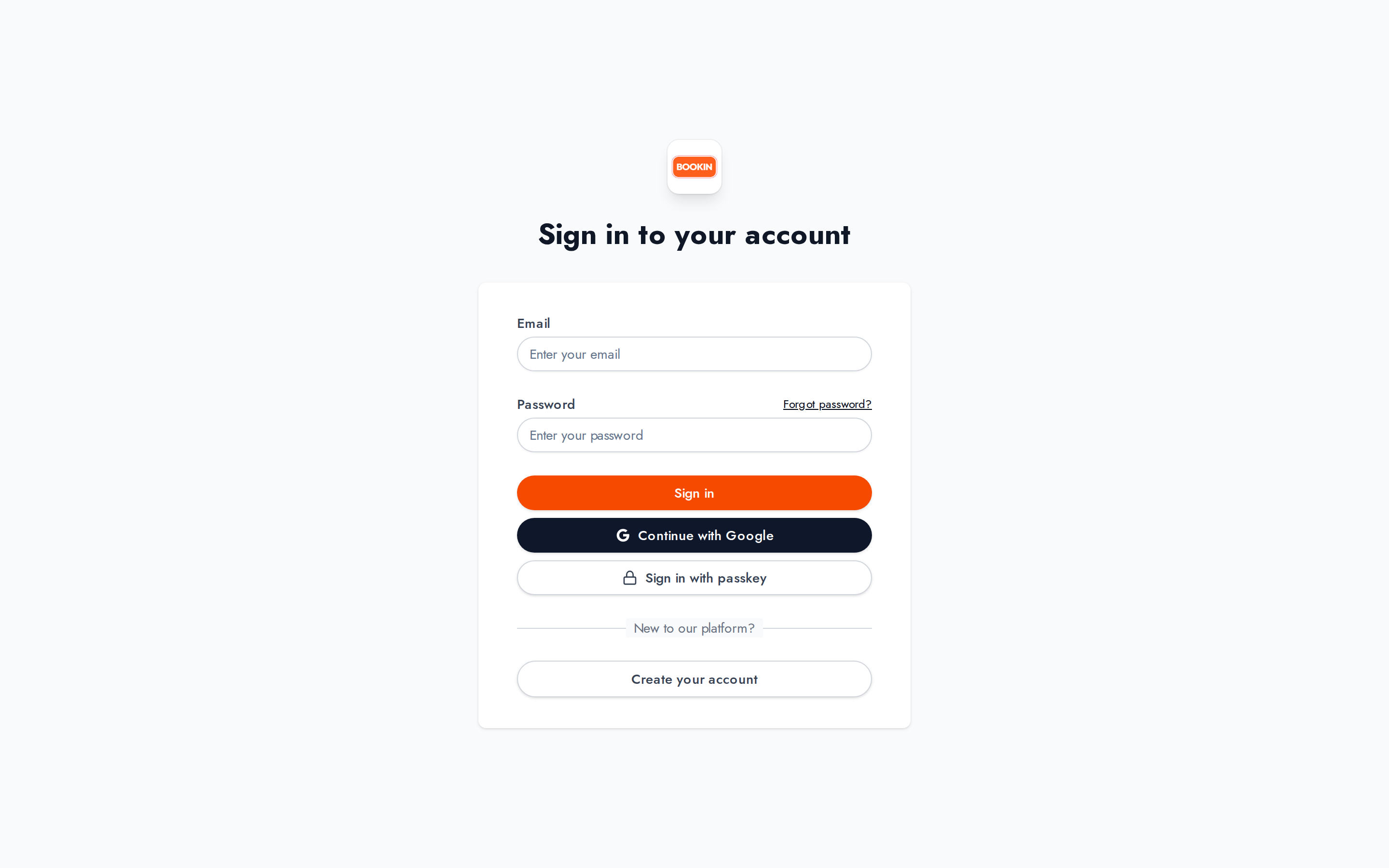
Section titled “Ways to sign in”There are three, and they all land in the same place:
- Email and password — what most people use.
- Continue with Google — signs you in with a Google account. If the email matches an existing BOOKIN account, it’s the same account, not a second one.
- Sign in with passkey — passwordless, using your device’s fingerprint, face or PIN. You have to add a passkey from Settings → Security first; the button is on the sign-in screen whether or not you have one.
Verifying your email after signing up
Section titled “Verifying your email after signing up”A new account can’t do anything until its email is verified. After signing up you’ll see Check your email — “We’ve sent a verification link to your address” — and the account stays in that state until you click the link.
Two things on that screen are easy to miss:
- Resend verification email, if the first one didn’t arrive.
- Use a different email, if you typed it wrong. You don’t need to start again.
Forgot your password
Section titled “Forgot your password”Click Forgot password? on the sign-in screen.
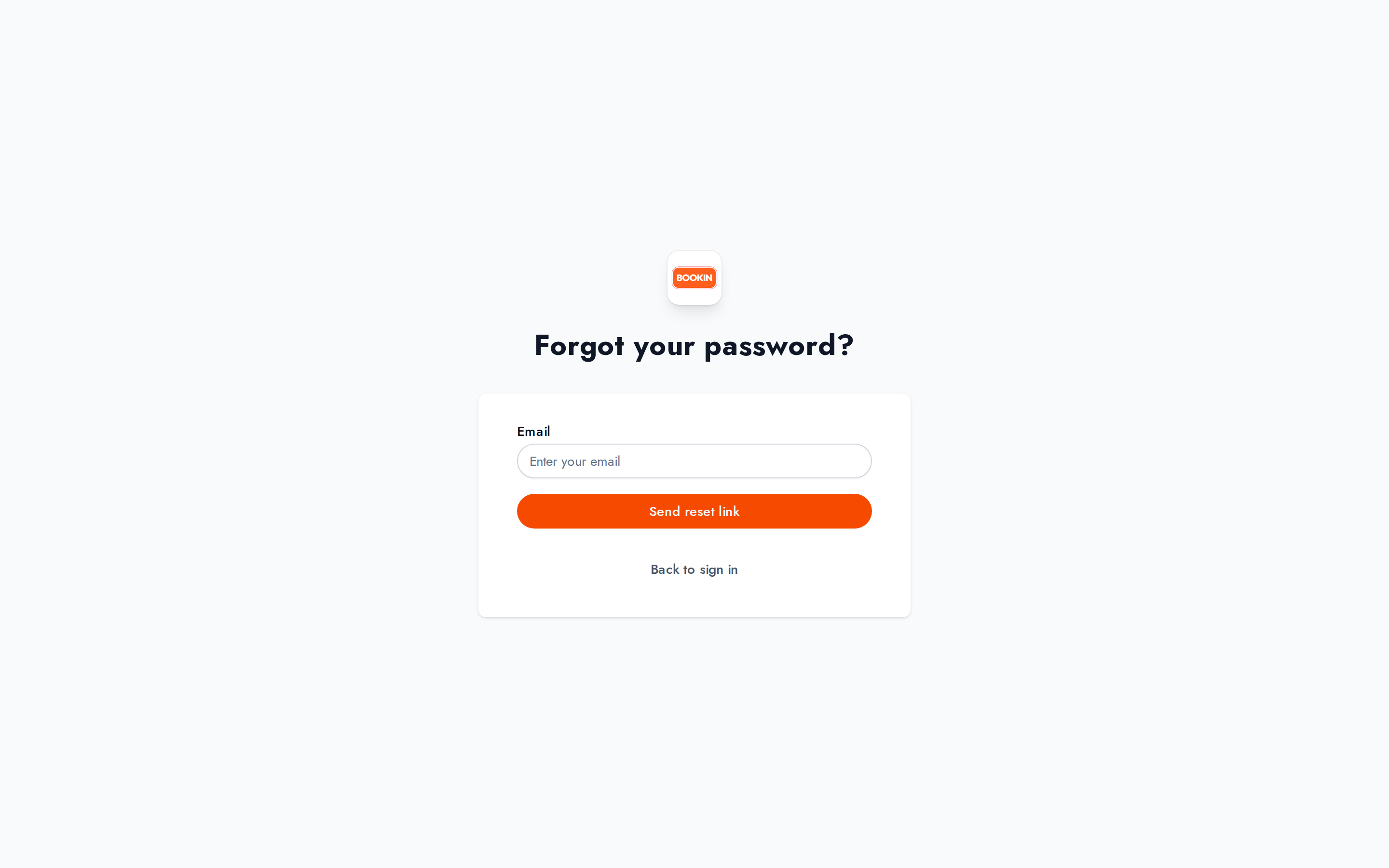
Enter your email and click Send reset link. The mail contains a link to a reset screen where you set a new password. Back to sign in returns you without sending anything.
The link is single-use and expires. If it stops working, request another one — an expired link is the usual reason a reset “does nothing”.
Two-factor verification
Section titled “Two-factor verification”If you’ve enabled two-factor authentication, signing in takes one more step. After your password you’ll get Two-Factor Verification — “Enter the code from your authenticator app to continue” — and a single six-digit field.
The code comes from the authenticator app you set up, not from an email or text message. Codes rotate every 30 seconds; if one is rejected, wait for the next.
Turning 2FA on and off is covered in Settings & Configuration.
Accepting an invitation to a business
Section titled “Accepting an invitation to a business”When an owner invites you, you get an email with a link. What happens next depends on the state you’re in:
| What you’ll see | Why | What to do |
|---|---|---|
| A sign-in prompt | You’re not signed in | Sign in, and you’ll be returned to the invitation |
| A short signup form | You have no BOOKIN account yet | Create one here — the password must be at least 8 characters |
| Successfully joined the organization! | It worked | You’re in; the business appears in your account |
| A wrong-email message | You’re signed in as someone else | Sign out and sign back in with the address the invitation was sent to |
The wrong-email case is the one that catches people: the invitation is tied to a specific address, so being signed in to a different BOOKIN account makes it fail even though nothing is wrong with the invitation.
Belonging to more than one business
Section titled “Belonging to more than one business”If you’re invited into several businesses, they’re all reachable from one account — use the organization switcher at the top of the sidebar. You can’t create extra businesses from inside BOOKIN; additional ones only ever arrive by invitation.
See Dashboard Overview for the switcher.